Login Screen Keyboard Missing? Get Back In Fast
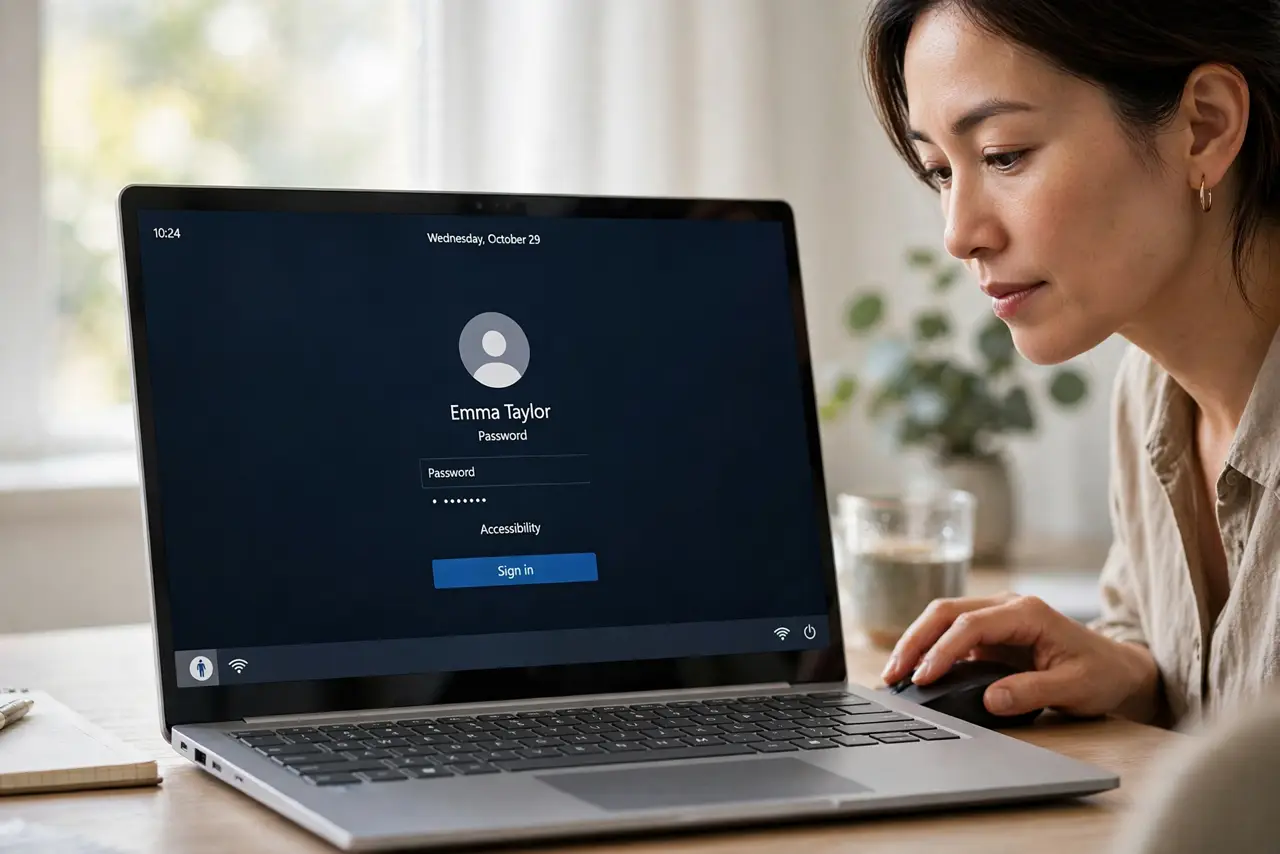
You reach the login screen and the keyboard does nothing, so you cannot type your password or PIN. The on-screen keyboard is the built-in way in, and it works even when the physical keyboard does not.

TL;DR / Quick Fix
Quick fix: on the login screen, open the accessibility menu and turn on the on-screen keyboard, then type your password or PIN with the mouse. Once signed in, reseat or replace the keyboard connection and test it in Notepad afterwards.
Follow these steps
- Open the on-screen keyboard. On the login screen, click the accessibility icon and turn on the on-screen keyboard. A keyboard appears on screen that you can click with the mouse.
- Type your password or PIN. Click the password or PIN field, then click the on-screen keys to enter it. Take care with capitals and numbers, and sign in.
- Reseat the physical keyboard. Once signed in, unplug a USB keyboard and plug it back firmly, or check a wireless keyboard battery and receiver. A loose connection explains many login-screen failures.
- Test the keyboard in Notepad. Open Notepad and type a full line. If it works there, the login-screen failure was a one-time state, not a broken keyboard.
- Restart and test the login screen. Restart the computer and try the physical keyboard on the login screen again before using the on-screen keyboard. A restart clears the stuck state that blocked it.
- Try another keyboard if it still fails. Borrow or connect another keyboard and test it on the login screen. If the second keyboard works, the first keyboard is the fault.
What NOT to do
- Do not reset your password because the keyboard fails. A keyboard that types nothing is an input problem, not a password problem, and a reset will not fix it.
- Do not force a shutdown from the login screen repeatedly. Use the on-screen keyboard to sign in, so you can fix the keyboard from a working desktop.
- Do not assume the on-screen keyboard is only for accessibility needs. It is a built-in recovery tool, and using it here is exactly what it is for.
- Do not ignore a keyboard that fails only at login. A login-only failure still deserves a restart test and a connection check before you replace anything.
Frequently asked questions
How do I open the on-screen keyboard at login?
Click the accessibility icon on the login screen and turn on the on-screen keyboard, then click its keys with the mouse.
Why does the keyboard fail only at login?
The login screen loads input differently from the desktop, so a stuck state or loose connection can block it there while the desktop later works.
What if the on-screen keyboard also fails?
Restart from the login screen power menu and try again. If both keyboards fail after restart, the problem needs a closer look.