Turn Off Apple Intelligence
Writing tools popping up, notification summaries rewriting your alerts, Siri acting different — Apple Intelligence changed how your Mac behaves, and not everyone wants it. Turning it off is straightforward and fully reversible. This guide shows how to disable it and what changes when you do.
TL;DR / Quick Fix
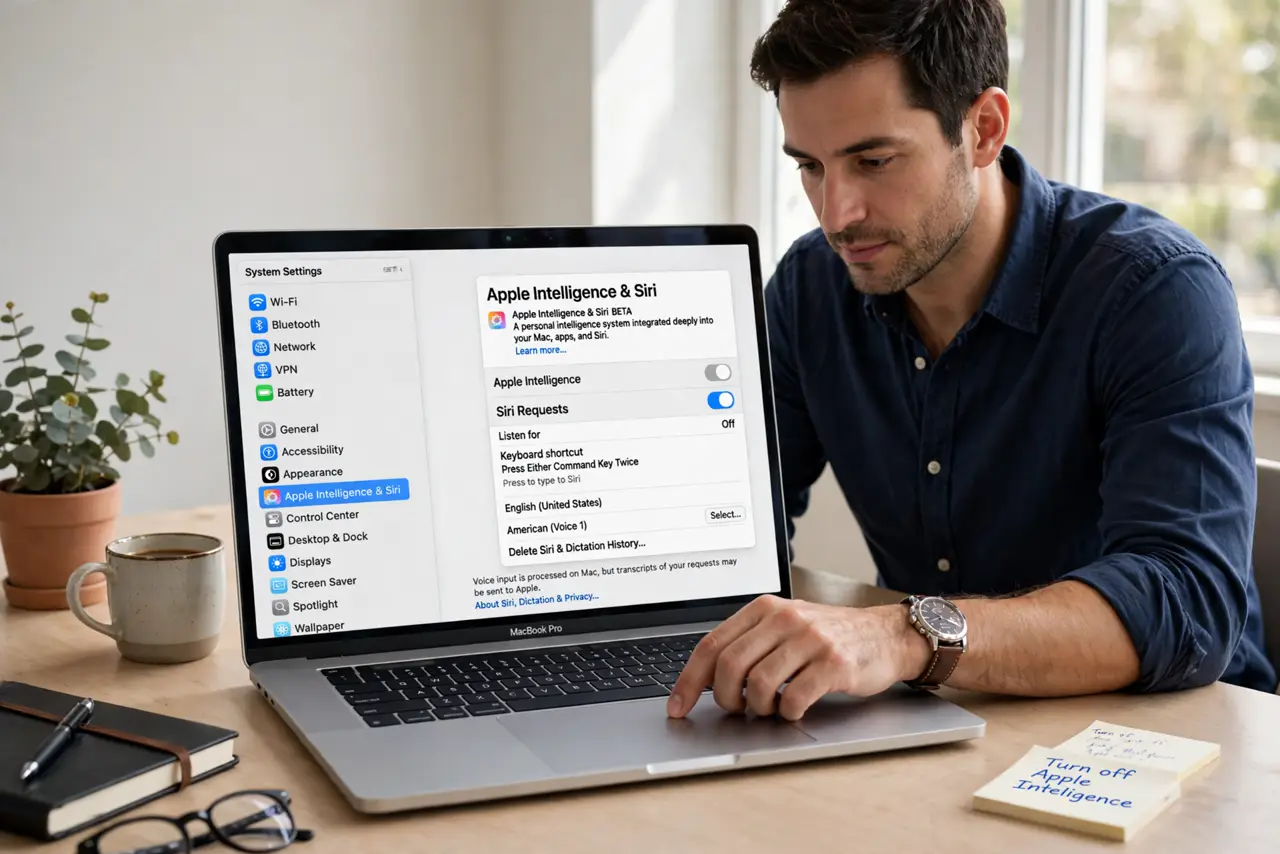
Quick fix: open System Settings, then Apple Intelligence (or Apple Intelligence & Siri), and turn off the Apple Intelligence switch. The AI features — writing tools, summaries, smart replies — stop immediately. Nothing is deleted; turning the switch back on restores everything exactly as it was.
Follow these steps
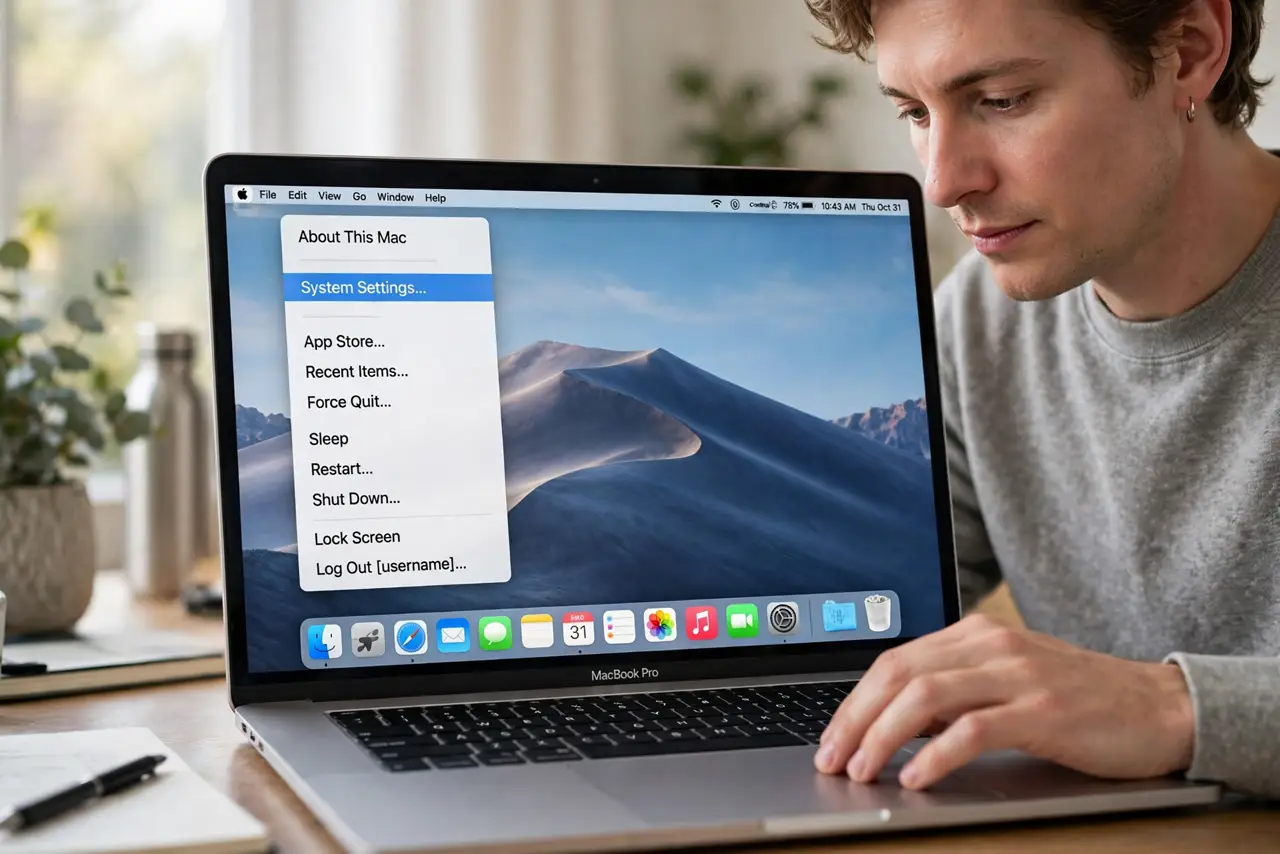
- Open System Settings. Click the Apple menu and choose System Settings, or find it in the Dock or Launchpad.
- Find Apple Intelligence. Click Apple Intelligence in the sidebar — on some versions it sits under Apple Intelligence & Siri. The main toggle is at the top.
- Turn the switch off. Toggle Apple Intelligence off and confirm if asked. The features deactivate immediately across the system.
- Know what changes. Writing tools, notification summaries, smart replies, and the new Siri behaviors stop. Your Mac works exactly as it did before — no features you had are removed, the AI layer just goes quiet.
- Check per-app leftovers. A few apps keep their own AI-adjacent settings — glance at Mail and Messages settings if summaries still appear somewhere.
- Turn it back on anytime. Revisit the same switch to re-enable. Your settings and data are preserved — nothing about disabling it is destructive.
What NOT to do
- Do not expect old Siri back completely. Disabling Apple Intelligence quiets the AI features, but some interface changes stay.
- Do not delete things trying to 'remove' it. There is nothing to uninstall — the toggle is the entire mechanism.
- Do not assume it is spying when on. The processing is largely on-device by design — but the toggle exists for those who simply prefer it off.
- Do not forget it is per-Mac. Disabling it on your Mac does not change your iPhone — each device has its own switch.
Frequently asked questions
Will turning it off delete anything?
No — no files, photos, or settings are deleted. The AI features simply stop running until you re-enable them.
Does it speed up my Mac?
On older supported Macs, some users notice slightly snappier behavior with it off, since the AI models no longer run in the background.
Can I disable just one feature?
Some features have individual toggles — notification summaries and writing tools can often be switched off separately while keeping the rest.