Read the Battery Menu
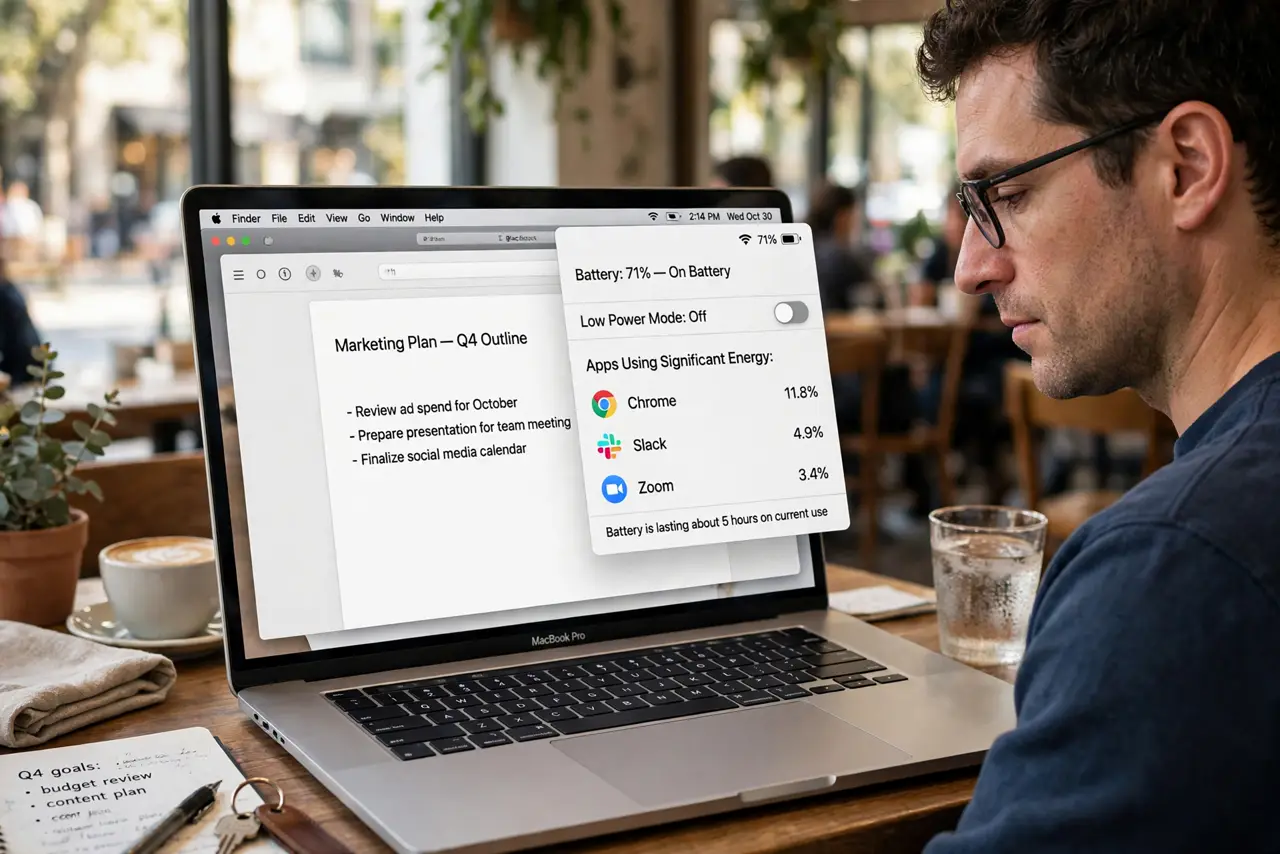
Your MacBook dies by lunch and you have no idea why — some app is drinking power in the background, invisible. The battery menu in the menu bar names the culprits: which apps used significant energy, and your battery's health. Here is how to read it like a diagnostic tool.
TL;DR / Quick Fix
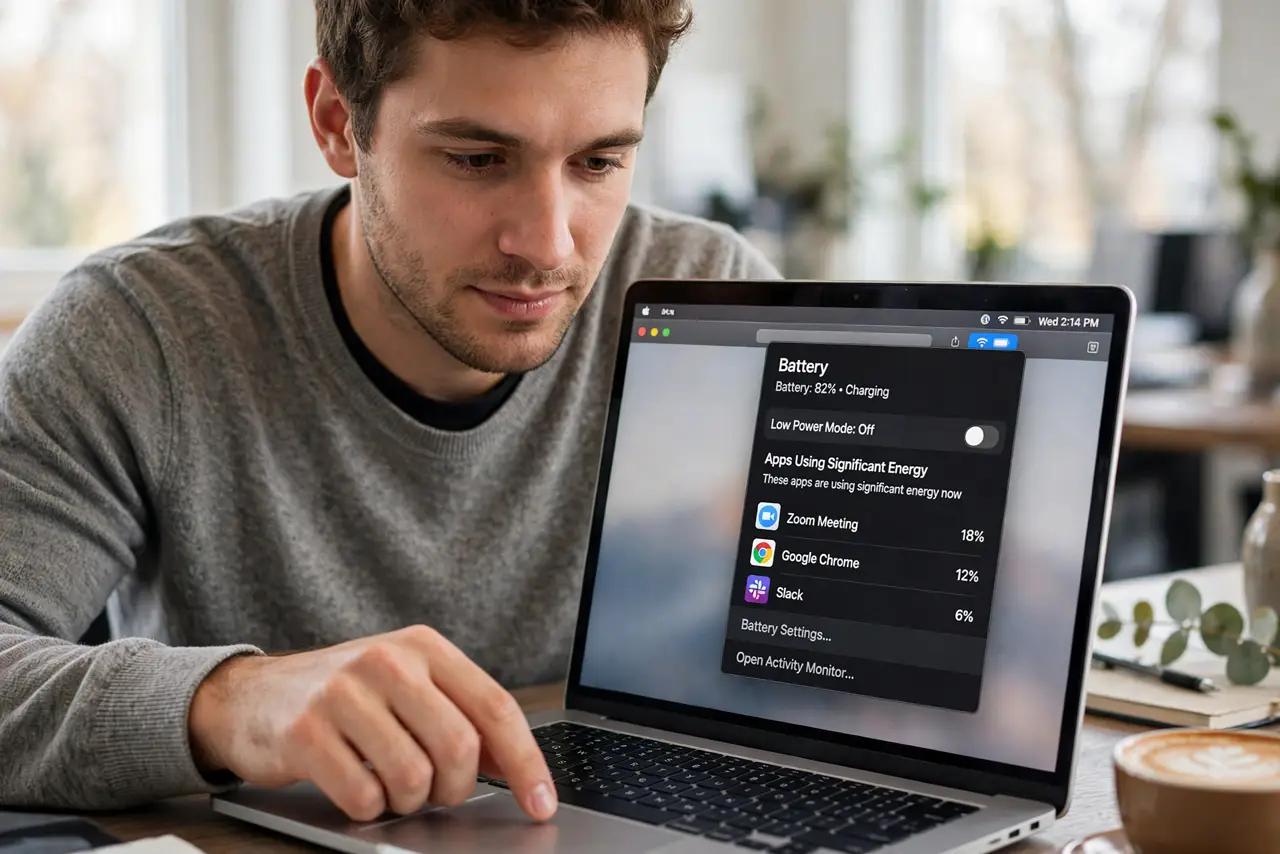
Quick fix: click the battery icon in the Mac menu bar — it names the apps using significant energy right now. Quit or update the worst offenders. If nothing explains the drain, check battery health in System Settings; a worn battery drains fast no matter what.
Follow these steps
- Click the battery icon. In the menu bar, click the battery icon to open the menu. The top section lists apps using significant energy — your suspects, named plainly.
- Quit the offenders. A browser with forty tabs or a runaway helper tops the list most days. Quit what you do not need — see the fast-drain fixes if quitting does not help.
- Check battery health. In System Settings, Battery, look at battery health. A degraded battery drains fast regardless of apps — see the sudden health drops for when health falls off a cliff.
- Review the usage history. The Battery settings show 24-hour and 10-day usage graphs. Patterns — dead by noon daily — point at habits more than apps.
- Tune the energy settings. Optimized charging, low power mode, display brightness — the Battery settings page holds the levers. Windows users have the parallel energy recommendations page.
- Know when it is hardware. If health is poor and the drain is constant, the battery is worn. No setting fixes chemistry — service is the answer.
What NOT to do
- Do not chase every percentage. Batteries drain; that is their job — investigate patterns, not single bad days.
- Do not keep forty tabs as a lifestyle. The single most common significant-energy app is the browser you never close — bookmark and quit.
- Do not ignore the health reading. A battery at 70 percent health will never behave like new — adjust expectations or replace it.
- Do not max brightness to fight glare outdoors. High brightness is the fastest drain there is — shade the screen instead.
Frequently asked questions
What does significant energy mean?
macOS flags apps using notably more power than expected. One flag is normal; the same app daily is a pattern.
Why does the menu show different apps each time?
It reflects recent use — the list is a rolling window, not a lifetime ranking. Watch for repeats.
Should I use Low Power Mode always?
It helps battery life modestly. For daily use it is fine; for heavy work it throttles performance noticeably.