Add Travel Time to Events
The meeting is at 2:00 across town, so you leave at 1:55 and arrive at 2:20, flustered. The Calendar app on Mac can add travel time to events — blocking out the journey before the meeting starts, with location-aware estimates. It takes one minute to set per event and ends the chronic lateness. Here is where the setting hides.
TL;DR / Quick Fix
Quick fix: the Mac Calendar app can block travel time before events so you stop arriving late. Edit an event, add a location, then set Travel Time — Calendar estimates the journey and blocks it. It also powers time-to-leave alerts on iPhone. One minute per event ends chronic lateness.
Follow these steps
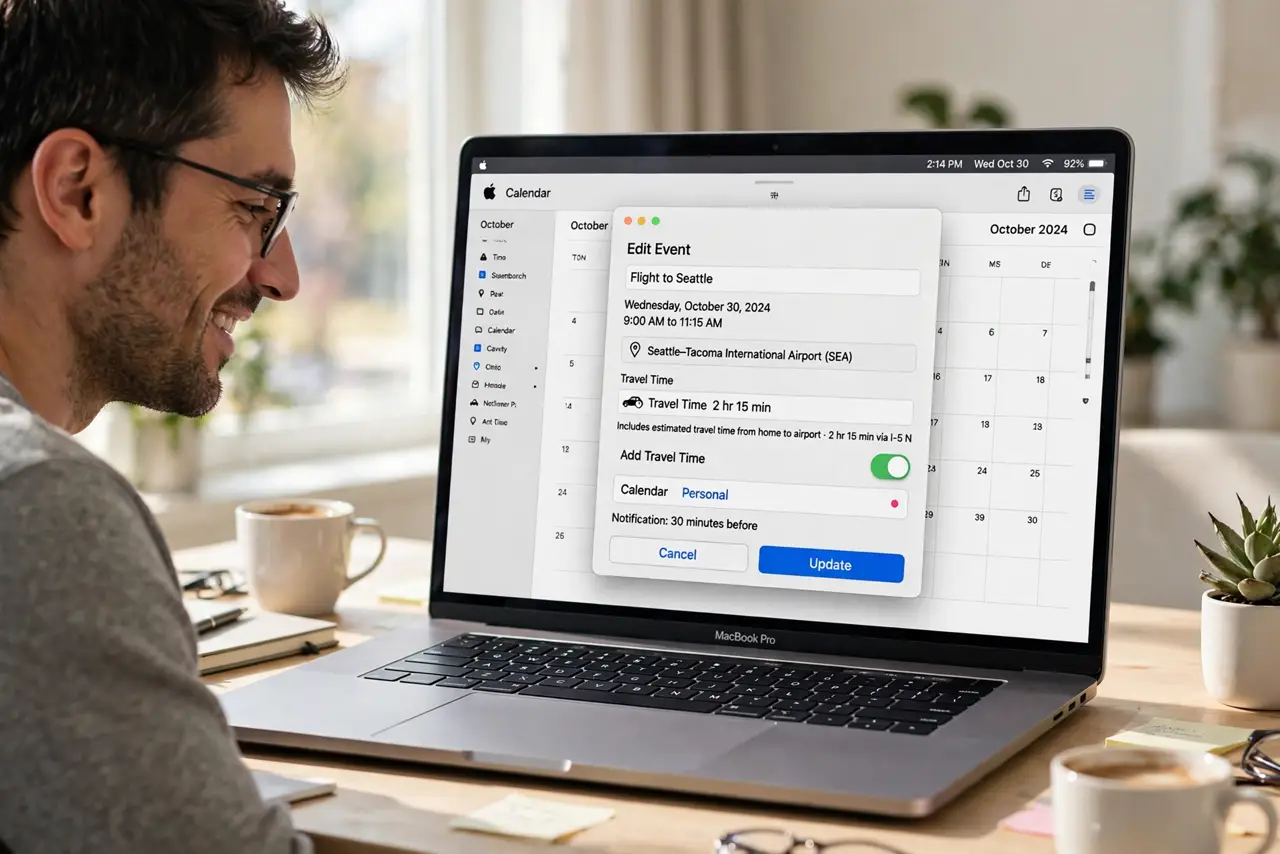
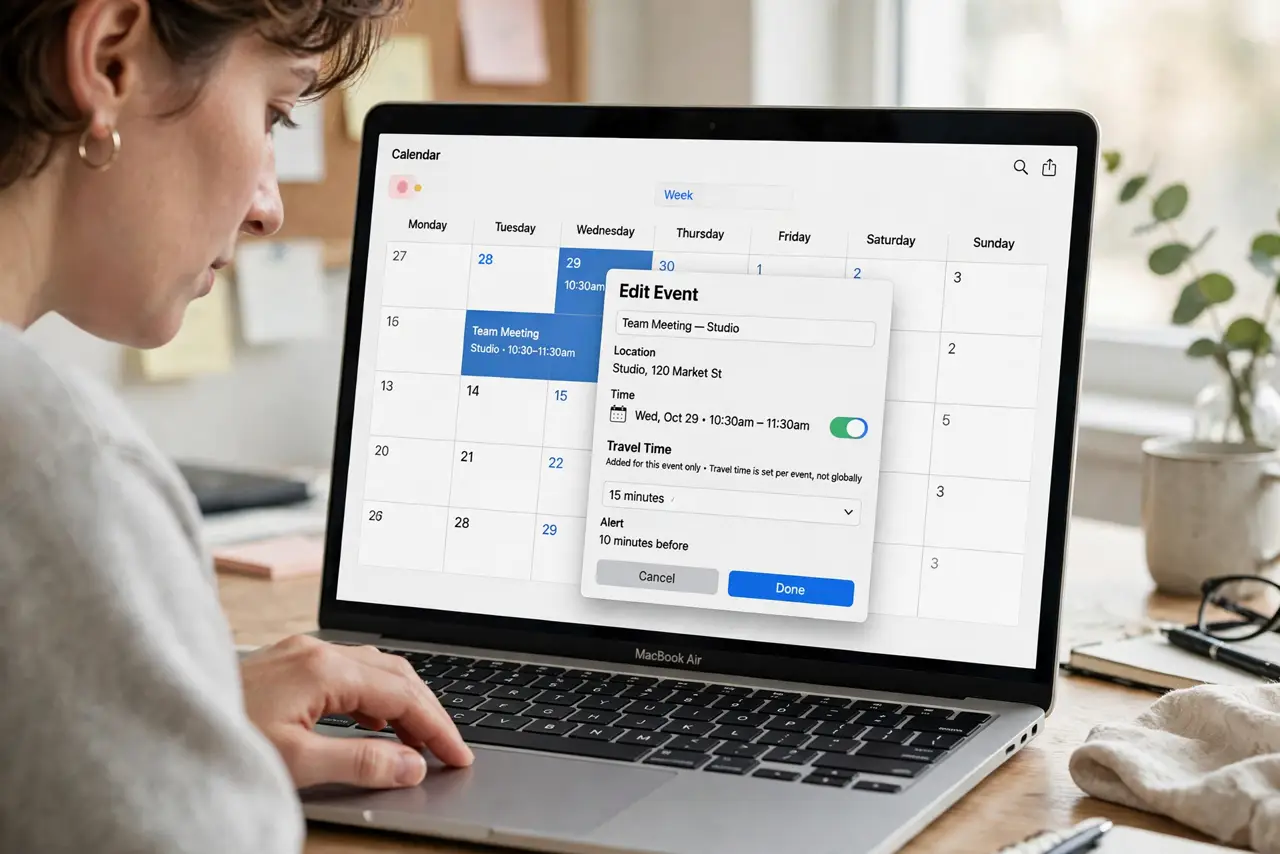
- Open the event for editing. Double-click any event in the Calendar app. Travel time is a per-event setting, not a global one — you add it where it matters.
- Add a location first. Type the meeting address in the location field. Without a location, Calendar cannot estimate anything — this step unlocks the travel time option. If it is missing, see the travel time not showing guide.
- Set the travel time. Below the location, choose Travel Time and pick an estimate — 15 minutes, an hour — or let Calendar suggest based on the location. The block appears on your calendar before the event.
- Check the schedule view. Your calendar now shows the journey as a shaded block. Back-to-back meetings with travel between them become visibly impossible — which is the point.
- Pair it with time-to-leave alerts on iPhone. The same travel data powers iPhone time-to-leave notifications. The iPhone travel-time guide covers the phone side.
- Make it a habit for off-site events. Any event with an address gets travel time. Thirty seconds of setup per event beats the apology email every single time.
What NOT to do
- Do not set travel time on video calls. Blocking a commute for a video meeting just eats your day — reserve it for events with a real address.
- Do not trust the estimate blindly at rush hour. Calendar's guess is a starting point; add buffer for traffic you know exists.
- Do not expect it to reschedule around conflicts. Travel time shows the clash — it will not move your meetings for you.
- Do not skip the location field. No location, no travel time option — the two are linked, and a vague downtown still beats nothing.
Frequently asked questions
Does travel time sync to my iPhone?
Yes — it is part of the event, so it syncs through iCloud to all your devices, where it also feeds time-to-leave alerts.
Can I set a default travel time for all events?
No — it is per event. But Calendar remembers your last choice, so repeat events go faster after the first one.
Why is the travel time option missing?
The event needs a location first, and the calendar must be an iCloud or compatible account. The missing travel-time fix walks through the causes.