Calendar Travel Time Does Not Show
You add an event with a location, but the Calendar never shows how long the trip takes. Travel time needs a real address and location permission — without both, the calendar stays silent about the drive.
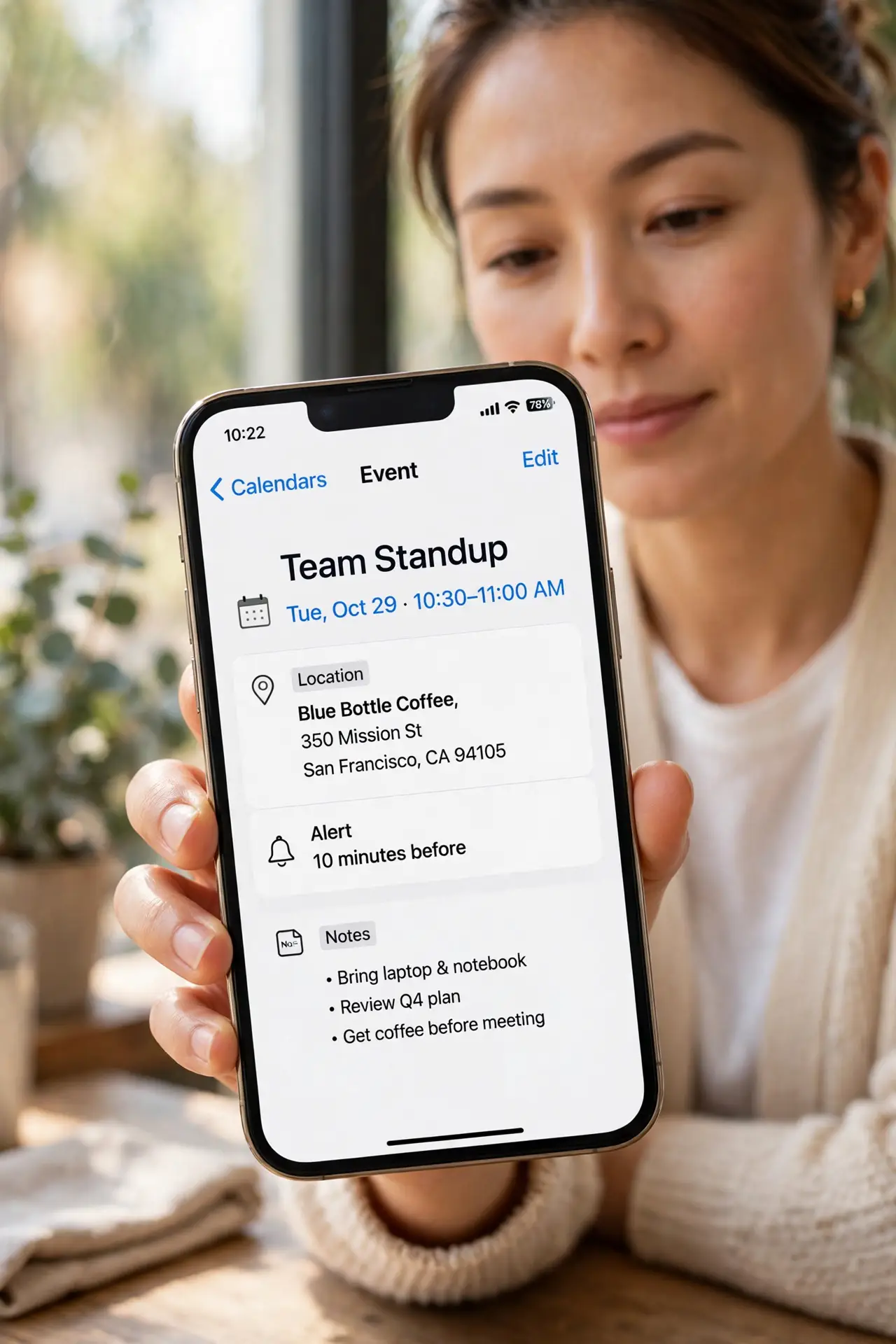
TL;DR / Quick Fix
Quick fix: open the event, tap Location, and enter a full street address — not just a place name. Then open Settings, then Privacy, then Location Services, and allow Calendar to use your location. Travel time appears once both are set.
Follow these steps
- Enter a full address, not a name. Open the event, tap Location, and type the street address. A bare name like 'dentist' gives the calendar nothing to route, so no travel time appears.
- Allow Calendar to use location. Open Settings, then Privacy and Security, then Location Services, then Calendar, and choose While Using the App. Without location, the calendar cannot compute the trip.
- Check the event has a start location. Travel time measures from where you are — or from the previous event's location. An event with no usable start point cannot show a duration.
- Turn on Time to Leave alerts. In the event, enable the travel-time alert. The calendar then warns you when to leave, which is the payoff for setting the address correctly.
- Check Maps can route the address. Open Maps and search the same address. If Maps cannot find it either, the address is the problem — fix it there and the calendar follows.
- Check the calendar you are using. Travel time works best with iCloud calendars. Some subscribed or work calendars limit location features, so test the same event on your personal calendar.
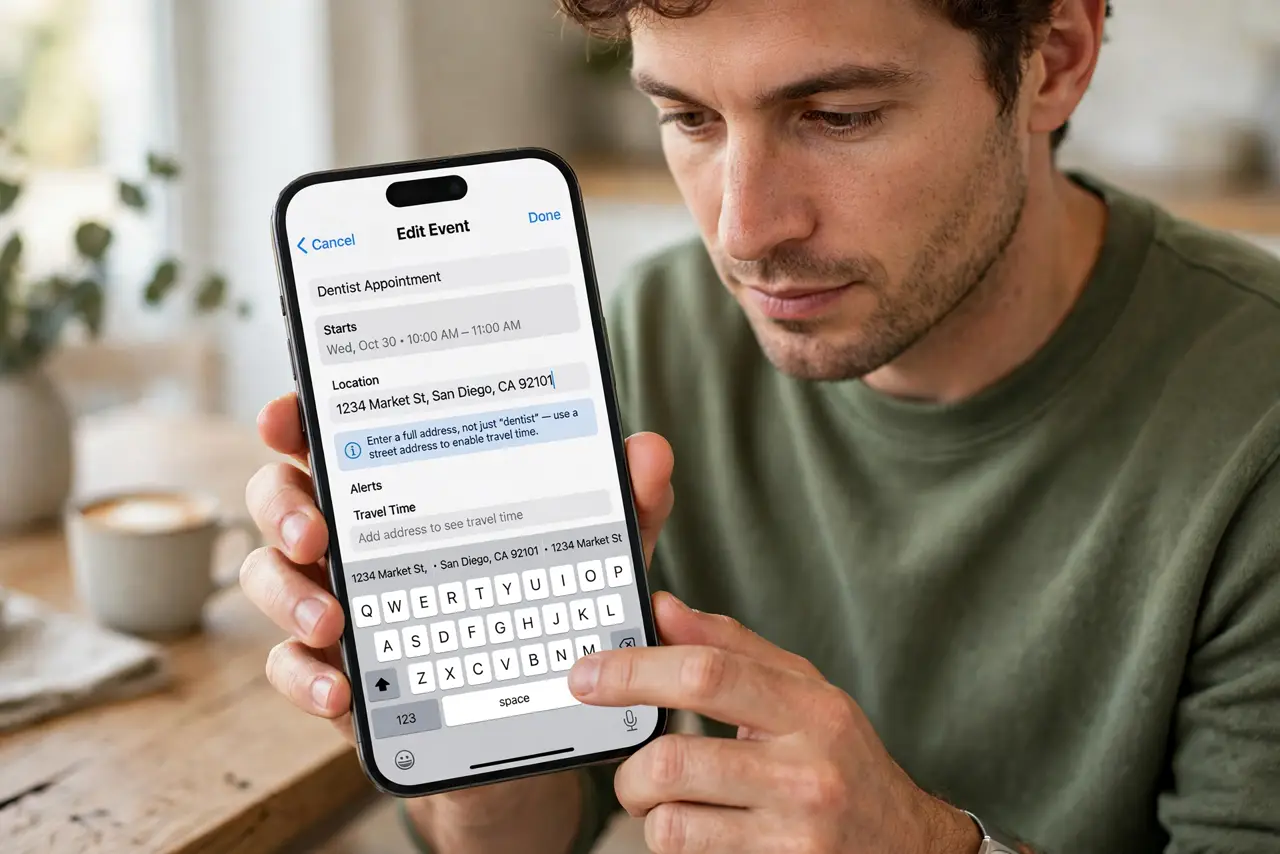
What NOT to do
- Do not type the address into the notes field. Notes are plain text — only the Location field feeds the routing that computes travel time.
- Do not expect travel time without location permission. The calendar cannot measure a trip from nowhere, so the permission is not optional here.
- Do not trust travel time for a brand-new address blindly. Check the route in Maps once; a wrong autocomplete pick sends the estimate — and you — the wrong way.
- Do not leave Location Services off to save battery and expect travel features. The battery saving is tiny, and the calendar feature simply will not work.
Frequently asked questions
Why does travel time show for some events only?
Only events with a full routable address and location permission get estimates. A place name alone is not enough.
Does travel time account for traffic?
It gives a standard estimate and can warn you to leave, but always check live traffic in Maps before an important trip.
Can I set a custom starting point?
Yes. Chain events with addresses back to back, and the calendar routes from each event's location to the next.