Set Contact Posters
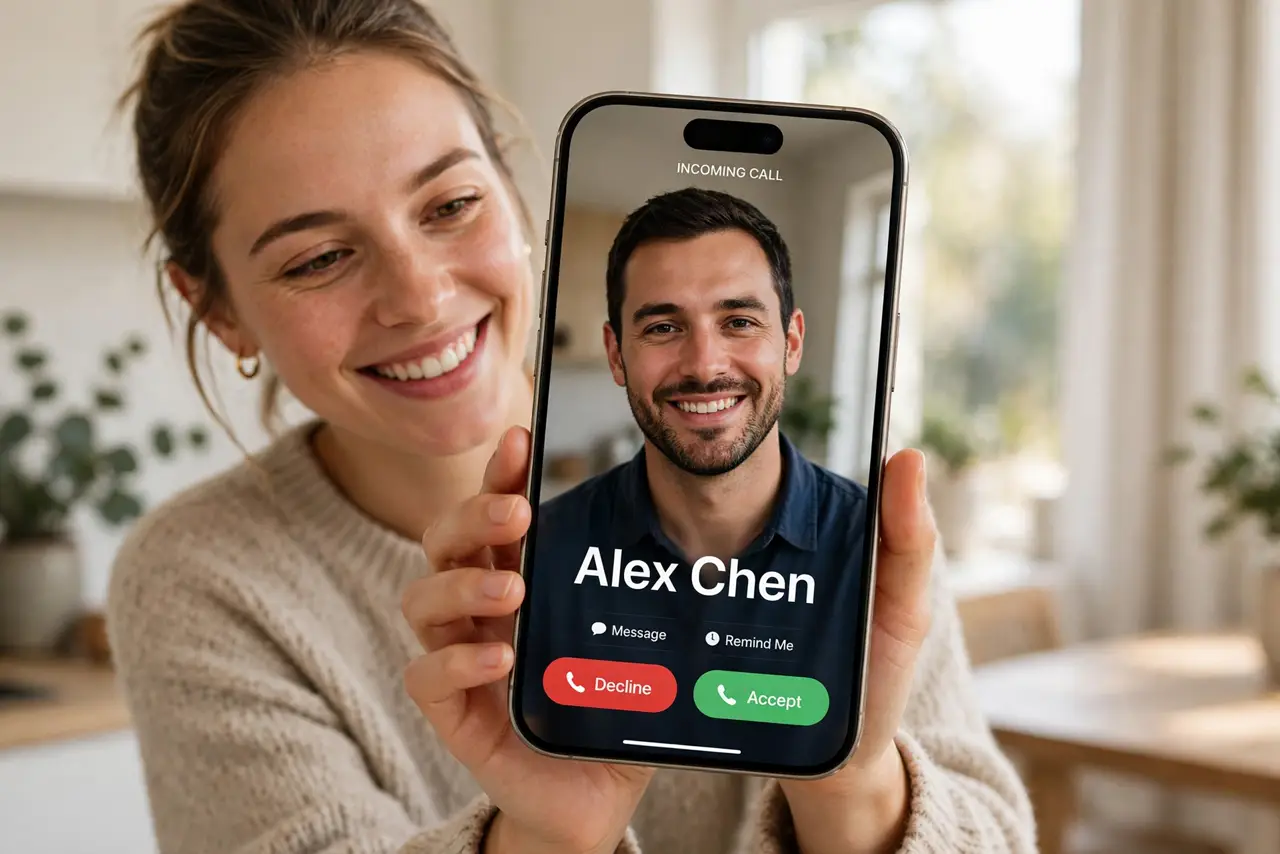
Everyone's incoming calls look the same — a tiny circle photo and a name — and yours could look like a movie title card instead. Contact Posters turn your caller ID into a full-screen design: a big photo, Memoji, or styled typography that fills your friends' screens when you call. You design yours once in the Contacts app, and it follows your Apple Account everywhere.
TL;DR / Quick Fix
Quick fix: Contact Posters are the full-screen photo and typography people see when you call — set yours in Contacts by editing your card and choosing a photo, Memoji, or styled initials. Posters show for people who have you saved, and both sides need a recent iOS or macOS.
Follow these steps
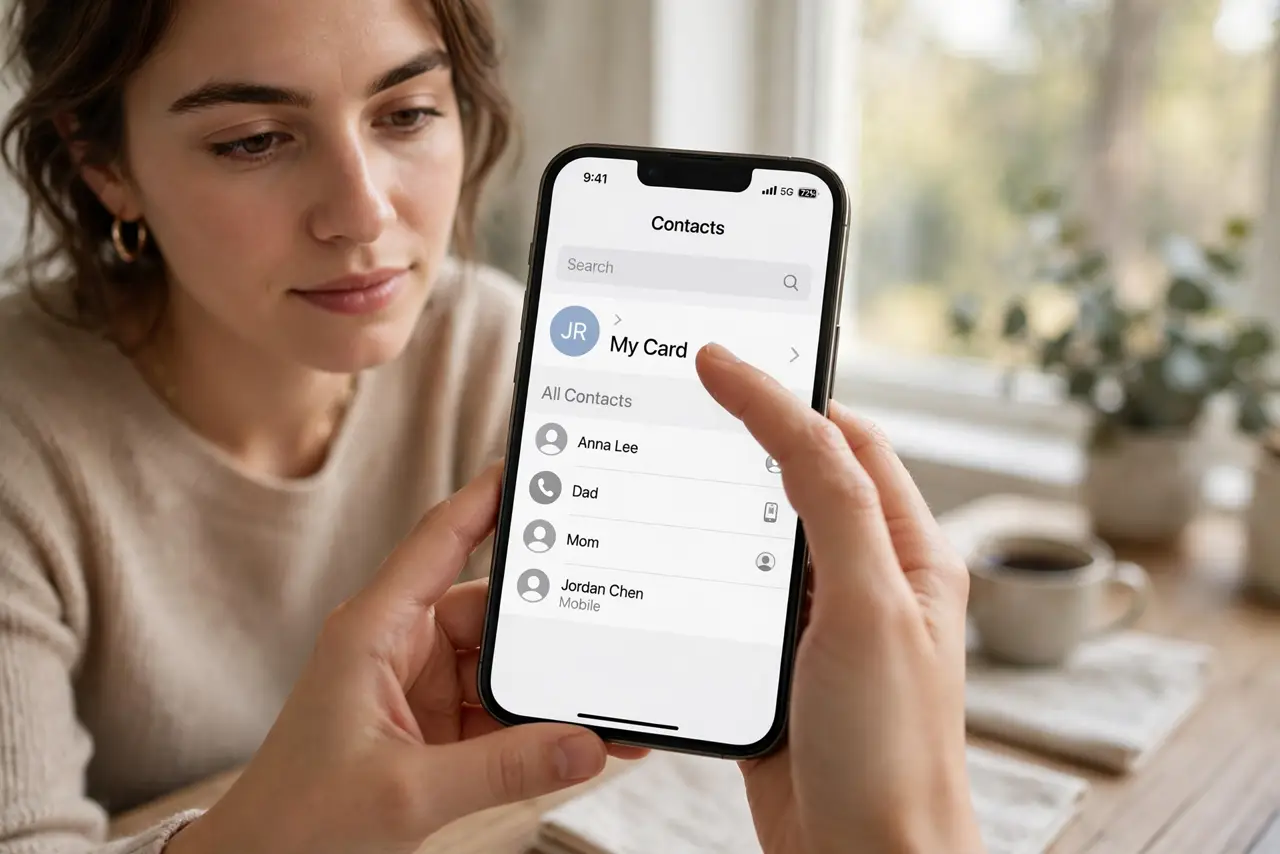
- Open your card in Contacts. On iPhone open Contacts and tap your own card at the top (My Card); on Mac, open Contacts and find yourself. Everything about your poster lives on this one card.
- Choose your poster style. Tap Contact Photo & Poster, then pick: a photo (cropped full-screen), a Memoji with a pose and background, or monogram initials with colors and fonts. Each is fully customizable — this is your caller ID, so make it look like you.
- Preview how it looks. The editor shows a live preview of the incoming-call screen. Check it at a glance the way a friend would — if the photo is too dark or the name unreadable, fix it now, not after a hundred calls.
- Turn on Name & Photo Sharing. Your poster only reaches people if sharing is enabled — set it to Contacts Only so everyone who has you saved sees the new design. Without sharing on, nobody sees anything change.
- Know who actually sees it. Posters appear for contacts who have your number saved and run a recent iOS or macOS. Older phones and non-Apple phones still get the classic small-photo view — the poster is a bonus, not a replacement.
- Fix it when it does not show. If a friend sees the old view, check: sharing enabled, they have you in contacts, and both devices updated. The iPhone poster guide covers the phone-side details; persistent failures are covered in posters not showing.
What NOT to do
- Do not use an embarrassing photo as a joke. Your poster appears on work calls too — the joke expires, the poster persists.
- Do not share with Everyone instead of Contacts Only. Broadcasting your photo and name to every caller is a privacy downgrade for zero benefit.
- Do not expect it on every call. Old devices, carriers, and non-Apple phones will not render it — design for the poster, accept the fallback.
- Do not forget it exists after setting it. Update the photo every year or two; a five-year-old poster is the new outdated profile picture.
Frequently asked questions
Do Contact Posters work on Mac calls?
Yes — FaceTime audio calls on Mac show posters for contacts on recent macOS versions. Set the poster once and it follows your Apple Account.
Can I set different posters for different people?
No — one poster per card, shown to all contacts. Pick the version of you that works for everyone.
Why does my friend see my old photo?
Usually sharing is off, they do not have you saved, or one device needs an update — walk through the three checks in step 6.