Widgets on the Desktop? Setup
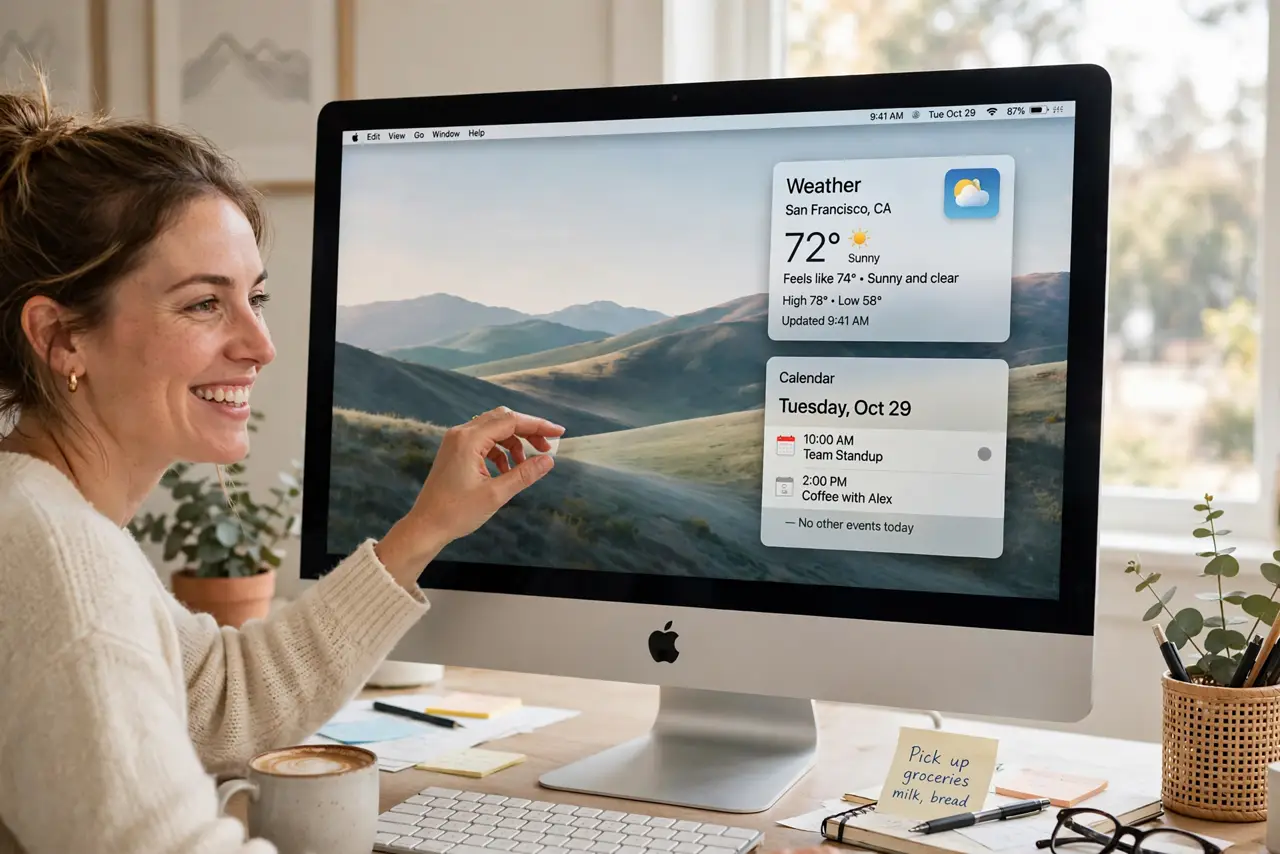
macOS lets you pin widgets — weather, calendar, reminders, clocks — right on the Desktop, not just in Notification Center. Done well, your wallpaper becomes a glanceable dashboard; done badly, it's clutter over your beautiful background. Here's the tasteful setup.
TL;DR / Quick Fix
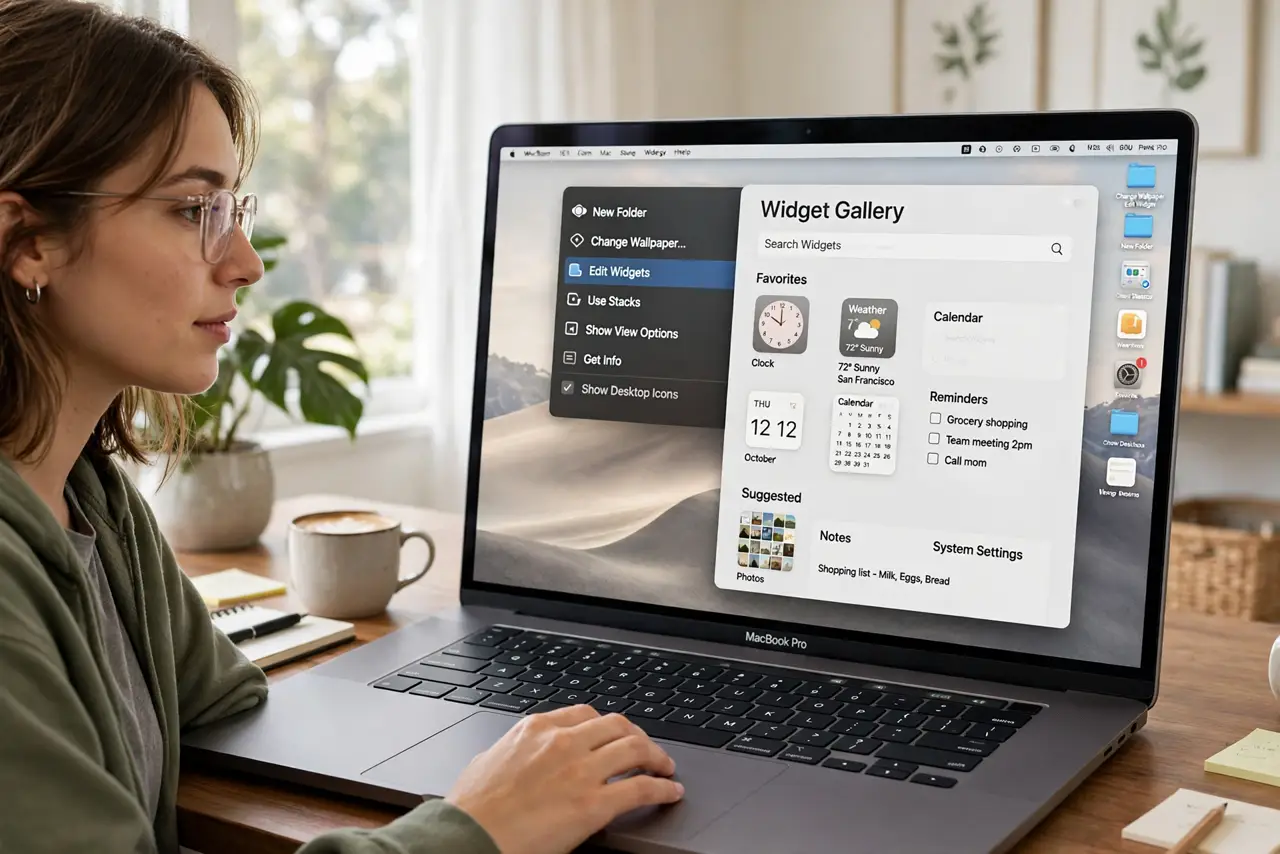
Quick fix: right-click the Desktop and choose Edit Widgets, then drag the ones you want onto the Desktop. Keep it to three or four essentials — weather, calendar, reminders. Right-click any widget to remove it or change its size later.
Follow these steps
- Open the widget gallery. Right-click the Desktop > Edit Widgets. The gallery shows every widget your installed apps offer.
- Drag widgets onto the Desktop. Drag them where you want them — they snap to a tidy grid. Start with the classics: Clock, Weather, Calendar, Reminders.
- Resize and arrange. Right-click a placed widget to switch sizes. Big widgets for glanceable info, small ones for the corners.
- Keep the count low. Three or four widgets read as a dashboard; twelve read as a mess. If you need more info, Notification Center still holds the overflow.
- Match widgets to your wallpaper. Widgets tint to the wallpaper — light widgets on busy photos get lost. A calmer wallpaper area behind the widgets keeps them readable.
- Borrow iPhone widgets too. With the same Apple ID nearby, iPhone widgets appear in the Mac's gallery — handy, though they can show stale data if the phone's been offline.
What NOT to do
- Do not cover your whole wallpaper. Widgets are glanceable helpers, not a second desktop — leave breathing room.
- Do not add widgets for apps you never open. A widget for a dead app is decoration that quietly goes stale.
- Do not expect widgets to update instantly. They refresh on a schedule — a weather widget can lag the actual sky by a while.
- Do not confuse Desktop widgets with the old Dashboard. This is the modern system — Dashboard is long gone, and these widgets live in the open.
Frequently asked questions
Do Desktop widgets drain the battery?
Barely — they refresh periodically, not constantly. A handful of widgets costs less than one open browser tab.
Why is a widget showing old information?
Its refresh failed — usually a network blip or the source app needing to be opened once. Remove and re-add the widget to force a fresh pull.
Can I put widgets anywhere?
They snap to an invisible grid with margins from the screen edges. Close enough to free placement for practical purposes.