Find Duplicate Photos on Mac?
Years of imports, bursts, and edited copies leave every photo library full of duplicates — the same shot three times, eating storage and cluttering memories. Since macOS Ventura, the Photos app finds them for you and merges them safely. This guide shows where the tool lives and how to merge without losing anything.
TL;DR / Quick Fix
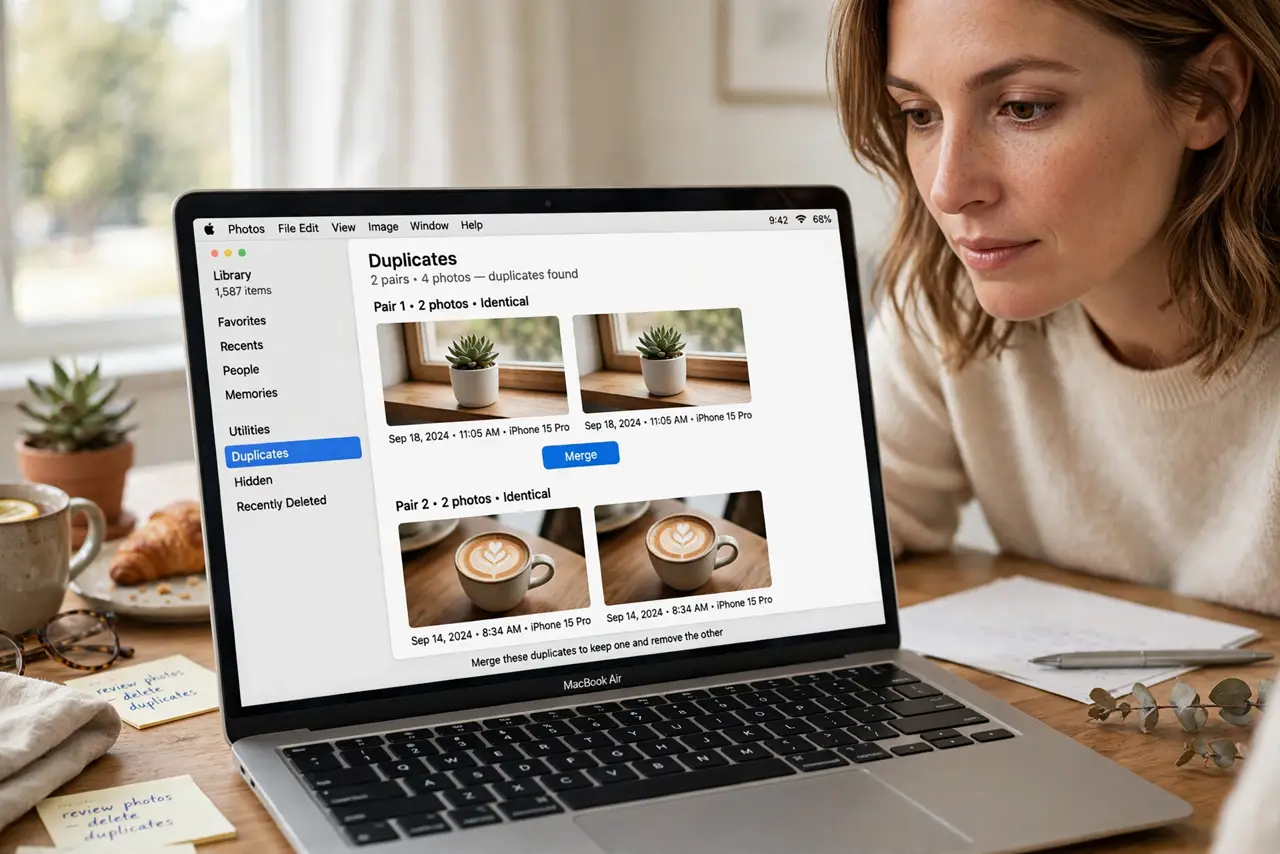
Quick fix: the Photos app on Mac finds duplicates automatically — open Photos, scroll the sidebar to Utilities, Duplicates. Select dupes and click Merge to keep the best version with combined metadata. Review before merging; similar is not identical. Back up your library before any bulk cleanup.
Follow these steps
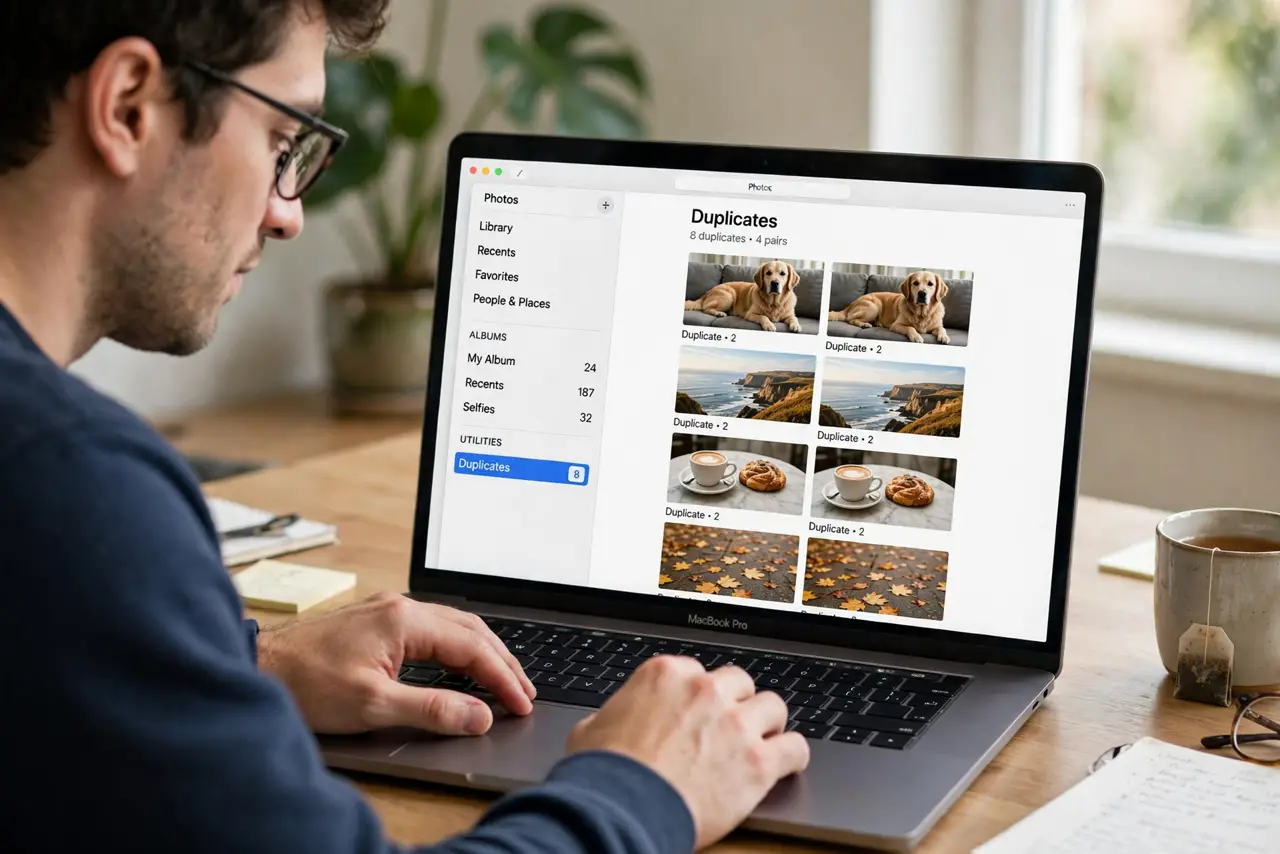
- Open the Duplicates album. In Photos, scroll the sidebar to Utilities and click Duplicates. macOS scans in the background — the album appears once it finds pairs (on macOS Ventura or later).
- Review each pair. Photos shows duplicates side by side. Check they are truly identical — similar burst frames are not duplicates, and merging those loses shots you might want.
- Merge, do not delete. Click Merge (or Merge All after reviewing). Merging keeps the highest-quality version and combines metadata like keywords and favorites — safer than deleting one copy by hand.
- Know what merge keeps. The best-quality image wins; edits, favorites, and keywords from all copies combine into it. Nothing you cared about is silently dropped.
- Handle older macOS manually. On macOS before Ventura there is no Duplicates album — use Smart Albums sorted by date to spot clusters, or a trusted dedupe app. Upgrading macOS is the easier path if your Mac supports it.
- Back up first. Before any bulk merge, make sure Time Machine has a fresh backup. Merges are safe, but a backup makes 'safe' into 'certain.'
What NOT to do
- Do not Merge All blindly. Burst sequences and similar-but-different shots look like duplicates at a glance — review first, especially for important events.
- Do not delete instead of merging. Deleting one copy by hand loses its unique metadata; merging combines the best of both.
- Do not run third-party cleaners casually. Shady 'duplicate cleaners' have deleted entire libraries — the built-in tool is safer than any download.
- Do not skip the backup. Merging is designed to be safe, but bulk operations on irreplaceable photos deserve a fresh backup first, always.
Frequently asked questions
Where is the Duplicates album?
Photos sidebar, under Utilities — it appears only on macOS Ventura or later, and only after Photos finishes its background scan for duplicates.
Does merging save storage?
Yes — duplicates share storage until merged, and merging reclaims the difference. Large libraries can free gigabytes.
Can I undo a merge?
Not directly — which is why the backup matters. Merged items go through Recently Deleted for 30 days, giving you a recovery window.