Control the Fans? Basics
Your Mac's fans spin up like a jet during a video call, or never seem to spin at all -- and you wonder whether you should take control. macOS manages fans automatically and usually knows best, but heat, dust, and heavy workloads create situations where understanding (and cautiously adjusting) fan behavior helps. Here is what is normal, what is not, and what you can safely do.
TL;DR / Quick Fix
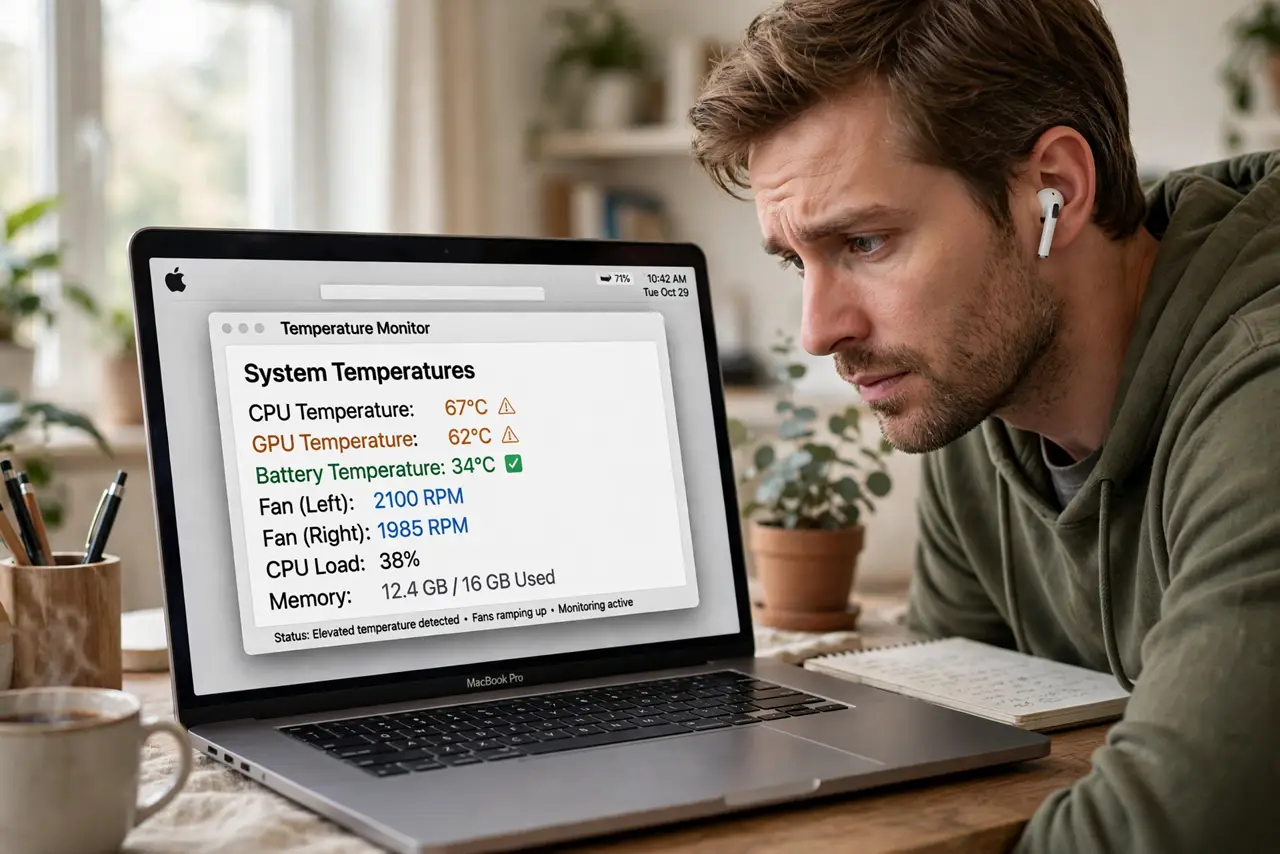
Quick fix: Mac fans are automatic -- loud fans under heavy load are normal, and silent MacBook Airs have no fans at all. Constant fans at idle mean a runaway process or dusty vents -- check Activity Monitor first. Manual fan apps exist, but overriding Apple's curves usually backfires.
Follow these steps
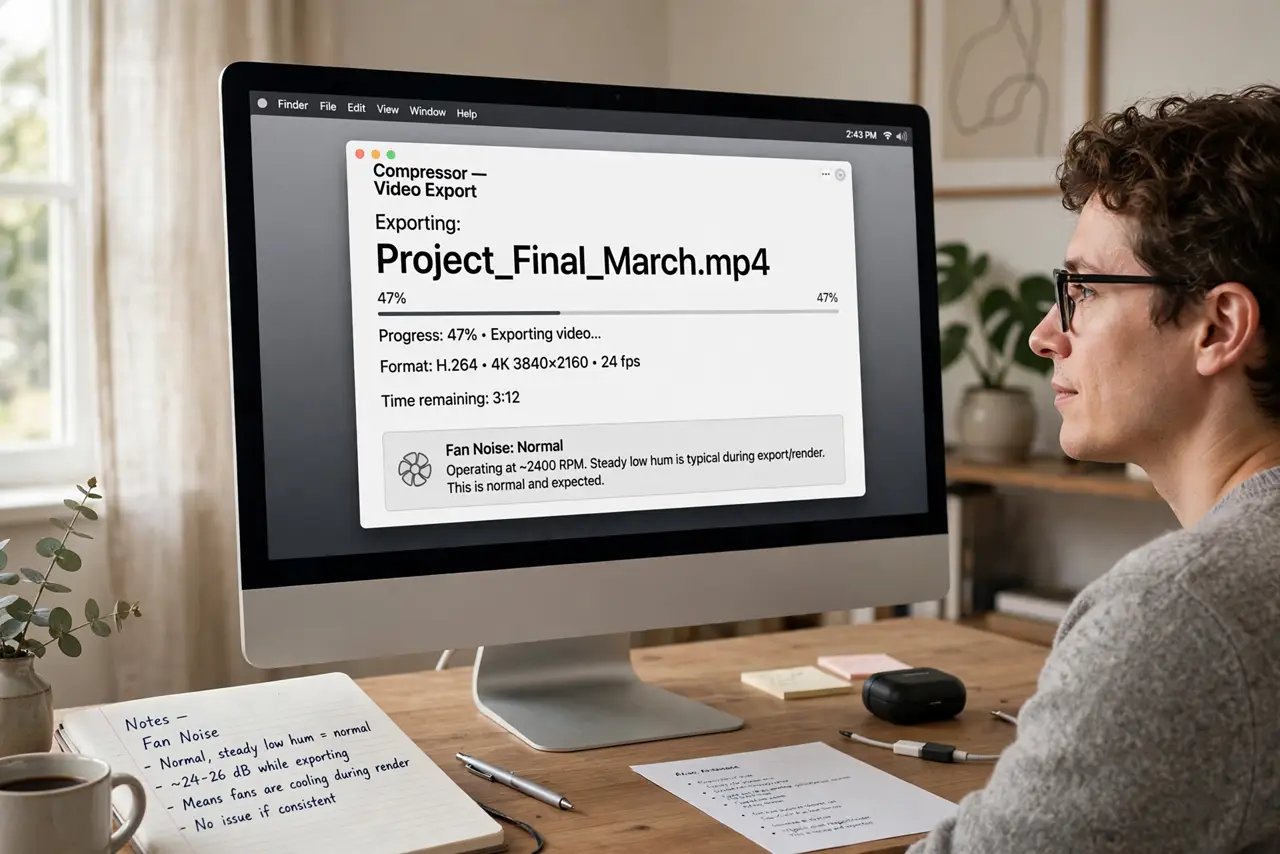
- Know what normal sounds like. Fans ramping during video exports, games, or long calls is the system working as designed. Silence on a MacBook Air is also normal -- it has no fans. Worry about constant full-blast at idle, not noise under load.
- Check Activity Monitor first. A process stuck at 100% CPU -- runaway browser tab, stuck updater -- drives fans harder than any workload. Find it in Activity Monitor, quit it, and the fans usually settle within a minute.
- Clear the vents and dust. Blocked vents force fans to work harder for the same cooling. Keep the Mac on hard flat surfaces, and blow dust from vents with short bursts of compressed air -- the dust overheating guide covers the full cleanup.
- Reset the SMC on Intel Macs. The System Management Controller governs fans on Intel machines; an SMC reset fixes stuck fan behavior. Apple silicon Macs have no SMC reset -- a restart serves the same purpose.
- Use third-party control cautiously. Fan-control apps let you set custom curves, but fighting Apple's thermal design usually trades noise for heat or vice versa. Useful for diagnostics; risky as a permanent override.
- Know when it is hardware. A fan that rattles, grinds, or never spins under heavy load is a failing fan -- not a settings issue. Grinding bearings need a repair shop, not an app.
What NOT to do
- Do not pin fans to maximum permanently. Full-blast always wears bearings faster and the noise is unnecessary -- trust the curve.
- Do not block the vents 'to keep it quiet.' Suffocated Macs run hotter and louder -- airflow first, always.
- Do not use the Mac on a bed or couch for heavy work. Soft surfaces smother intake vents; a desk or lap desk changes everything.
- Do not ignore grinding or rattling. Bearing noise means mechanical failure incoming -- back up and book service before it seizes.
Frequently asked questions
Why are my Mac fans so loud?
Heavy workload, a runaway process, blocked vents, or dust -- in that order of likelihood. Check Activity Monitor before anything else.
Can I control Mac fans manually?
Third-party apps allow it, but Apple's automatic curves are well-tuned. Manual control is a diagnostic tool, not an upgrade.
Do MacBook Airs have fans?
No -- the Air is fanless by design, which is why it is silent. It throttles performance instead of spinning fans under sustained load.