Set a Default View for Folders
Every Finder window opens in icon view, you switch it to list view, and the next window is icons again. Finder lets you declare a default layout once — view type, sorting, icon size, column widths — and every new window inherits it. Set it once, stop fiddling forever.
TL;DR / Quick Fix
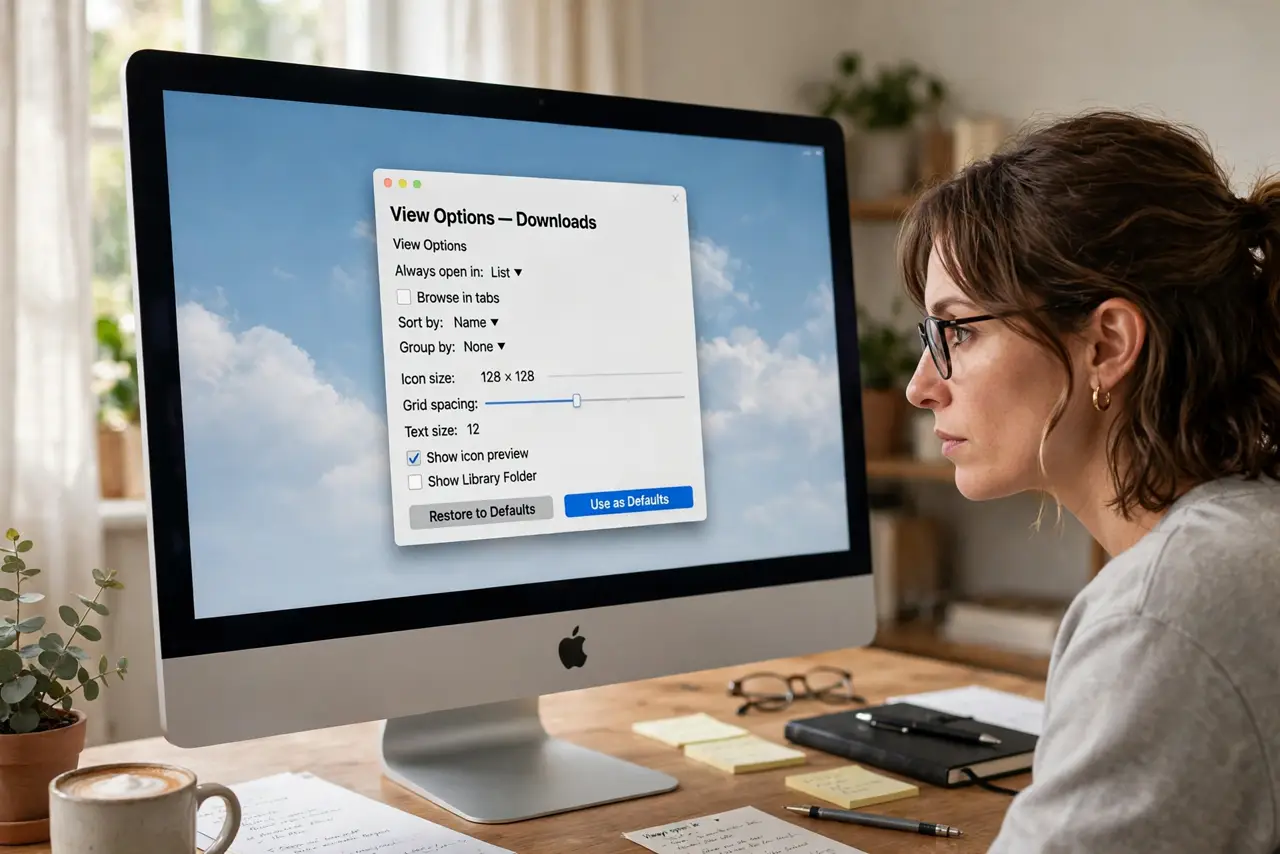
Quick fix: open a Finder window, set it exactly how you like — view, sort, icon size — then open View > Show View Options (Cmd+J) and click Use as Defaults. Every new window inherits the setup. It is per view type, so set list view and icon view separately.
Follow these steps
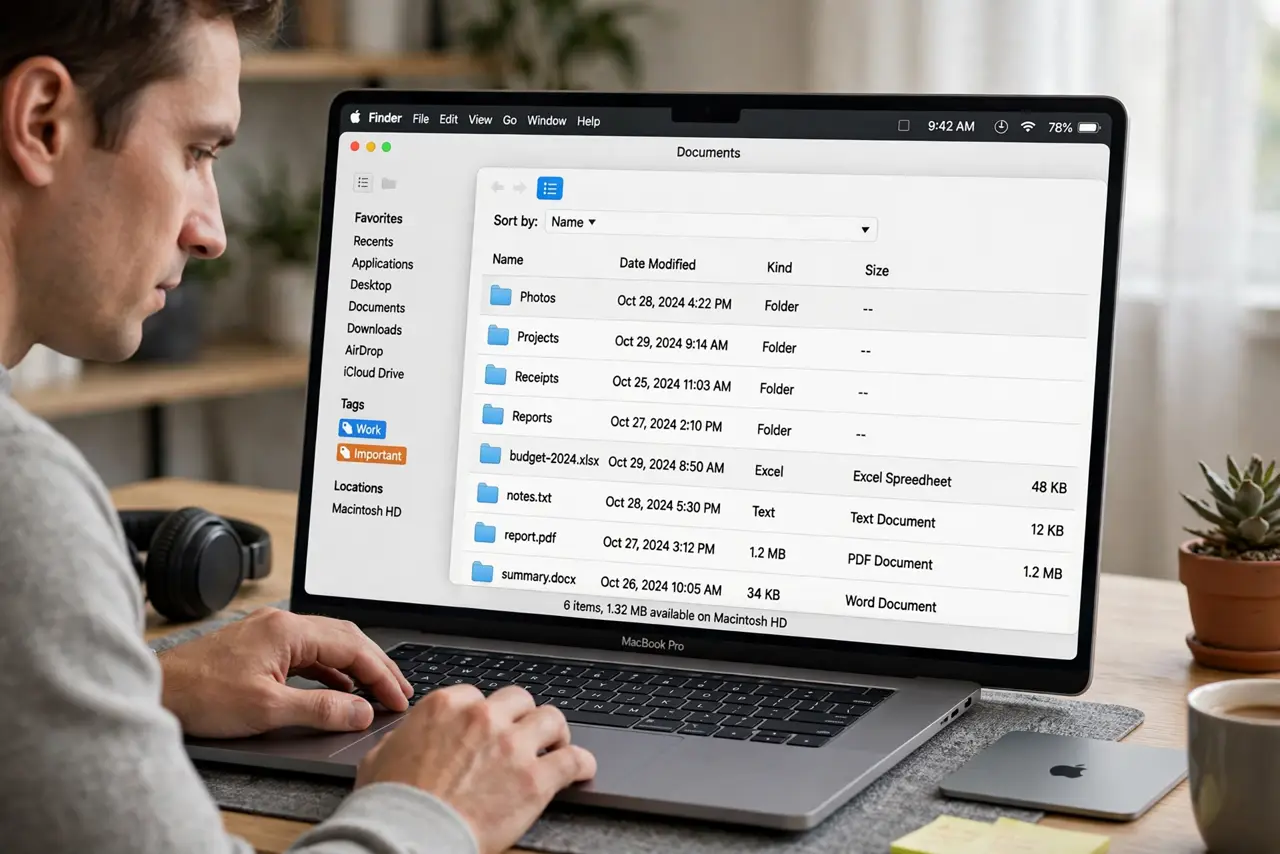
- Arrange one window perfectly. Open any Finder window and set your ideal layout: list view, sorted by name, folders on top, comfortable text size.
- Open View Options. Press Cmd+J or choose View > Show View Options. The panel reflects the current window's settings.
- Click Use as Defaults. The button at the bottom applies this exact layout as the default for all folders using this view type.
- Repeat for other view types. Defaults are per view: set list view defaults in a list window, icon view defaults in an icon window. Each remembers its own.
- Handle the desktop separately. The desktop is its own view — right-click it and use Show View Options there for desktop-specific defaults.
- Reset if it goes wrong. Reopen View Options and restore sensible values, then Use as Defaults again. Defaults are just saved preferences, easily rewritten.
What NOT to do
- Do not expect one default for all four views. List, icon, column, and gallery each keep separate defaults — set the ones you use.
- Do not confuse window defaults with new-window location. This controls how windows look; where they open is a separate setting.
- Do not set defaults in a weird folder. Use a normal folder — special locations like Recents ignore some view settings.
- Do not forget column widths are included. Your carefully sized columns become the default too.
Frequently asked questions
Why do new windows ignore my defaults?
You set defaults for list view but opened an icon window, or vice versa. Each view type needs its own Use as Defaults click.
Will this change my existing folders?
Folders you customized individually keep their settings. Defaults apply to folders without custom views and all new windows.
How do I go back to Apple's defaults?
There is no one-click reset, but setting a plain layout and clicking Use as Defaults again gets you effectively there.