Focus Modes on Mac?
Notifications shatter your concentration all day — messages, mail, social pings, each one a tiny derailment. Focus modes on Mac silence the noise on a schedule or per activity: Work, Sleep, Do Not Disturb, and custom modes you design. They sync across your Apple devices. Here is how to set up focus that actually protects your attention.

TL;DR / Quick Fix
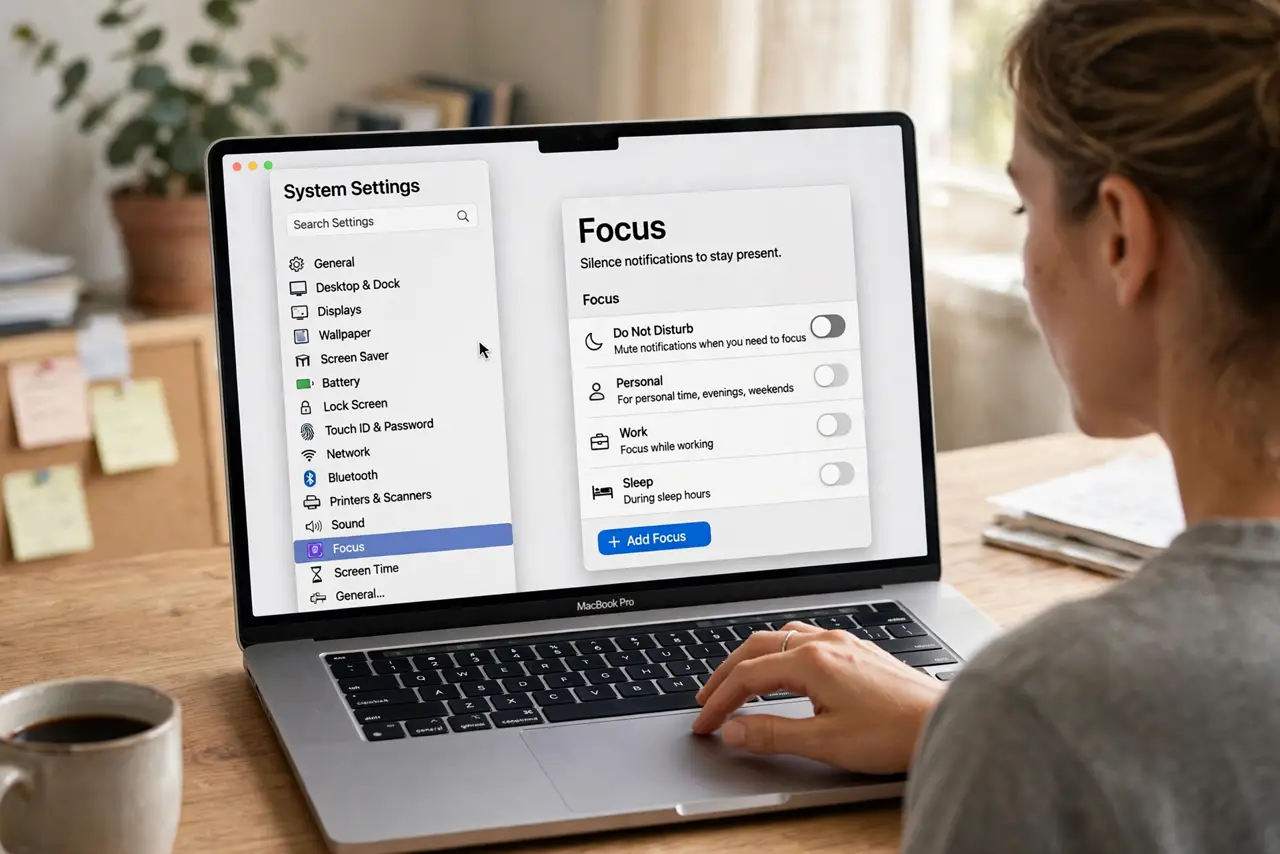
Quick fix: in System Settings → Focus, pick a mode — Do Not Disturb, Work, or Sleep — and choose which people and apps can break through. Schedule Work focus to start automatically on weekdays. It syncs to iPhone and iPad. Start strict; add exceptions only for true urgencies.
Follow these steps
- Open Focus settings. System Settings → Focus. You'll see Do Not Disturb, Work, Personal, Sleep, and the option to add custom modes. Each mode is a notification policy — pick the one matching your current need.
- Choose who can break through. For each mode, set Allowed People — family, your boss, nobody. Calls from allowed contacts come through; everything else waits silently. This is the heart of focus: a tight allowlist, not a vague intention.
- Choose which apps can interrupt. Allow only the apps that carry genuine urgency — maybe Messages and Phone, not social media or mail. Be ruthless on first setup; you can loosen later. Most 'urgent' app pings aren't.
- Set schedules. Automate: Work focus weekdays 9–5, Sleep focus nightly, Do Not Disturb during calendar events. Scheduled focus removes willpower from the equation — it just happens. If a location-based focus misfires, switch that trigger to time-based.
- Use it across devices. With 'Share across devices' on, enabling Work focus on Mac silences your iPhone too — and vice versa. One toggle, total quiet. This is what makes the system actually work instead of being another setting you forget.
- Tell people you're focused. Turn on Focus Status so Messages shows contacts you're silenced (they can still push through for emergencies). It sets expectations — people stop expecting instant replies, and the social pressure to check evaporates.
What NOT to do
- Do not allow half your apps 'just in case.' A focus mode with twenty exceptions is decoration — start with almost nothing allowed.
- Do not forget Sleep focus exists. Scheduled nightly silence protects both sleep and the morning — set it once, benefit daily.
- Do not enable focus and then check manually anyway. The mode works if you let it; compulsive checking is the habit to break, not the setting to tweak.
- Do not confuse Focus with Do Not Disturb's old behavior. Focus is the system now — DND is just one mode within it.
Frequently asked questions
Will I miss emergency calls?
No — repeated calls from the same number break through by default, and allowed contacts always reach you. Focus filters noise, not emergencies.
Why did focus turn on by itself?
A schedule, a location trigger, or Smart Activation did it. Check System Settings → Focus → the mode → its schedules. The mystery auto-enable is almost always a forgotten schedule.
Does it sync to my iPhone?
Yes, when 'Share across devices' is enabled and both use the same Apple ID. One toggle quiets everything.