Format a Drive for Mac and PC
You need an external drive or USB stick that works on both your Mac and a Windows PC — for sharing files, moving between computers, or a drive that travels. The wrong format means one computer can't write to it (or see it at all). The right choice is exFAT, and formatting takes two minutes in Disk Utility. Here is the safe way to do it.
TL;DR / Quick Fix
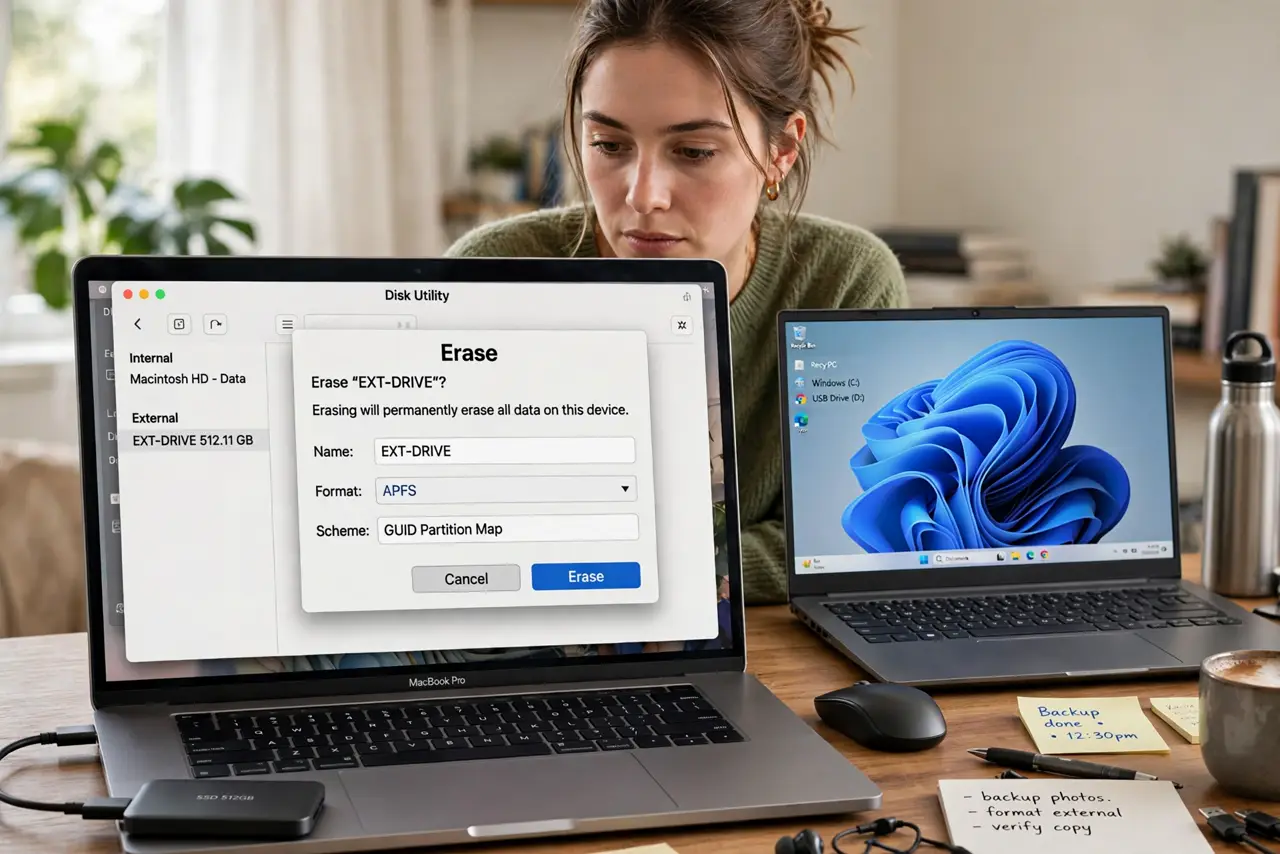
Quick fix: format the drive as exFAT — readable and writable on both Mac and Windows. On Mac: Disk Utility → select the drive → Erase → exFAT. Back up the drive's contents first; erasing deletes everything. Avoid NTFS (Mac can't write natively) and APFS (Windows can't read).
Follow these steps
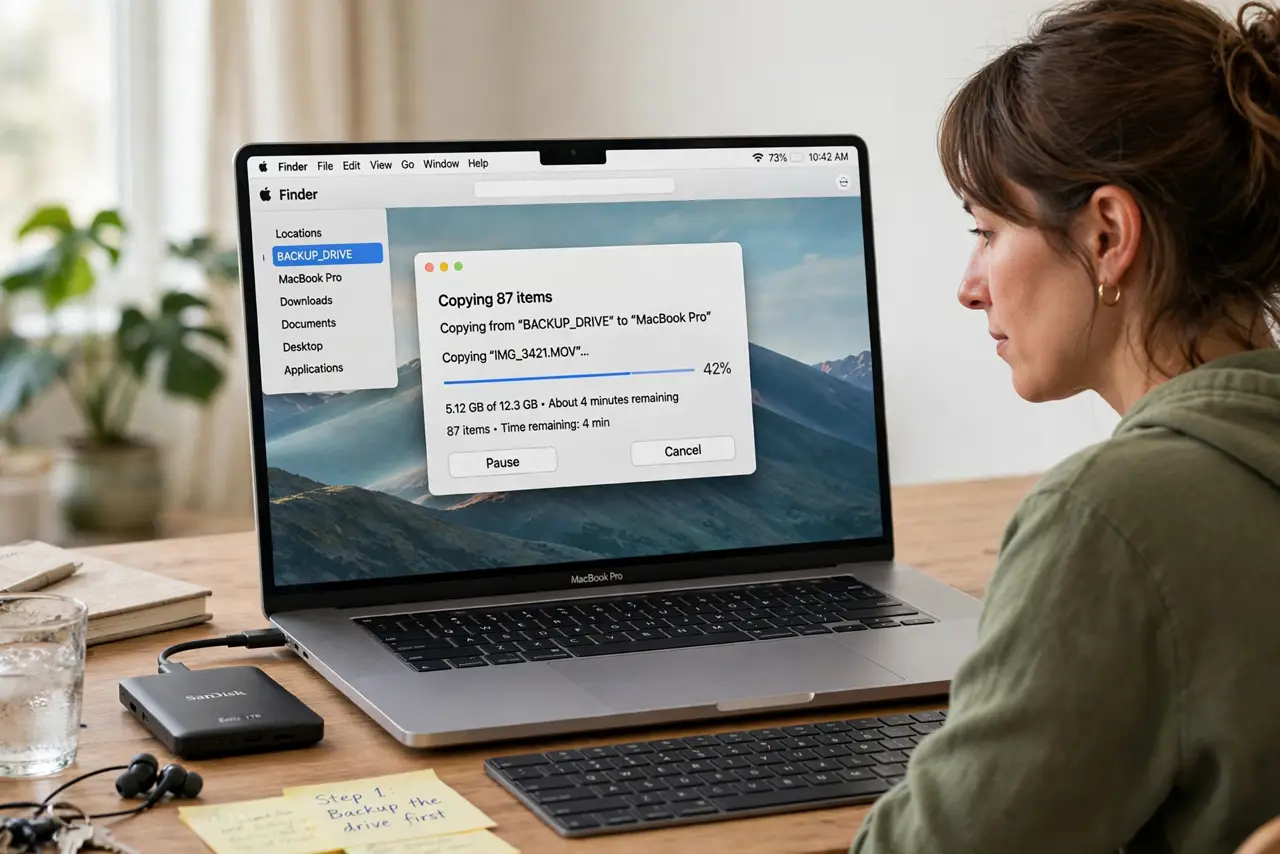
- Back up the drive first. Formatting erases everything — copy any files you want to keep somewhere safe first. There is no undo. This step is the entire safety of the operation.
- Open Disk Utility. Applications → Utilities → Disk Utility, or search it with Spotlight. Select the external drive in the sidebar — careful to pick the drive, not your internal disk. The NTFS vs exFAT explainer covers why the format choice matters.
- Choose exFAT. Click Erase, set Format to exFAT and Scheme to GUID Partition Map (or Master Boot Record for maximum old-device compatibility). exFAT is the cross-platform sweet spot: both systems read and write it natively.
- Name it sensibly. Give it a clear name like 'SHARED' or 'Transfer.' Avoid special characters that confuse older Windows systems. The name is cosmetic, but a clear one prevents grabbing the wrong drive later.
- Erase and verify on both systems. Click Erase, wait for completion, then plug the drive into a Windows PC and confirm you can create a file on it. Test both directions now — discovering a format problem mid-transfer is the failure to avoid.
- Know exFAT's limits. exFAT lacks journaling, so it's slightly more corruption-prone if unplugged mid-write — always eject properly. For a Mac-only drive, APFS is better; for Windows-only, NTFS. exFAT is the traveler, not the homebody.
What NOT to do
- Do not format the wrong drive. Double-check the name and size in Disk Utility — erasing your backup drive by mistake is catastrophic.
- Do not choose NTFS for cross-platform use. Windows loves it; Macs read it but can't write without third-party tools.
- Do not choose APFS or Mac OS Extended for sharing with Windows. Windows can't read them at all without paid software.
- Do not yank the drive mid-write. exFAT is less forgiving than journaled formats — eject properly every time.
Frequently asked questions
What's the maximum file size on exFAT?
Effectively unlimited for real purposes — 4K video files and disk images are fine. The old 4 GB limit belonged to FAT32, not exFAT.
Can I convert without erasing?
No — changing formats requires erasing. Copy the data off, format, copy it back. There is no in-place conversion.
Why does my drive show less space than advertised?
Makers count in decimal gigabytes; computers count in binary — plus formatting overhead. A '1 TB' drive showing ~931 GB is normal, not a formatting problem.