NTFS vs exFAT? Plain Difference
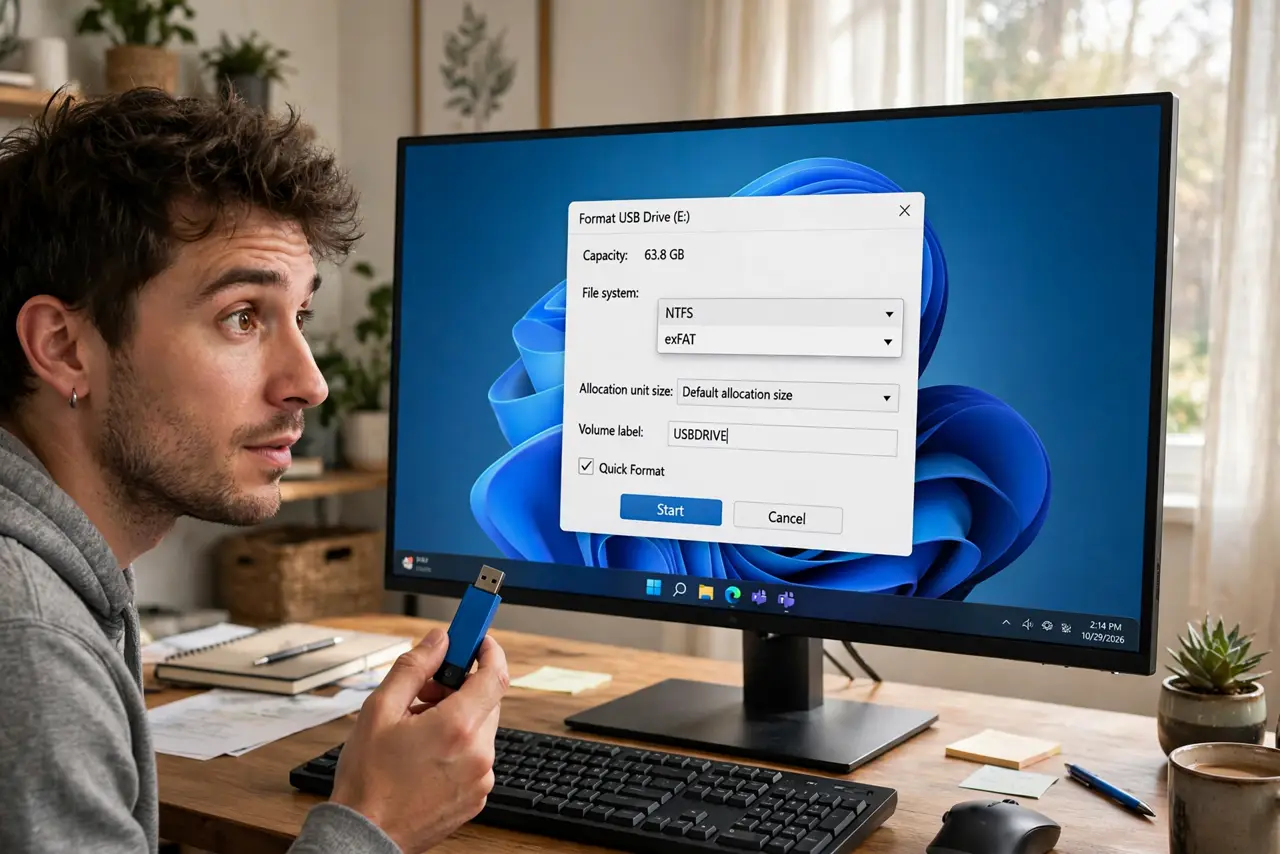
About to format a drive and Windows asks: NTFS or exFAT? Pick wrong and the drive either will not work on your Mac, cannot hold a big video file, or loses features you wanted. The choice is simple once you know what each format is for: one is Windows' home turf, the other is the traveler.
TL;DR / Quick Fix
Quick fix: use NTFS for drives that stay on Windows — it supports permissions, encryption, and huge files. Use exFAT for drives that move between Windows and Mac, like USB sticks. Never use FAT32 for large files; it cannot hold any single file over 4 GB.
Follow these steps
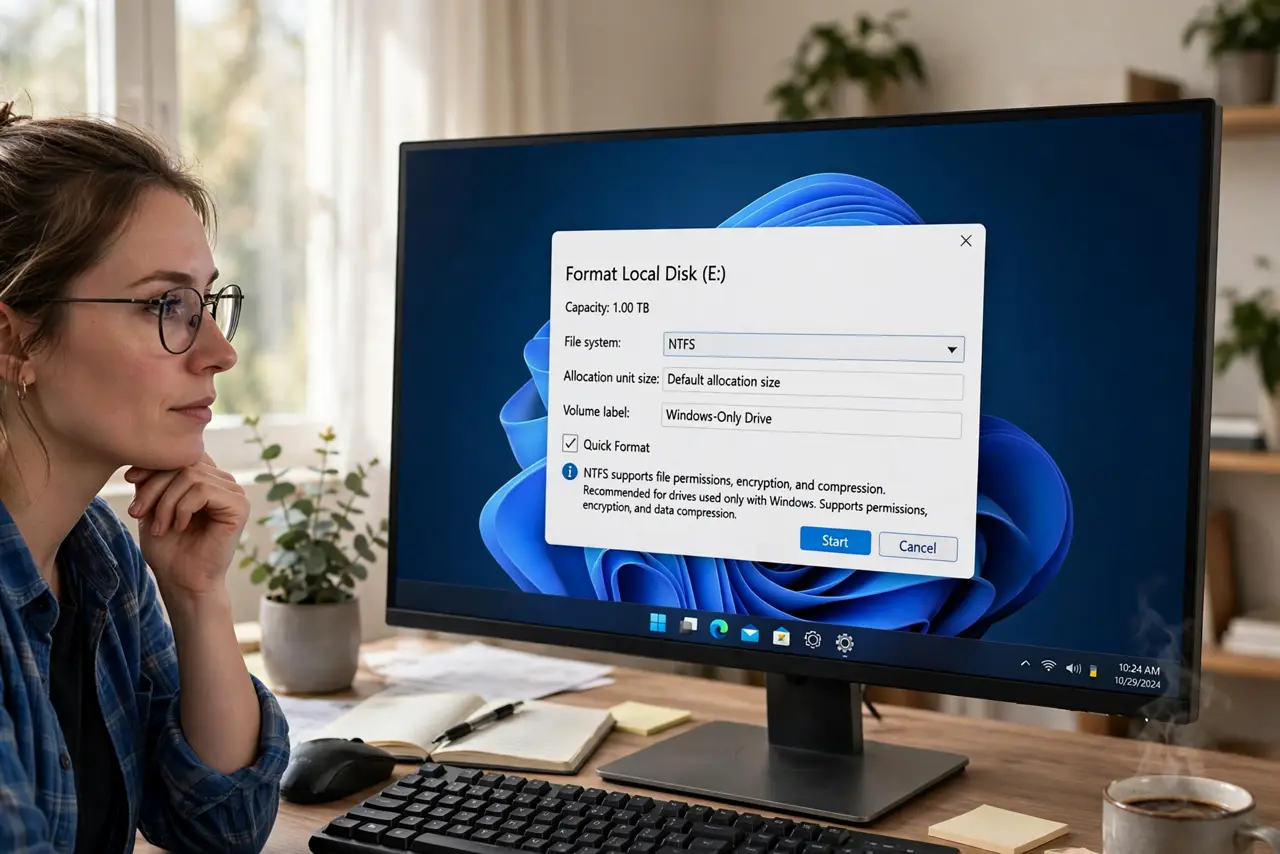
- Choose NTFS for Windows-only drives. Internal drives and Windows-only externals should be NTFS. It supports file permissions, encryption, compression, and files of any sane size.
- Choose exFAT for cross-platform drives. USB sticks and portable drives that visit Macs should be exFAT. Both systems read and write it natively, and it handles huge files.
- Avoid FAT32 for modern use. The old FAT32 caps single files at 4 GB — one 4K video breaks it. It survives only for tiny sticks and old devices that demand it.
- Remember formatting erases everything. The format choice happens at format time, and formatting wipes the drive. Copy data off first — there is no undo.
- Match the format when reformatting. To switch a drive from one format to another, format it fresh. There is no in-place conversion worth trusting for data you care about.
- Check the device's requirements first. Some devices — cameras, consoles, car stereos — demand a specific format. Check the manual before choosing on aesthetics.
What NOT to do
- Do not format a drive without checking what is on it first. Formatting is instant and total — the number one cause of 'where did my files go.'
- Do not pick exFAT for a Windows system drive. Windows cannot boot from exFAT; system drives must be NTFS.
- Do not assume exFAT is as tough as NTFS. It lacks journaling, so it corrupts more easily if unplugged mid-write — always eject properly.
- Do not use FAT32 'for compatibility' on a big drive. The 4 GB file limit will bite you with the first large video or backup.
Frequently asked questions
Can Macs read NTFS drives?
Macs read NTFS but do not write to it without extra software. For a drive both systems share, exFAT is the answer.
Which is faster?
On Windows, NTFS edges ahead for internal use. For portable drives the difference is negligible — choose by compatibility, not speed.
What about ReFS?
Microsoft's newer Resilient File System targets servers and workstations, not everyday PCs. You will not meet it on a home drive.