iCloud Desktop Sync? How It Works
Your Desktop and Documents folders appear on every Apple device you own — magic, until a file seems to vanish or the Mac fills up with cloud placeholders. iCloud's Desktop & Documents sync is convenient and occasionally confusing. Here's what it actually does with your files.
TL;DR / Quick Fix
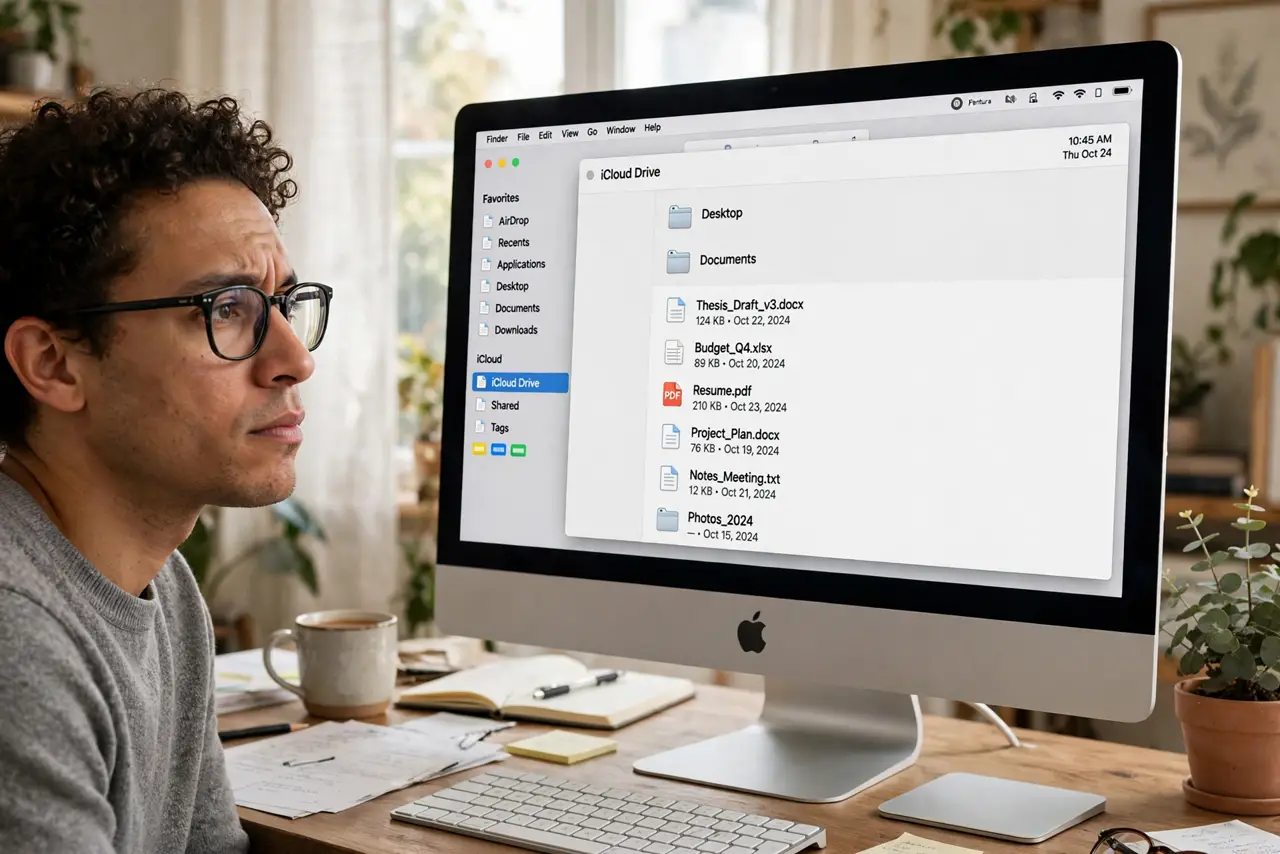
Quick fix: iCloud syncs your Desktop and Documents folders across devices, keeping local copies and cloud copies in step. Files with a cloud icon live in iCloud and download on demand. If files seem missing, check iCloud.com and confirm you're signed into the same Apple ID everywhere.
Follow these steps
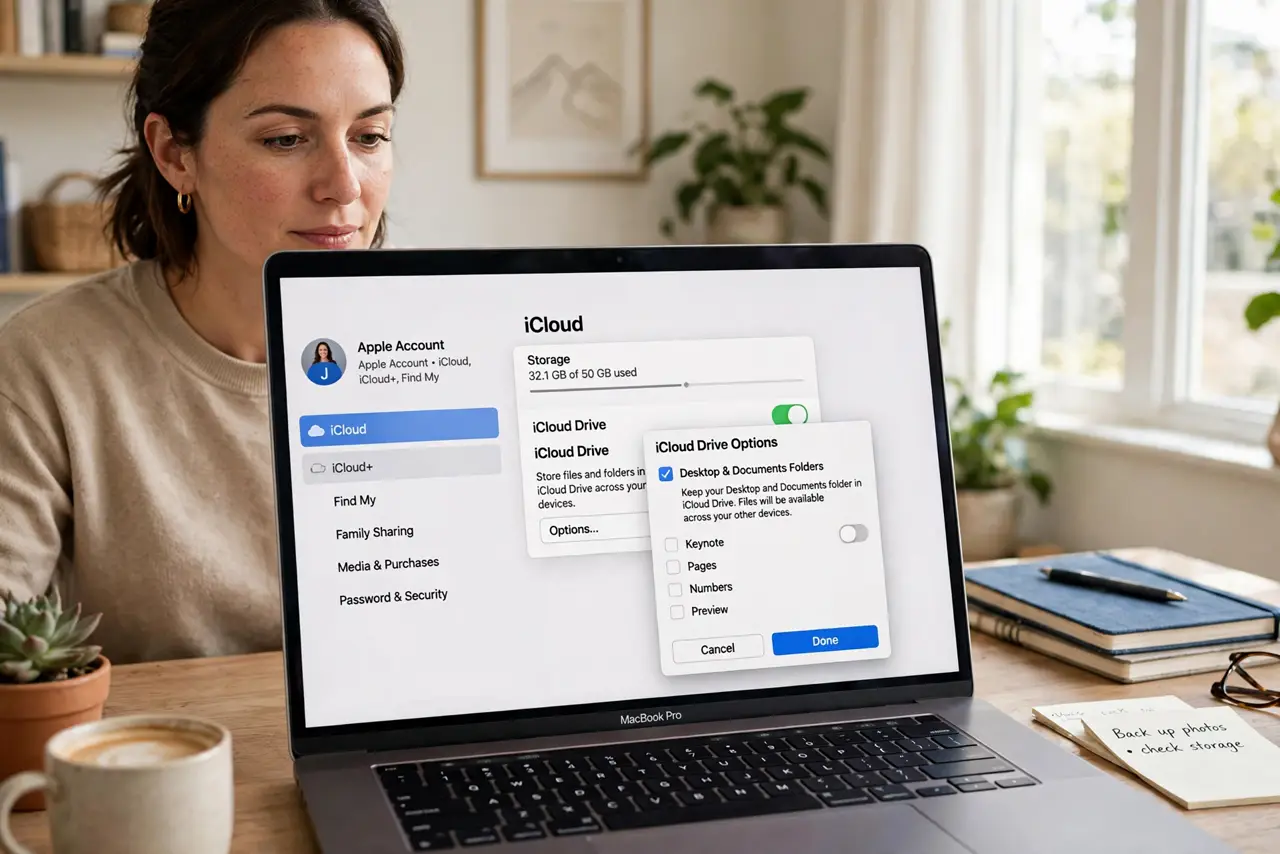
- Find the toggle. System Settings > Apple ID > iCloud > iCloud Drive > Options, and look for Desktop & Documents Folders. That's the master switch.
- Understand the two-way sync. Add a file on the Mac's Desktop and it appears on your other devices; delete it anywhere and it deletes everywhere. Sync is mirroring, not backup.
- Learn the cloud-icon files. A cloud icon means the file lives in iCloud and downloads when opened — the same offloading that Optimized Storage uses. Great on Wi-Fi, awkward offline.
- Check iCloud.com when files 'vanish.' Sign into iCloud.com > iCloud Drive. If the file is there, it's a sync delay on the Mac, not a loss — wait or restart.
- Mind the storage math. The free 5 GB of iCloud space fills fast with two synced folders. Without a paid tier, sync errors out — and contacts can duplicate when sync struggles, so keep the account healthy.
- Prefer selective sync for control. If full-folder sync feels like too much, selective sync lets you choose exactly what lives in the cloud.
What NOT to do
- Do not turn it off to 'get files back' without understanding the merge. Disabling it offers to keep a local copy — read that dialog carefully or you'll split your files across two places.
- Do not store your only copy of anything here. Sync propagates deletions and corruption instantly to all devices — it's not a backup.
- Do not sync giant video projects on the free tier. You'll fill iCloud in an afternoon and break sync for everything else.
- Do not sign into a different Apple ID mid-stream. Switching IDs orphans the synced folders and creates a merge headache.
Frequently asked questions
Where did my Desktop files go?
They're in iCloud Drive > Desktop — the local Desktop folder became a view onto the cloud. Check iCloud.com if the Mac hasn't caught up.
Why do files have a cloud icon with an exclamation mark?
The download or upload stalled — usually a network hiccup or full iCloud storage. Fix the underlying issue and they resolve themselves.
Can I sync only Documents, not Desktop?
No — it's both or neither. For finer control, move what you want synced into iCloud Drive manually and leave the toggle off.