Upgrade iMac RAM Yourself
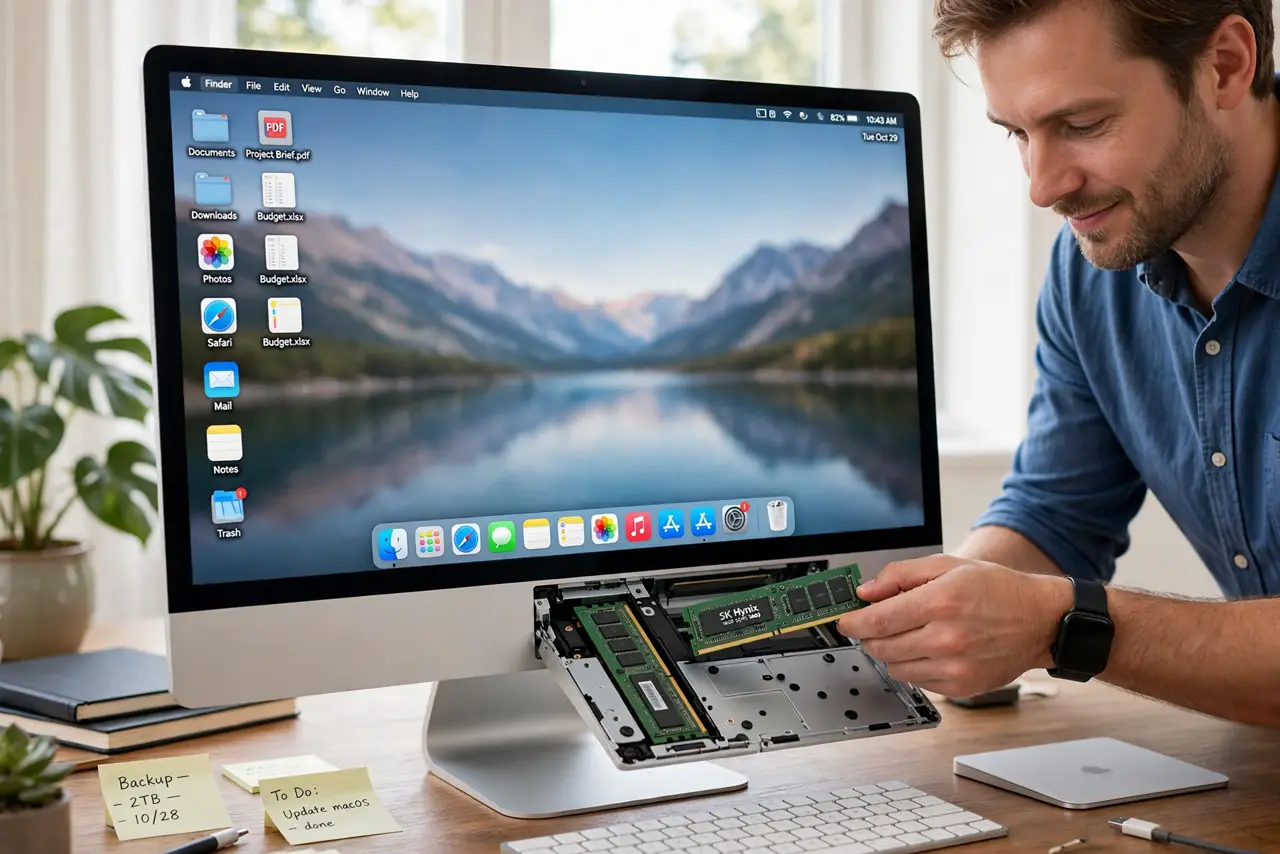
Some iMacs — the 27-inch Intel models — have a little hatch on the back hiding user-upgradeable RAM slots. Apple charges a fortune for RAM at purchase; buying the same memory yourself and slotting it in takes fifteen minutes and basic care. But not every iMac qualifies, so check your model before buying anything.
TL;DR / Quick Fix
Only 27-inch Intel iMacs (and some older 21.5-inch models) have user-upgradeable RAM behind a rear hatch — Apple silicon iMacs do not. Check your exact model first, buy matching SO-DIMM modules, power down and unplug, then slot them in. The Mac mini RAM guide explains the soldered era.
Follow these steps
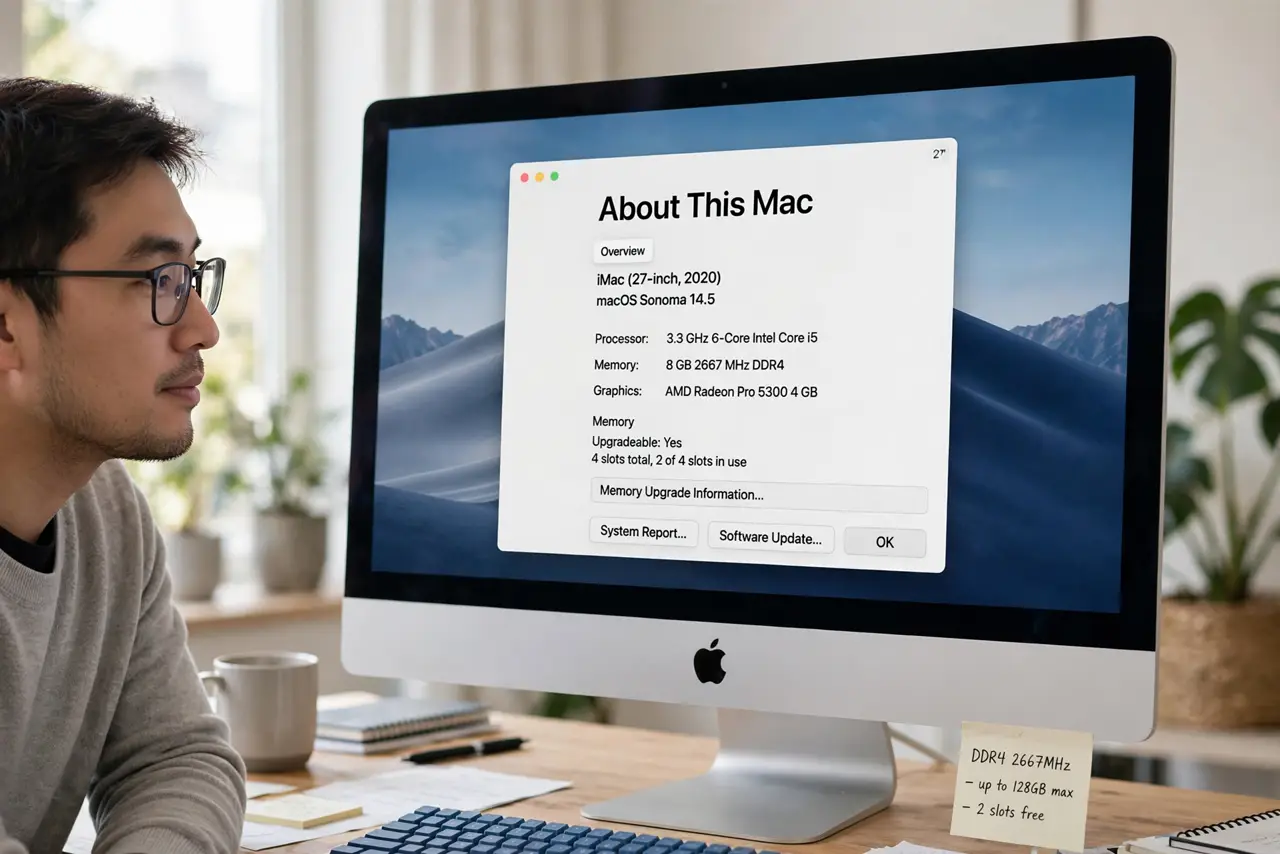
- Confirm your iMac is upgradeable. Click Apple menu, About This Mac, and check the model. User-upgradeable RAM lives in 27-inch Intel iMacs (2012-2020) behind a rear hatch. Apple silicon iMacs have soldered, non-upgradeable memory — verify before spending a cent.
- Buy the correct RAM modules. Match the type (DDR4 SO-DIMM for recent models), speed, and capacity to Apple's specs for your model year. Buy from a reputable memory brand — cheap no-name sticks cause the crashes you are trying to fix.
- Shut down, unplug, and discharge. Power off the iMac, unplug every cable, and wait a few minutes. Lay a soft cloth on the desk and rest the iMac face-down gently — the screen is glass and scratches easily.
- Open the hatch and seat the modules. Press the button above the power port to pop the memory door. Align each stick's notch, press firmly until the levers click shut. Half-seated RAM is the number one cause of 'it won't boot' panic.
- Boot up and verify the new total. Plug back in, power on, and check About This Mac — the new memory total should show. Run the Mac for a day of normal use to confirm stability.
- Keep the old sticks as spares. Store removed modules in anti-static bags. If trouble ever appears, swapping the old RAM back in tells you instantly whether the new sticks are the problem.
What NOT to do
- Do not buy RAM before confirming the model. Apple silicon iMacs and most 21.5-inch models cannot be upgraded — the money would be wasted.
- Do not force a module that will not seat. The notch must align; forcing it backwards can damage the slot permanently.
- Do not skip the unplug-and-wait step. Residual power plus handling internals is how components get fried.
- Do not mix wildly different speeds. The system will run all sticks at the slowest speed — matched pairs give the performance you paid for.
Frequently asked questions
How much RAM does an iMac need?
16 GB is the comfortable minimum for everyday multitasking today; 32 GB suits photo/video work. Beyond that, only heavy professional workloads benefit.
Will upgrading RAM void my warranty?
Apple designed these models with a user-accessible hatch precisely for this — using it does not void the warranty, though damage you cause is on you.
My iMac is Apple silicon — any options?
No RAM upgrades possible; the memory is part of the chip. Your options are managing with what you have or upgrading the whole machine at purchase time.