Hotspot From iPhone to Mac?
No Wi-Fi but your iPhone has signal? Your phone can share its cellular connection with your Mac — the Personal Hotspot — turning anywhere into a workspace. It is easy to set up and easy to burn through data if you are careless. Here is the reliable way to connect and the settings that keep it sane.
TL;DR / Quick Fix
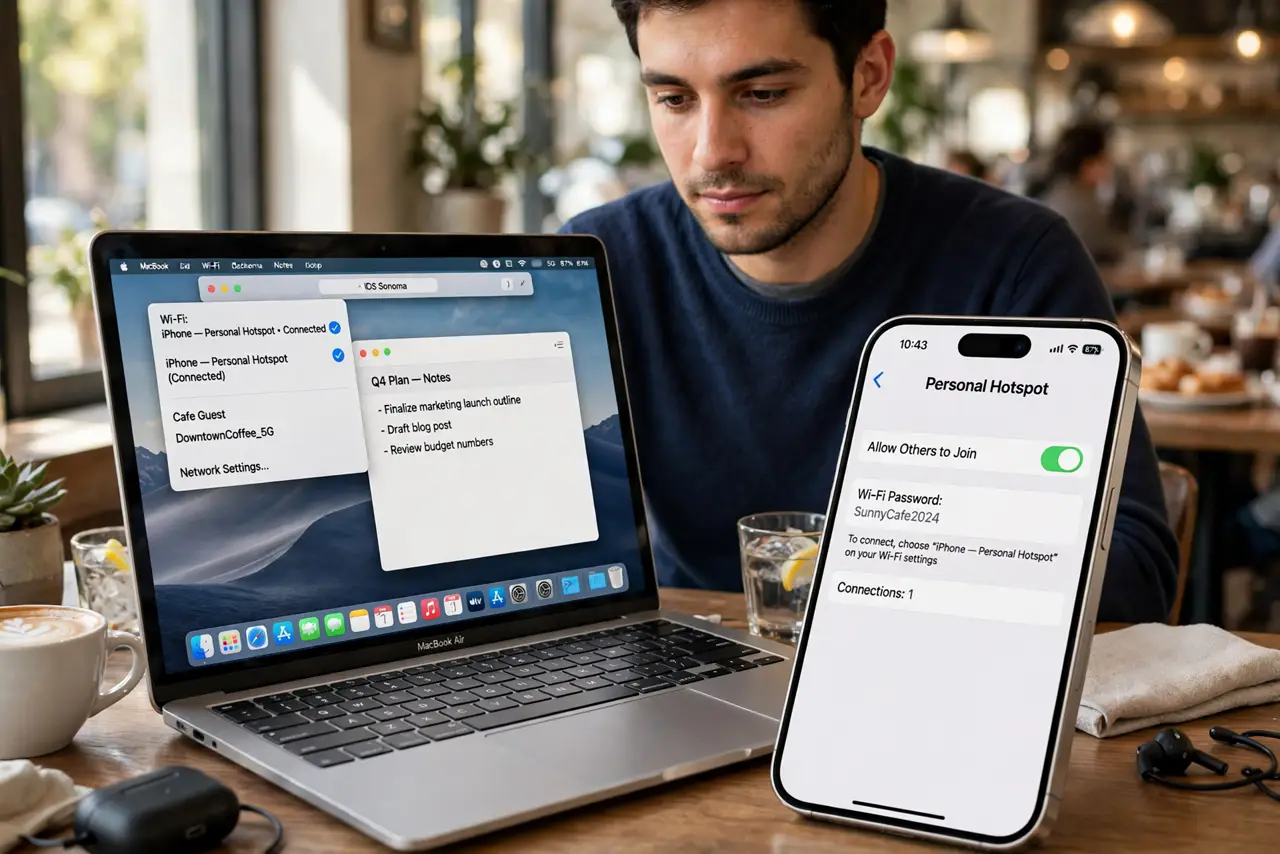
Quick fix: on your iPhone turn on Settings > Personal Hotspot > Allow Others to Join; on the Mac, pick your iPhone from the Wi-Fi menu. USB tethering gives the most stable connection. Watch data usage — macOS updates and cloud syncs devour hotspot data fast.
Follow these steps
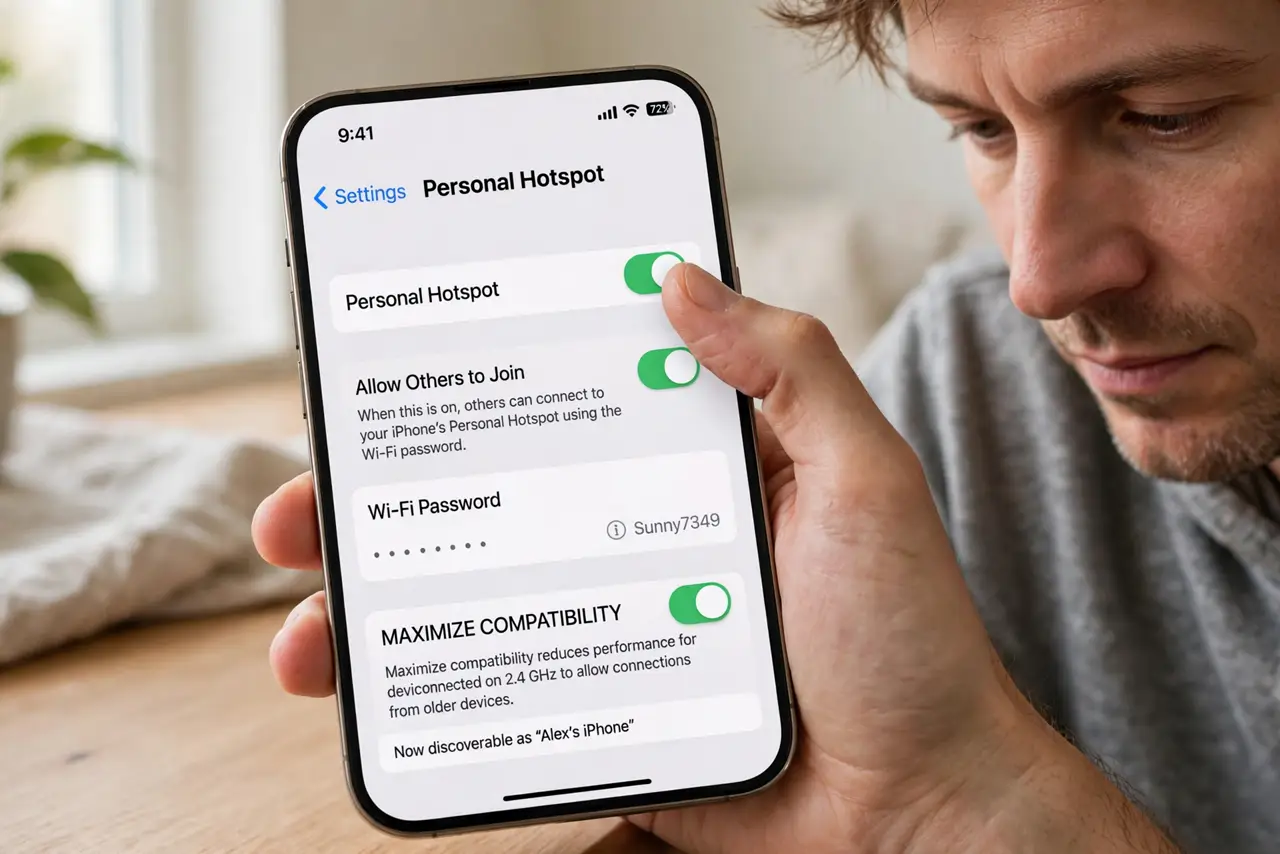
- Enable the hotspot on the iPhone. Settings > Personal Hotspot > Allow Others to Join. Note the Wi-Fi password shown — you can change it to something memorable. Both devices need Bluetooth on for the instant-join magic.
- Connect from the Mac's Wi-Fi menu. Click the Wi-Fi icon on the Mac, choose your iPhone's name, and enter the password. The iPhone appears at the top of the list when nearby — no password re-entry after the first time.
- Try Instant Hotspot. With the same Apple Account on both and Bluetooth on, the iPhone appears in the Mac's Wi-Fi menu even with the hotspot toggle off — the Mac wakes it remotely. Genuinely convenient when it works.
- Use USB for stability. A Lightning/USB-C cable between iPhone and Mac gives the fastest, most stable tether and charges the phone simultaneously. For video calls, cable beats wireless every time.
- Mind the data burn. Macs treat hotspots like real internet — iCloud Photos, Dropbox, and macOS updates will happily eat gigabytes. Pause cloud syncs and defer updates while tethered.
- Fix the flaky cases. If the iPhone vanishes from the menu, toggle Personal Hotspot off and on, restart both devices, and check carrier tethering is in your plan. The hotspot-drop fixes cover the stubborn ones.
What NOT to do
- Do not start a macOS update on hotspot data. Multi-gigabyte updates can blow a month's data cap in an hour.
- Do not leave cloud photo sync running while tethered. It uploads silently in the background — pause it.
- Do not assume hotspot is free. Some carriers charge extra or throttle tethering — check your plan before leaning on it.
- Do not forget to turn it off. An active hotspot drains the iPhone battery fast — disable it when the Mac is done.
Frequently asked questions
Why won't my iPhone appear on the Mac's Wi-Fi list?
Usually Bluetooth off, different Apple Accounts, or the carrier plan lacking tethering. Toggle the hotspot and check all three.
Is USB tethering faster than Wi-Fi hotspot?
Yes — lower latency and steadier speeds, plus it charges the phone. Use it for calls and long sessions.
Does hotspot use a lot of battery?
Yes, it is one of the heaviest phone drains. Cable tethering solves it; otherwise keep a charger handy.