Live Text? Copy Text From Photos
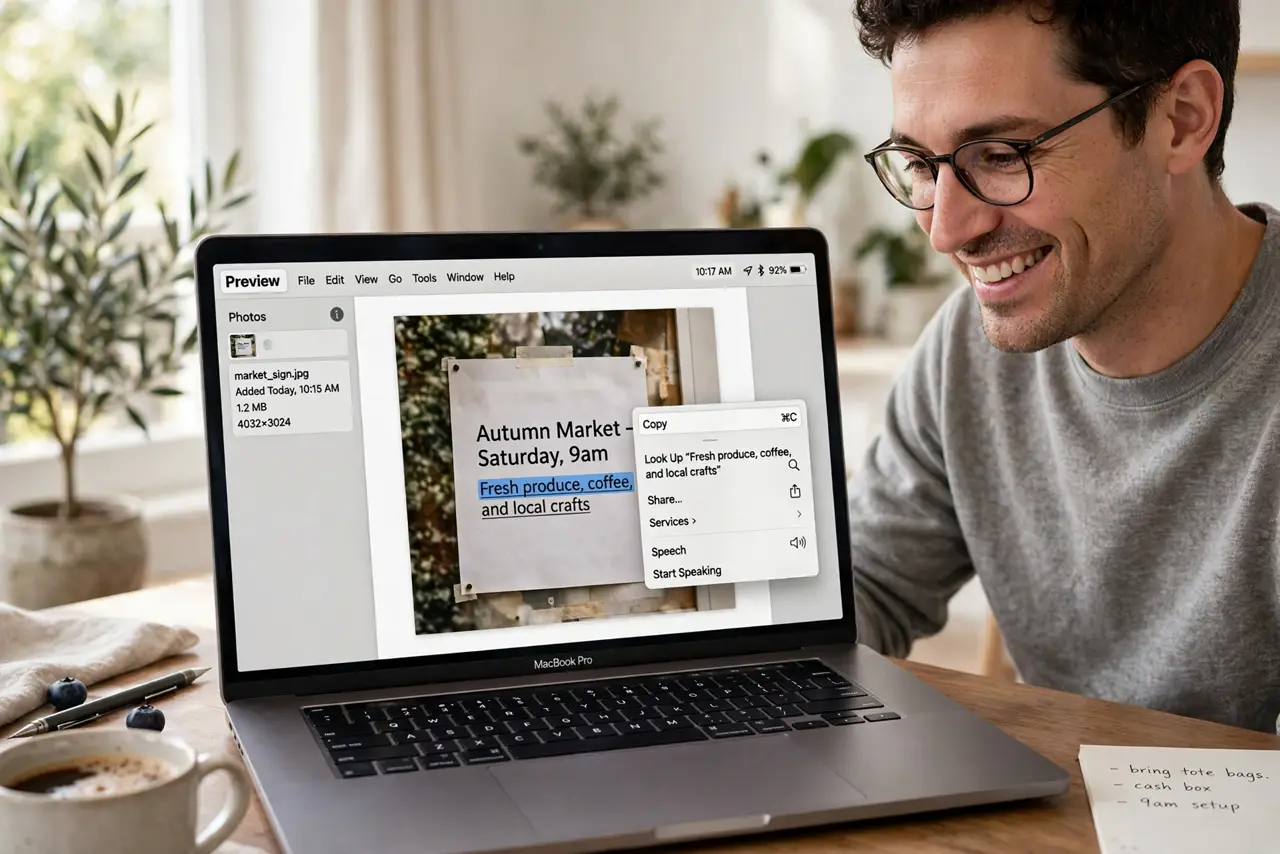
There's text trapped in a photo — a Wi-Fi password on the router, a phone number on a flyer — and retyping it is slow and error-prone. Live Text on Mac makes text in any image selectable and copyable, just like a document. It's built into macOS, works in Photos, Preview, and Safari, and most people never notice it's there.
TL;DR / Quick Fix
Quick fix: open the photo in Photos or Preview, hover over the text until the cursor changes, then drag to select and copy like normal text. It works in Safari images too. For phone numbers and addresses, right-click the selection for quick actions like calling or mapping.
Follow these steps
- Open any image with text. Photos, Preview, Quick Look, or an image in Safari — Live Text works in all of them on recent macOS. No setup needed; it's on by default.
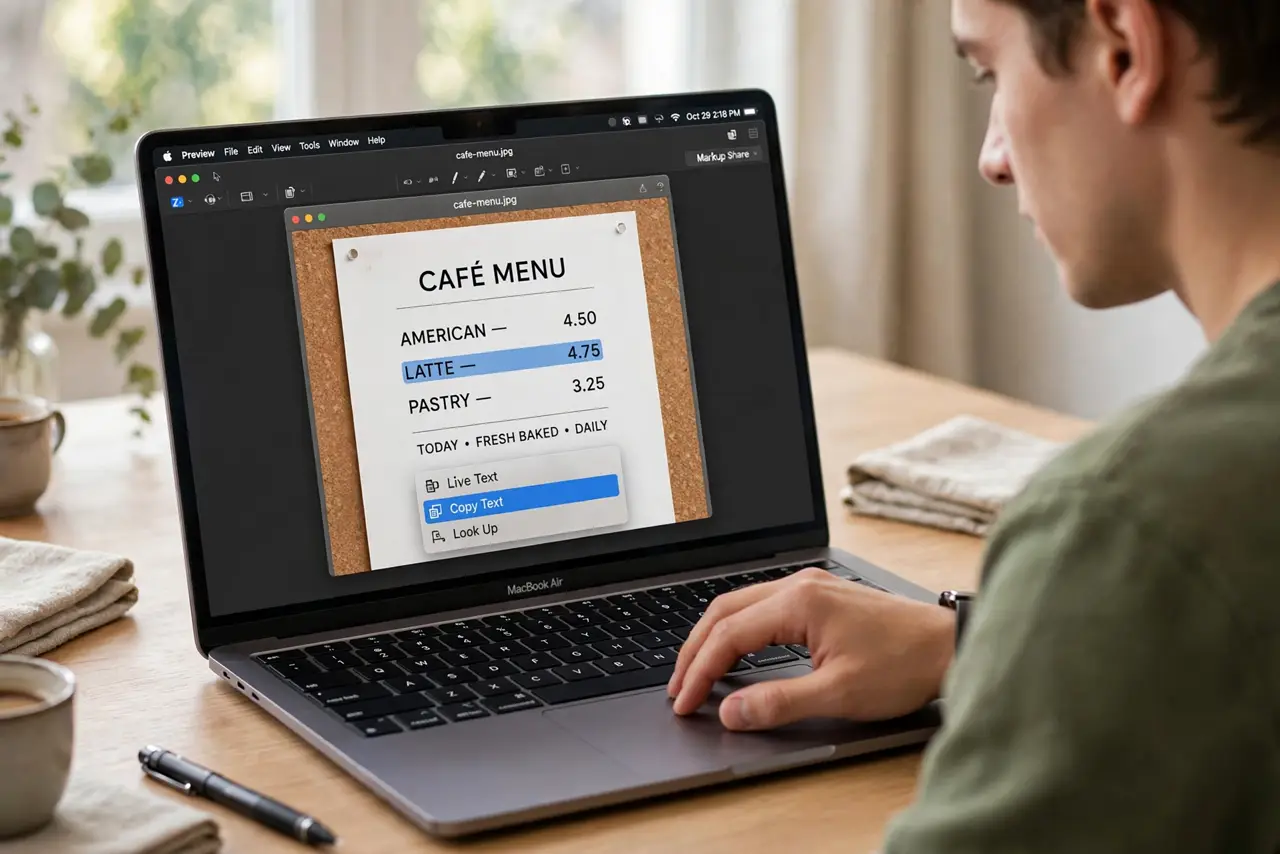
- Hover until the cursor changes. Move the pointer over the text. When it turns into a text-selection cursor, the system has recognized the text — click and drag to select it.
- Copy and paste normally. Command+C copies the recognized text; paste it anywhere. It's real text now — editable, searchable, spell-checkable. The same phone trick exists on iPhone too.
- Use right-click quick actions. Right-click selected phone numbers to call or message, addresses to map, dates to create calendar events. Live Text understands what the text means, not just what it says.
- Try it on paused video. Pause a video in QuickTime or Safari and Live Text works on the frozen frame — great for grabbing text from tutorials and presentations.
- Check the language support. Live Text recognizes many languages, but obscure scripts may fail. If text won't select, the language might be unsupported — or the image is just too blurry.
What NOT to do
- Do not expect miracles from blurry photos. Live Text needs reasonably sharp, straight-on text — a blurry angled snapshot will defeat it.
- Do not use it for critical transcription without proofreading. OCR misreads characters (0 vs O, 1 vs l) — verify anything important like passwords and codes.
- Do not assume it works on very old macOS. Live Text needs a recent macOS version — update if the cursor never changes over text.
- Do not forget screenshots count. Screenshot the text you need, then Live Text the screenshot — a handy two-step for uncooperative apps.
Frequently asked questions
Why isn't the text selectable?
Either macOS is too old, the image is too blurry, or the language is unsupported. Update macOS first, then try a sharper image.
Can I translate the text it finds?
Yes — right-click the selection and choose Translate. It pairs beautifully with the camera translation workflow when you start from a photo.
Does it work in every app?
It works in Apple's apps and Safari out of the box. Third-party apps need to adopt the API — most modern ones have, but some older apps haven't.