Auto-File with Rules
Your inbox is a firehose — receipts, newsletters, notifications — and you file everything by hand like it is 2009. Mail rules do it automatically: if a message matches your conditions, Mail files, flags, or forwards it without you lifting a finger. Set up three good rules and watch the inbox tame itself.
TL;DR / Quick Fix
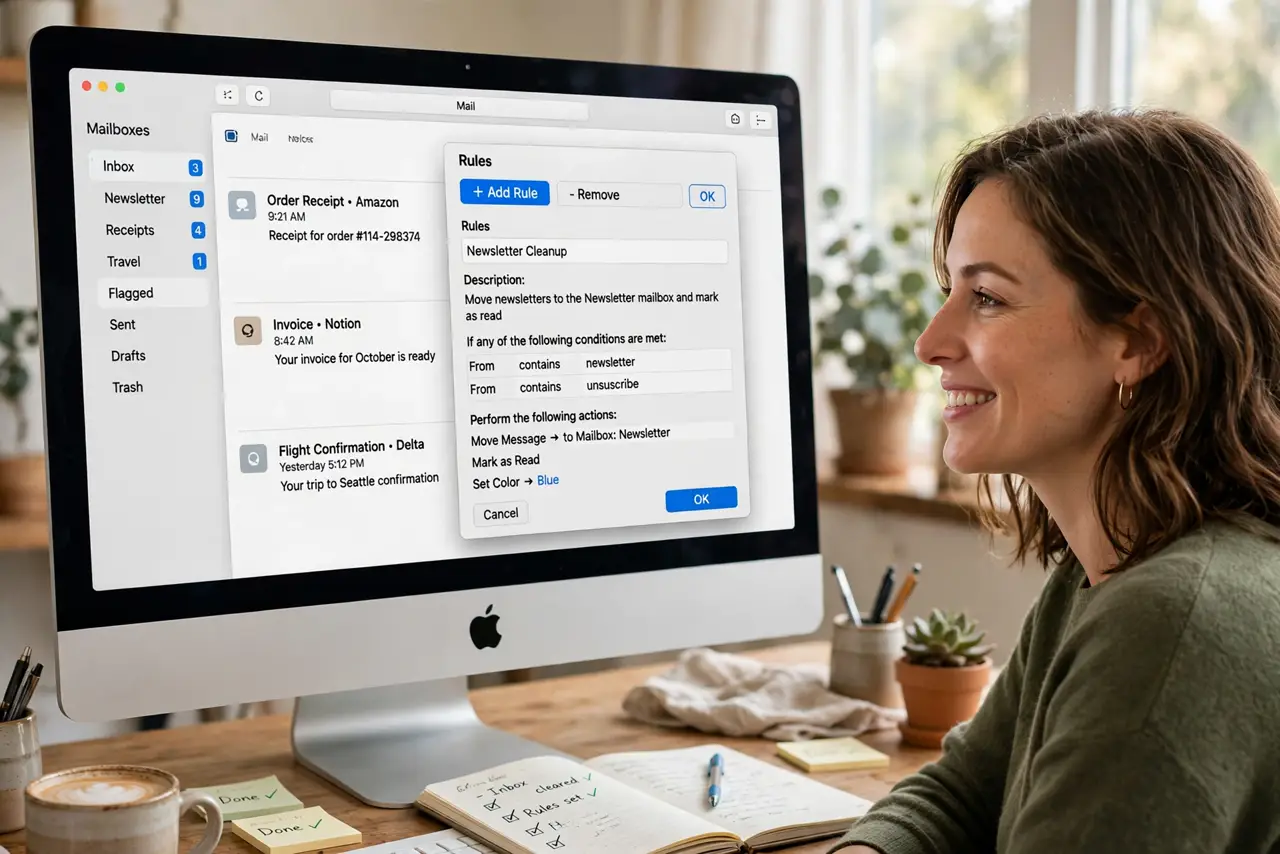
Quick fix: in Mac Mail, open Settings, Rules, and click Add Rule. Set a condition like From contains, with an action like Move to a mailbox. Apply it to messages to clean up. Keep rules ordered, since Mail runs them top to bottom and stops at the first match.
Follow these steps
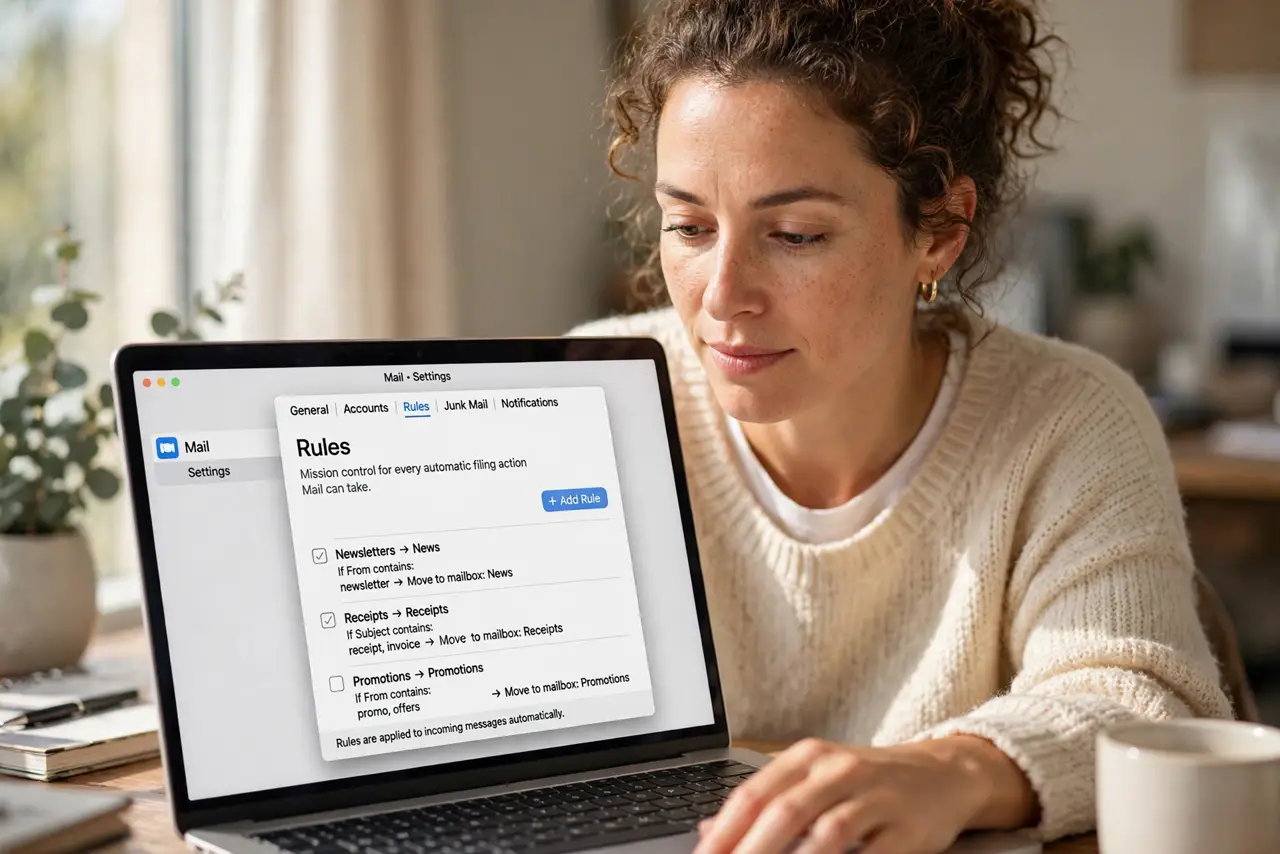
- Open the Rules settings. In Mail, go to Mail, Settings, Rules. This is mission control for every automatic filing action Mail can take.
- Create your first rule. Click Add Rule. Give it a clear name like File receipts, then set the condition — for example, From contains the store's address.
- Choose the action. Pick Move Message to a mailbox and select the destination. Create the mailbox first if it does not exist yet.
- Mind the rule order. Mail checks rules top to bottom and stops at the first match. Put specific rules above general ones, or the general rule swallows everything — see rule order problems if mail lands wrong.
- Apply to existing mail. Select Apply to have the rule process messages already in your inbox. One click can file hundreds of old receipts instantly.
- Test and watch for a week. Rules sometimes misfire on edge cases. Check the destination mailbox for a few days; if a rule stops running, the troubleshooting steps bring it back.
What NOT to do
- Do not create overlapping rules. Two rules matching the same mail cause confusing double-filing — keep conditions distinct.
- Do not auto-delete with a new rule. File first, watch for a month, and only then consider deleting.
- Do not forget rules sync across Macs. A bad rule on one Mac files mail everywhere — test before trusting.
- Do not use rules as your only organization. Pair them with smart mailboxes for views that rules alone cannot build.
Frequently asked questions
Do Mail rules work when Mail is closed?
No — rules run inside the Mail app. For server-side filtering that works always, use your provider's webmail filters instead.
Can a rule reply to messages automatically?
Yes, with the Reply action, but use it sparingly — auto-replies to spam confirm your address is live.
Why did my rule stop working?
Common causes: rule order changed, the mailbox was renamed, or Mail needs a restart. The not-running checklist walks through each.