Snooze Emails in Mail
Your inbox is a to-do list that never stops shouting. You open Mail, see a message you cannot handle until Friday, and by Friday it is buried under two hundred more. Snoozing — hiding a message until later — is the fix Gmail users brag about. Apple Mail has no button called Snooze, but macOS Ventura and later include Remind Me, which does the same job. Here is how to use it, plus honest fallbacks.
TL;DR / Quick Fix
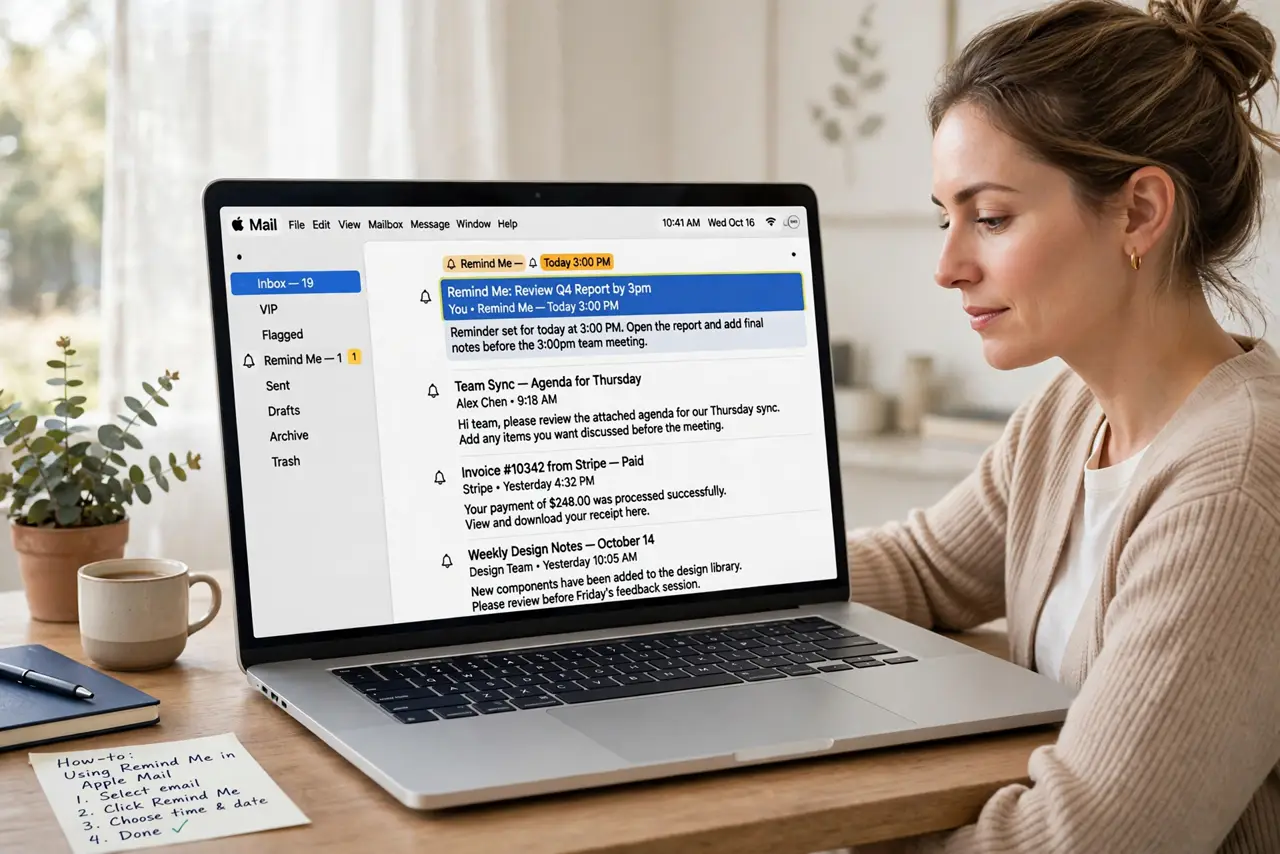
Quick fix: Apple Mail has no button called Snooze, but macOS Ventura and later include Remind Me, which hides an email and returns it at a set time. Right-click a message, choose Remind Me, and pick when. Older Macs can use Mail rules instead.
Follow these steps
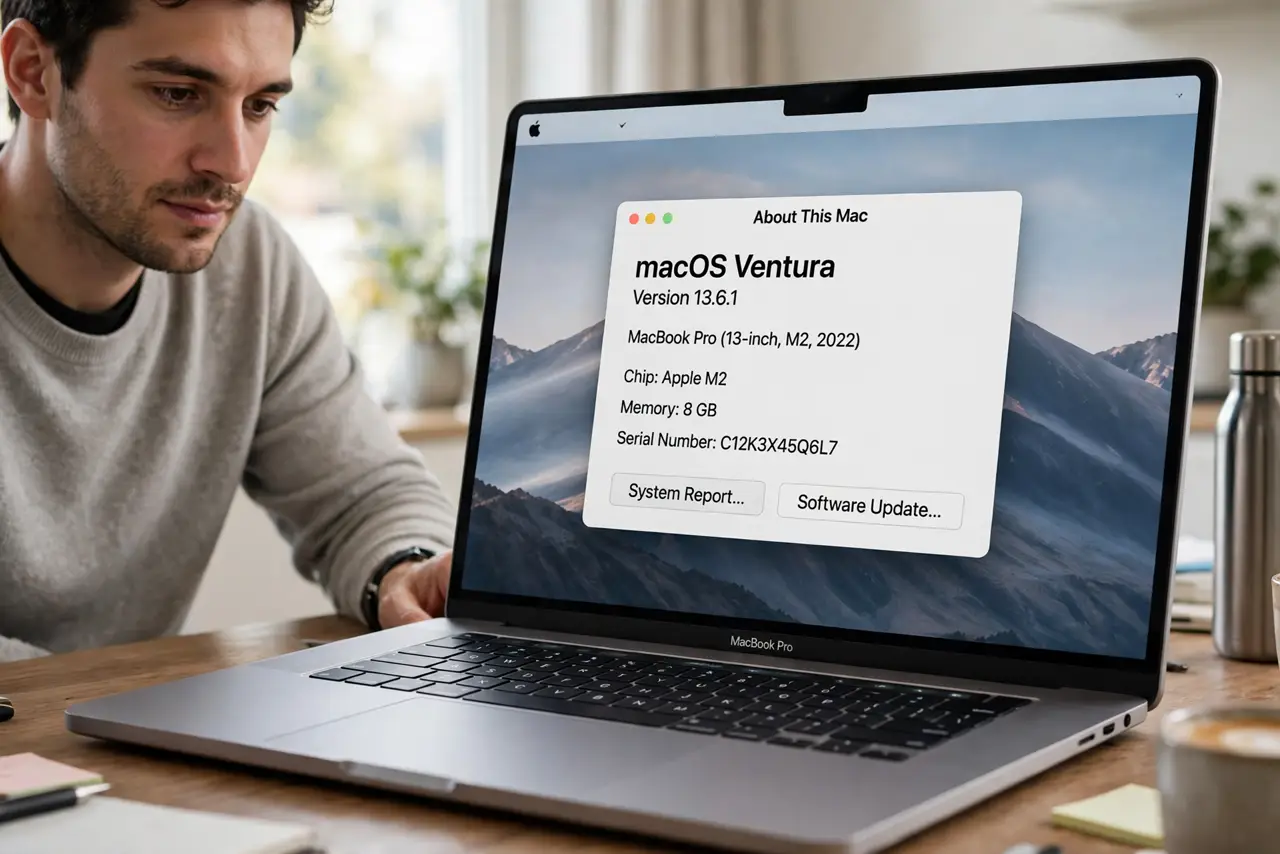
- Check your macOS version. Remind Me needs macOS Ventura (13) or later. Click the Apple menu, then About This Mac, to confirm. If you are on an older version, skip to the rules fallback below.
- Remind Me a message. Right-click (or swipe right with two fingers) on any message in Apple Mail and choose Remind Me. Pick one of the suggested times — in an hour, tonight, tomorrow — or set a custom date and time.
- Find your reminded messages. The message disappears from the inbox and returns to the top when the time comes. It also appears in the Remind Me mailbox in the sidebar, so you can see everything you have parked at a glance.
- Schedule outgoing mail with Send Later. For messages you compose but cannot send yet, the Send Later arrow next to the send button schedules them — a cousin of snoozing that keeps your outbox honest while you park incoming mail.
- Set up a rules-based snooze on older Macs. On pre-Ventura Macs, create a Mail rule (Mail > Settings > Rules) that moves flagged messages to a Snoozed folder. It lacks the auto-return, so pair it with a weekly review — and mind the Mail rules ordering pitfalls.
- Consider the Gmail route. If you also use Gmail, its native snooze is more mature — the Gmail snooze guide walks through it. You can add your Gmail account to Apple Mail and snooze from either side.
What NOT to do
- Do not expect Remind Me to delete or archive anything. The message still exists — it is just hidden until the time you picked, so do not use it as a filing system.
- Do not snooze messages with deadlines and then ignore them. Remind Me only brings the message back; it will not chase the actual deadline for you.
- Do not install a sketchy snooze plugin from an unknown developer. Mail plugins get deep access to your inbox — stick to reputable ones or the built-in feature.
- Do not assume Remind Me syncs instantly to your iPhone. It syncs through iCloud Mail, but third-party or IMAP-only accounts may behave differently across devices.
Frequently asked questions
Does snoozing mark the message as unread?
No — Remind Me hides the message and returns it to the top of your inbox at the chosen time, keeping its original read state. It works like a timed re-delivery, not a delete or archive.
Why don't I see Remind Me in Apple Mail?
You need macOS Ventura (13) or later. On older systems the option simply does not exist — update macOS or use the Mail rules fallback described above.
Is there a snooze in Apple Mail on iPhone?
Yes — iPhone Mail has the same Remind Me option when you swipe or long-press a message. It syncs with the Mac version through iCloud.