Unsubscribe in Apple Mail
Your inbox drowns in newsletters you don't remember signing up for, and hunting each sender's tiny footer link takes forever. Apple Mail has a one-click unsubscribe banner for compliant senders — plus rules and blocking for the ones that ignore you. Here's the cleanup workflow.
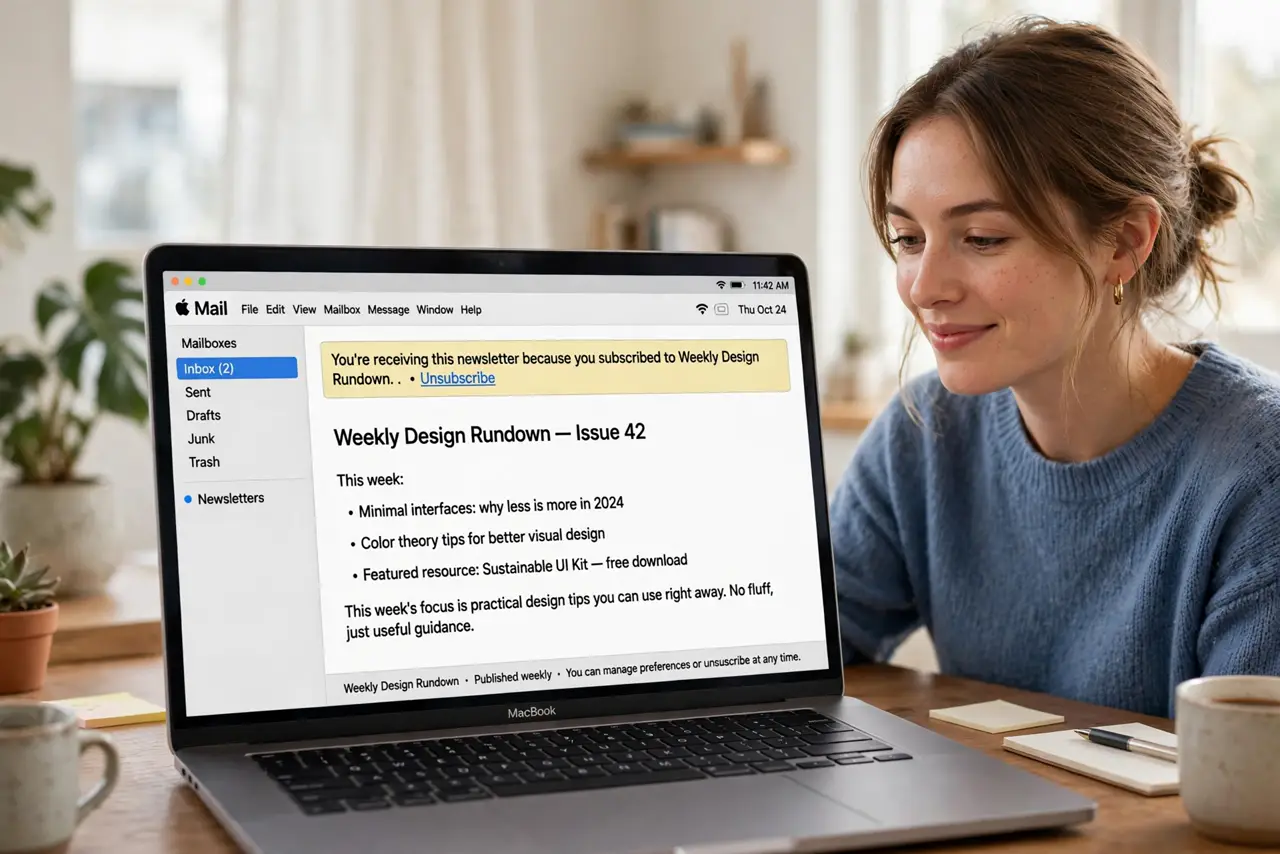
TL;DR / Quick Fix
Quick fix: in Apple Mail, open a newsletter and look for the Unsubscribe banner at the top of the message — one click handles it. If the banner is missing, scroll to the email's footer for an unsubscribe link. For stubborn senders, create a Mail rule to auto-delete them.
Follow these steps
- Use the unsubscribe banner. Open the newsletter in Apple Mail. If the sender is compliant, a banner appears above the message: 'This message is from a mailing list.' Click Unsubscribe — done in one click.
- Handle the missing banner. No banner? The sender may not follow the standard — see the missing-button case. Scroll to the email footer for their unsubscribe link as fallback.
- Unsubscribe, don't just delete. Deleting without unsubscribing guarantees tomorrow's edition. The banner or footer link stops the flow; the trash can only hides today's.
- Block the stubborn ones. For senders that ignore unsubscribes, block the address or make a rule: Mail > Settings > Rules > Add Rule, 'From contains X → Move to Trash'. See unsubscribe vs block for the strategy.
- Bulk-clean with search. Search 'unsubscribe' in Mail to surface every newsletter at once, then work through the banners in a batch. Fifteen focused minutes clears months of buildup.
- Prevent future floods. Use 'Sign in with Apple' hide-my-email or a separate shopping address for signups. Newsletters can't flood an address they never got.
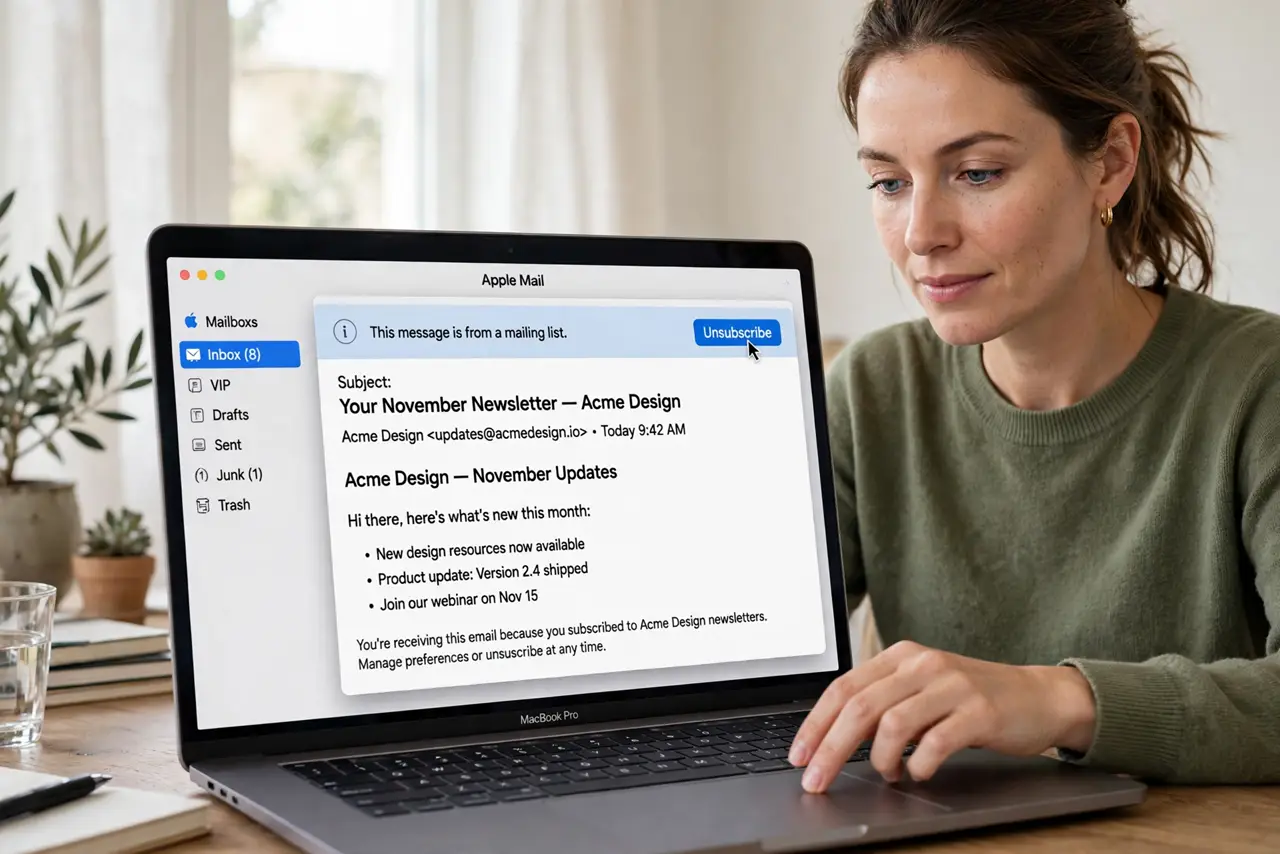
What NOT to do
- Do not click unsubscribe on obvious spam. For legitimate newsletters it's safe; for sketchy phishing spam, unsubscribing confirms your address is live — just block and delete those.
- Do not expect instant silence. Legitimate lists can take a few days to process; give it a week before declaring it broken.
- Do not unsubscribe from receipts you need. Order confirmations and account alerts aren't newsletters — filter those to a folder instead.
- Do not forget the banner needs Mail's detection. Some valid newsletters don't trigger it; the footer link is the universal fallback.
Frequently asked questions
Is the unsubscribe banner safe to click?
Yes for legitimate newsletters — Apple only shows it for senders that follow mailing-list standards. For obvious spam or phishing, don't engage; block instead.
Why do I still get emails after unsubscribing?
Processing takes days, or the sender ignores requests — see when they keep coming for the escalation path.
Can I unsubscribe on iPhone too?
Yes — the iOS Mail app shows the same banner. Unsubscribing on one device covers the account everywhere.