Photos Duplicated After Import on Mac
You imported photos and now every shot appears twice, tripling your library cleanup work. Duplicates happen when the same card imports twice or iCloud merges overlap. This guide finds the doubles and removes them without losing originals.
TL;DR / Quick Fix
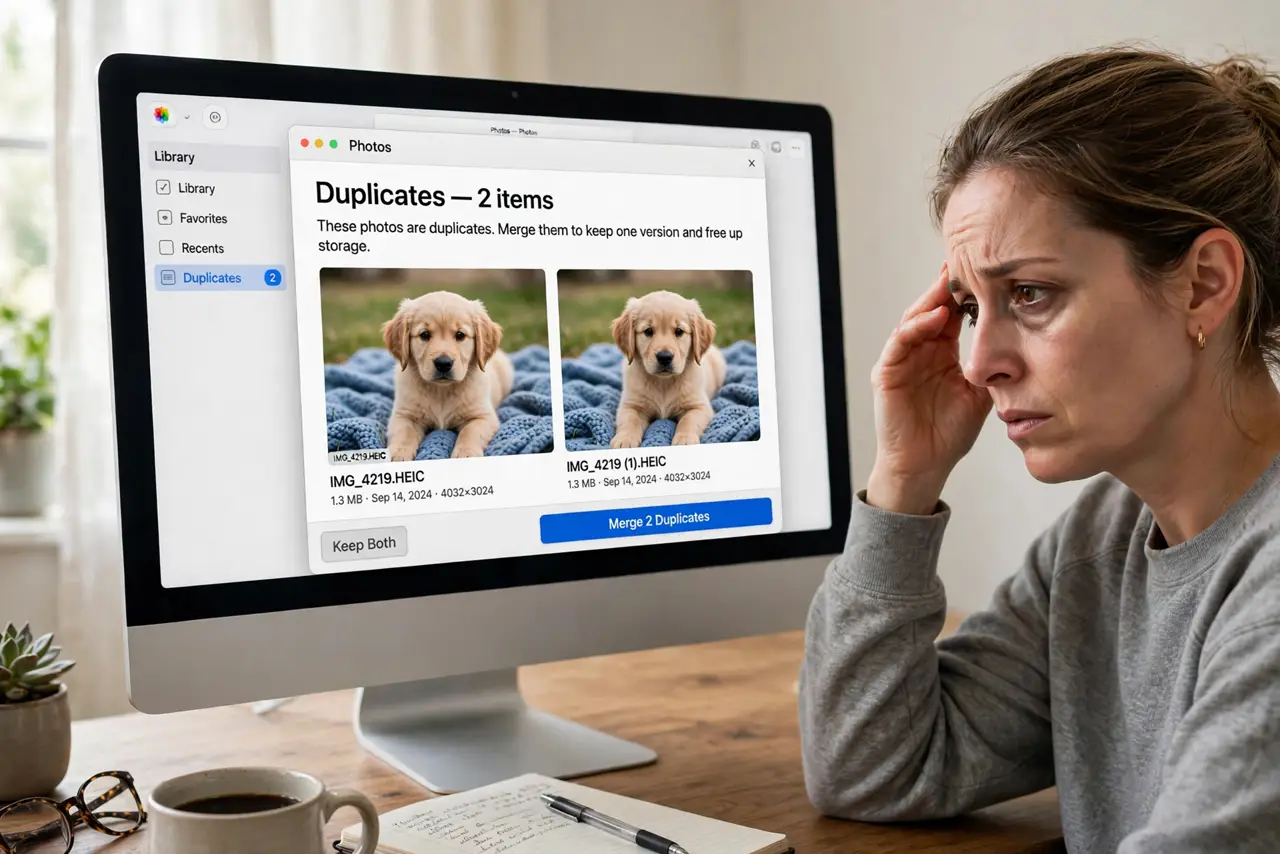
Quick fix: in Photos, use the built-in Duplicates album under Utilities to merge exact duplicates safely. For trickier near-duplicates, sort the library by date to spot the double import batch, then delete one copy and empty Recently Deleted to finish the cleanup completely.
Follow these steps
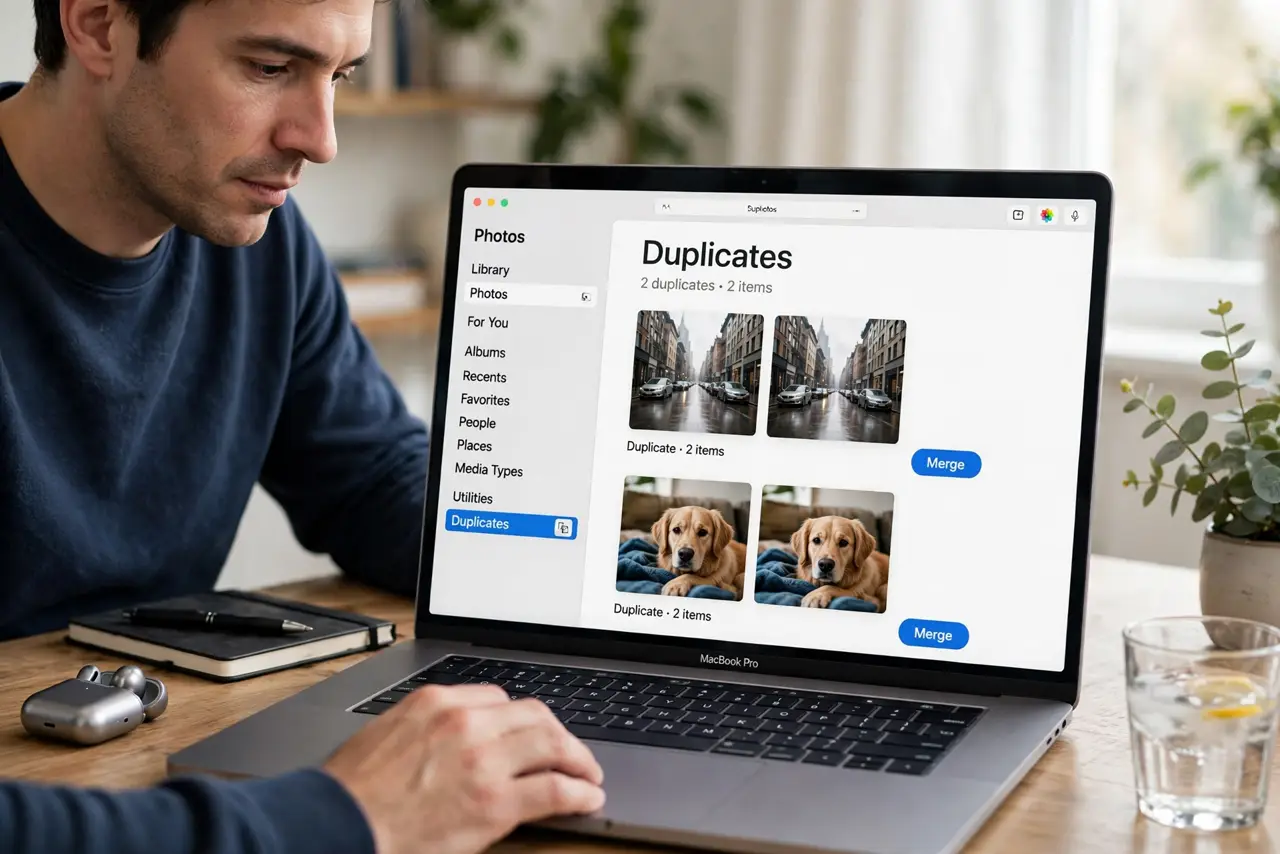
- Open the Duplicates album. In Photos, scroll the sidebar to Utilities and open Duplicates. macOS detects exact duplicates automatically and offers to merge them, keeping the best version.
- Merge, do not just delete. Use the Merge button in the Duplicates album. Merging combines metadata and keeps the highest-quality copy, which beats manual deletion.
- Spot the double-import batch. Sort the library by date and look for a repeated sequence of identical shots. A card imported twice creates a visible doubled block in time order.
- Check iCloud's role. If the same photos came from both an import and iCloud sync, the overlap creates doubles. Pause and let one source finish before starting the other.
- Clean up on iPhone too. For duplicates already on the phone, use the built-in duplicate merge on iPhone. Fixing both ends prevents the doubles from syncing back.
- Empty Recently Deleted. Deleted duplicates sit in Recently Deleted for 30 days still taking space. Empty it to finish the cleanup for real.
What NOT to do
- Do not mass-delete without the Duplicates album. Manual hunting misses matches and risks deleting the better copy.
- Do not merge while an import is still running. Let the import finish first, or new duplicates appear mid-cleanup.
- Do not ignore the backup. A quick Time Machine backup before merging makes the whole cleanup reversible.
- Do not reimport the same card again. Eject properly after import so the next plug-in does not offer the same photos twice.
Frequently asked questions
Why did import create duplicates?
The same card or folder was imported twice, or iCloud added copies of what you imported manually. The overlap is the duplicate.
Is merging safe?
Yes. Merge keeps the best-quality copy and combines keywords and favorites from the duplicates.
Will duplicates come back?
Only if you reimport the same source. Fix the import habit and they stay gone.