Fix Reversed Scrolling
You scroll down and the page goes up — or is it the other way around? macOS defaults to 'natural' scrolling (content follows your fingers, like a touchscreen), which feels backwards to anyone raised on traditional scroll wheels. There is no correct setting, only your preference. Here is how to flip it.
TL;DR / Quick Fix
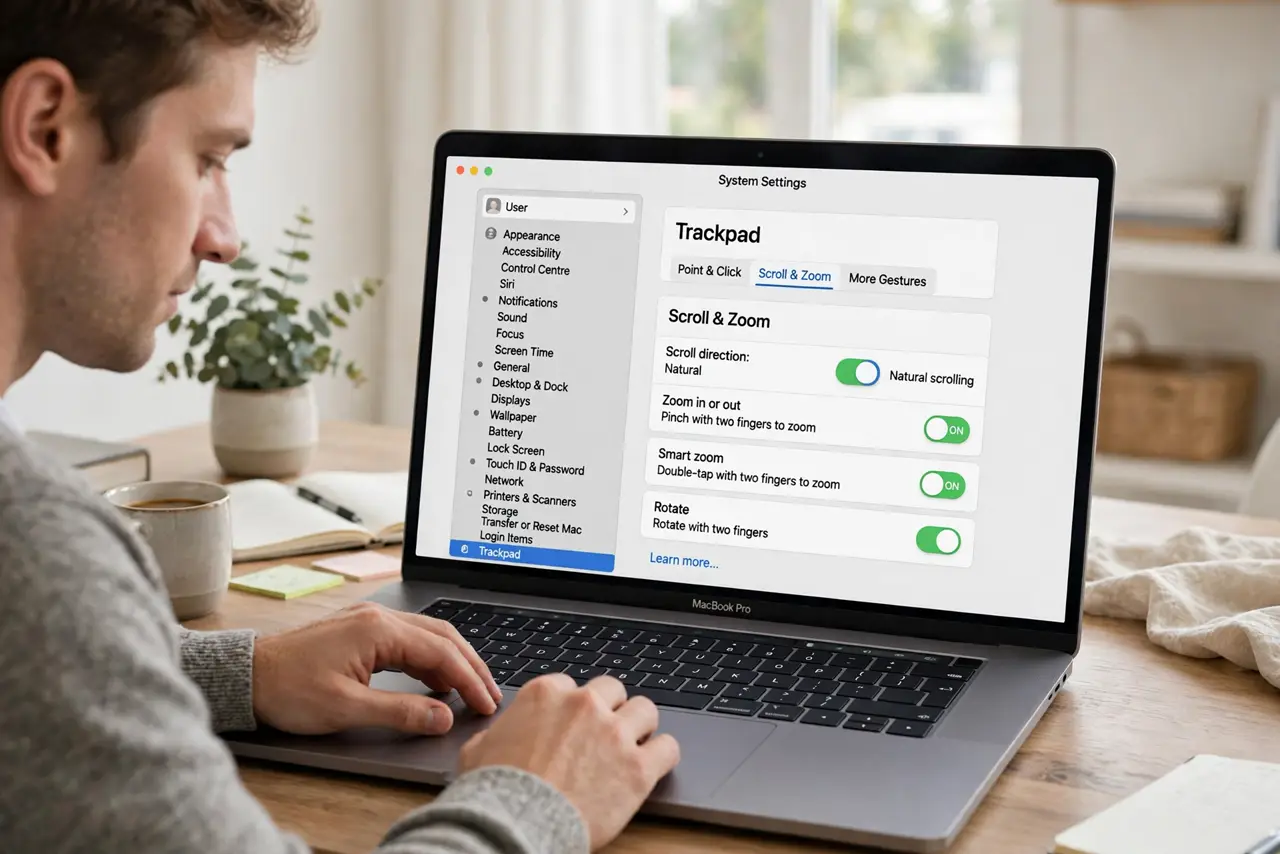
Quick fix: if scrolling feels backwards on your Mac, open System Settings, Trackpad or Mouse, and toggle 'Natural scroll' to match your expectation. On means content follows your fingers; off means the scrollbar moves traditionally. Pick whichever feels right — there's no correct answer, only preference.
Follow these steps
- Open the scroll settings. Go to System Settings > Trackpad (or Mouse) > Scroll & Zoom, and find the 'Natural scroll' toggle. One switch controls the whole behavior — this is a ten-second fix once you know where it lives.
- Understand the two modes. Natural ON: content follows your fingers, like pushing paper on a touchscreen — swipe up, content moves up. Natural OFF: the scrollbar moves traditionally — swipe up, page goes down. The natural scroll explainer covers the philosophy.
- Pick your preference. Touchscreen natives usually prefer natural ON; long-time mouse users usually prefer OFF. Neither is wrong — but pick one and commit, because switching back and forth keeps it feeling weird.
- Set trackpad and mouse separately. macOS keeps separate natural-scroll settings for the trackpad and the mouse. Fixing one does not fix the other — check both panes if you use both devices. A reversed mouse scroll while the trackpad feels fine is this exact gotcha.
- Match your other systems. If you also use Windows, note its scroll setting — see Windows scroll direction — and align them. Opposite directions on two daily machines is a constant low-grade annoyance.
- Give it a day. A flipped setting feels wrong for the first hours no matter which you choose. Live with it for a full day before flipping back — adaptation is fast, but not instant.
What NOT to do
- Do not flip it back and forth repeatedly. Each flip resets your adaptation — pick one, commit for a day, then judge.
- Do not assume one device's setting covers all. Trackpad and mouse are independent — check both or half your setup stays backwards.
- Do not 'fix' it per-app. The system setting is global by design; per-app scroll hacks cause more confusion than they solve.
- Do not argue about which is correct. Natural vs traditional is pure preference and muscle memory — the only wrong choice is the one that annoys you.
Frequently asked questions
Which is the 'right' setting?
Whichever matches your muscle memory. Touchscreen-era users lean natural; desktop veterans lean traditional. There is no correct answer.
Why did Apple change the default?
To match iPhone and iPad touch behavior — content follows the finger. It unified scrolling across all Apple devices, at the cost of confusing mouse veterans.
Can I set it differently for trackpad and mouse?
Yes — and many people do: natural on the trackpad, traditional on the mouse. macOS supports exactly this split.