Reverse Scroll Direction?
You switched from a Mac — or just plugged in a new mouse — and scrolling feels backwards: push up, page goes down, and your brain rebels. Windows and macOS default to opposite scroll directions, and muscle memory does not switch overnight. This guide flips it to whichever direction feels right.
TL;DR / Quick Fix
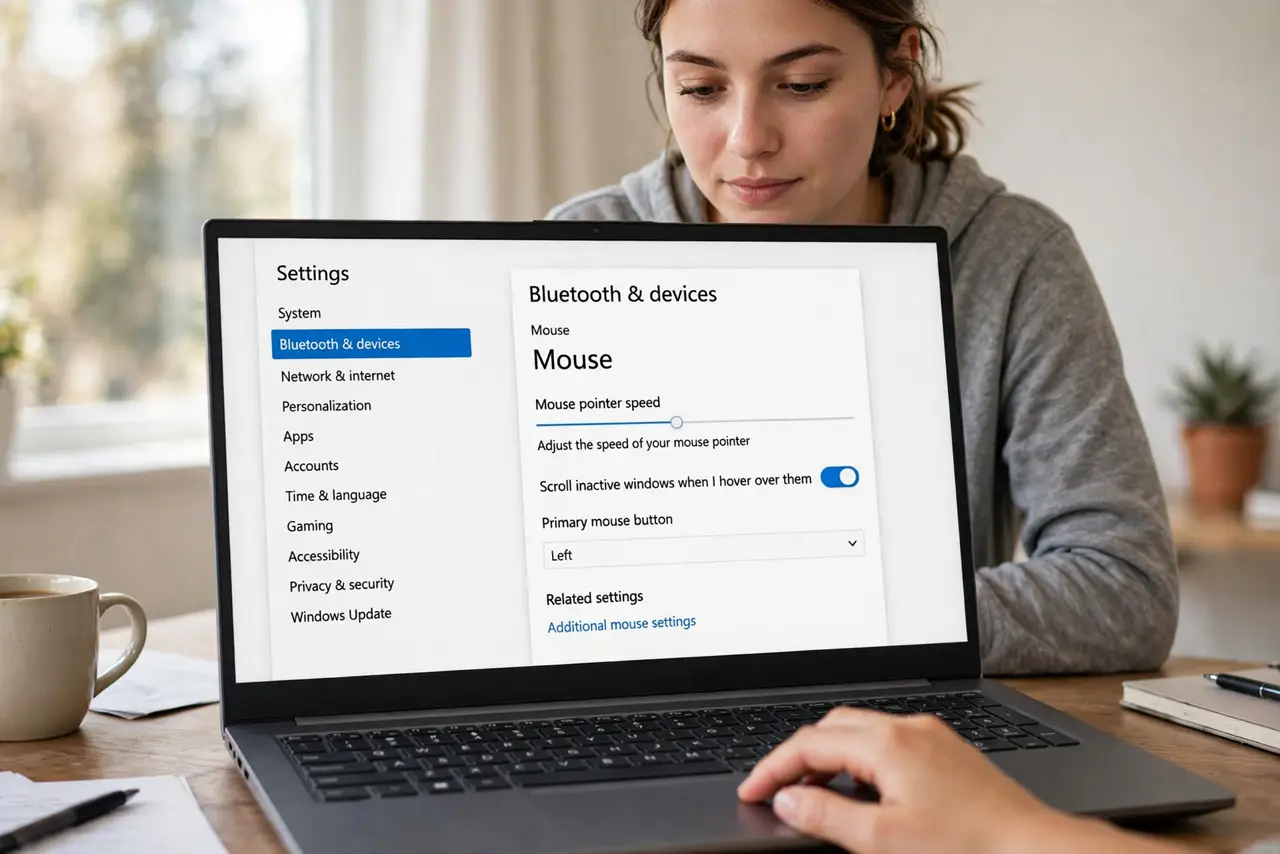
Quick fix: open Settings, then Bluetooth and devices, then Mouse or Touchpad, and toggle the scroll direction. On Windows 10 it is under Devices, then Mouse. The change is instant — scroll a page and see if it feels right. Touchpad and mouse can have separate directions.
Follow these steps
- Open the mouse settings. Go to Settings, then Bluetooth & devices, then Mouse. The scroll direction option sits right there — no registry, no third-party tools needed for the basics.
- Flip the direction toggle. Change the scroll direction setting and test immediately on a long page. Your muscle memory knows within ten seconds whether it feels right — trust it.
- Set the touchpad separately. Windows lets the touchpad and the external mouse scroll in different directions. Set each one to what your hands expect — many people like them opposite.
- Check the mouse maker's app. Gaming and premium mice sometimes override Windows with their own software. If the Windows toggle does nothing, the maker's app is in charge — flip it there.
- Compare with Mac behavior. macOS defaults to 'natural' scrolling (content follows your fingers); Windows defaults to the reverse. A switcher used to Mac scrolling just needs the Windows toggle flipped once.
- Fix per-app weirdness. If scrolling feels wrong in only one program, that app may have its own setting — see the one-app case before changing system-wide settings.
What NOT to do
- Do not edit the registry for this. The Settings toggle does the job — registry edits for scroll direction are outdated advice.
- Do not change both mouse and touchpad at once. Adjust one, test, then the other — changing both confuses the muscle-memory test.
- Do not install a scroll-reverser utility. Windows has this built in; third-party tools add startup bloat for nothing.
- Do not assume the mouse is broken. 'Backwards' scrolling after switching platforms is a settings mismatch, not a hardware fault.
Frequently asked questions
Which direction is 'correct'?
Whichever your hands expect. Mac users usually want natural scrolling; long-time Windows users want the classic direction. There is no objectively right answer.
Why does my touchpad scroll differently than my mouse?
Windows stores them separately, and makers set different defaults. Set each to taste — they are independent.
Can I reverse only horizontal scrolling?
Not in stock Windows settings — direction applies to both axes. Mouse maker software sometimes offers finer control.