The Shortcuts App? Basics
The Shortcuts app is macOS's built-in automation tool: chain actions together — get the weather, format some text, message it to someone — and run the whole chain with one click or a keystroke. It is genuinely powerful and genuinely ignored, sitting in your Applications folder doing nothing. Five minutes of setup can delete a daily chore forever.
TL;DR / Quick Fix
Quick fix: Shortcuts on Mac automates multi-step tasks — find it in Applications. Start with a gallery shortcut, then build your own by dragging actions into a sequence. Run shortcuts from the menu bar or with a keystroke for instant triggering.
Follow these steps
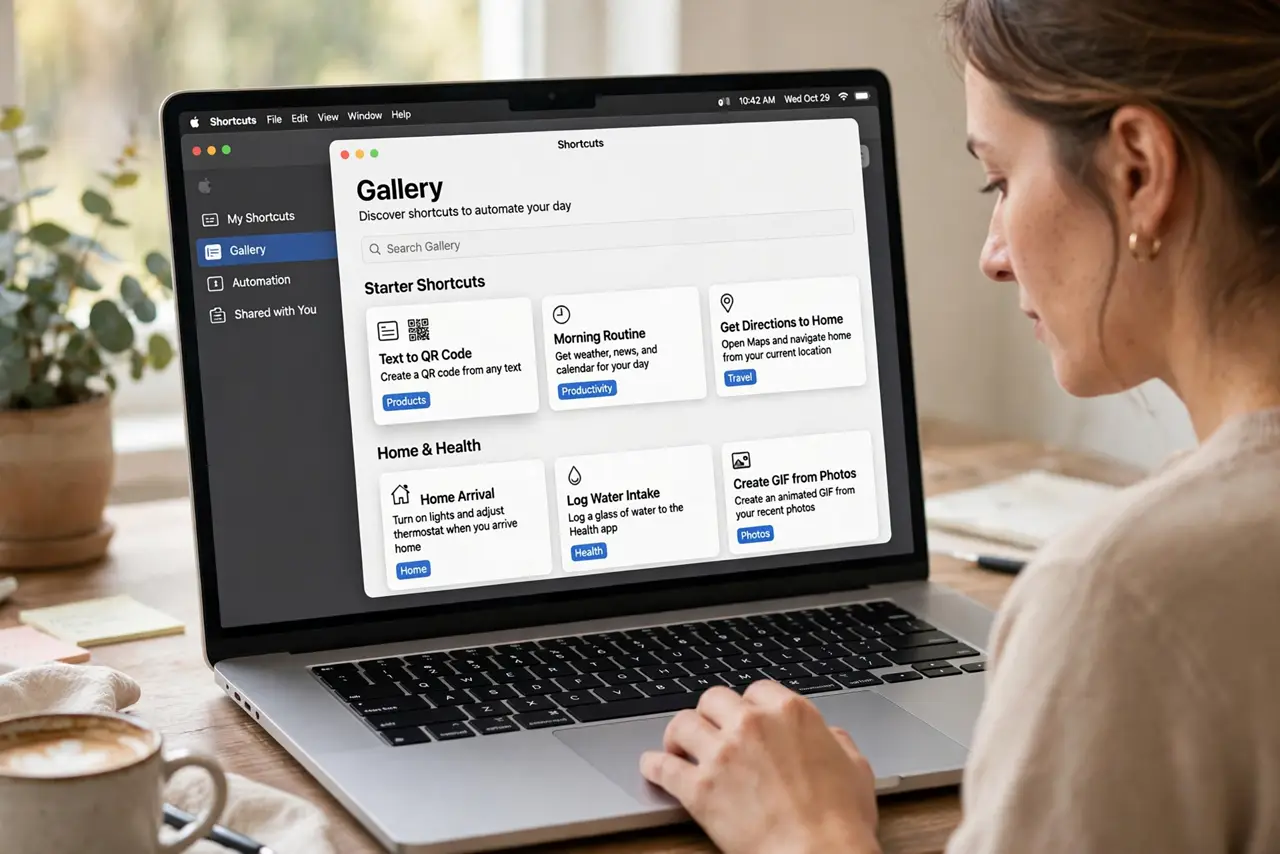
- Open Shortcuts and browse the gallery. Launch Shortcuts from Applications and open the Gallery tab. These ready-made automations — starter shortcuts for common tasks — are the fastest way to see what the app does.
- Run one to feel it. Add a gallery shortcut and run it. Watching three manual steps collapse into one click is the moment Shortcuts clicks mentally — start with something you do daily.
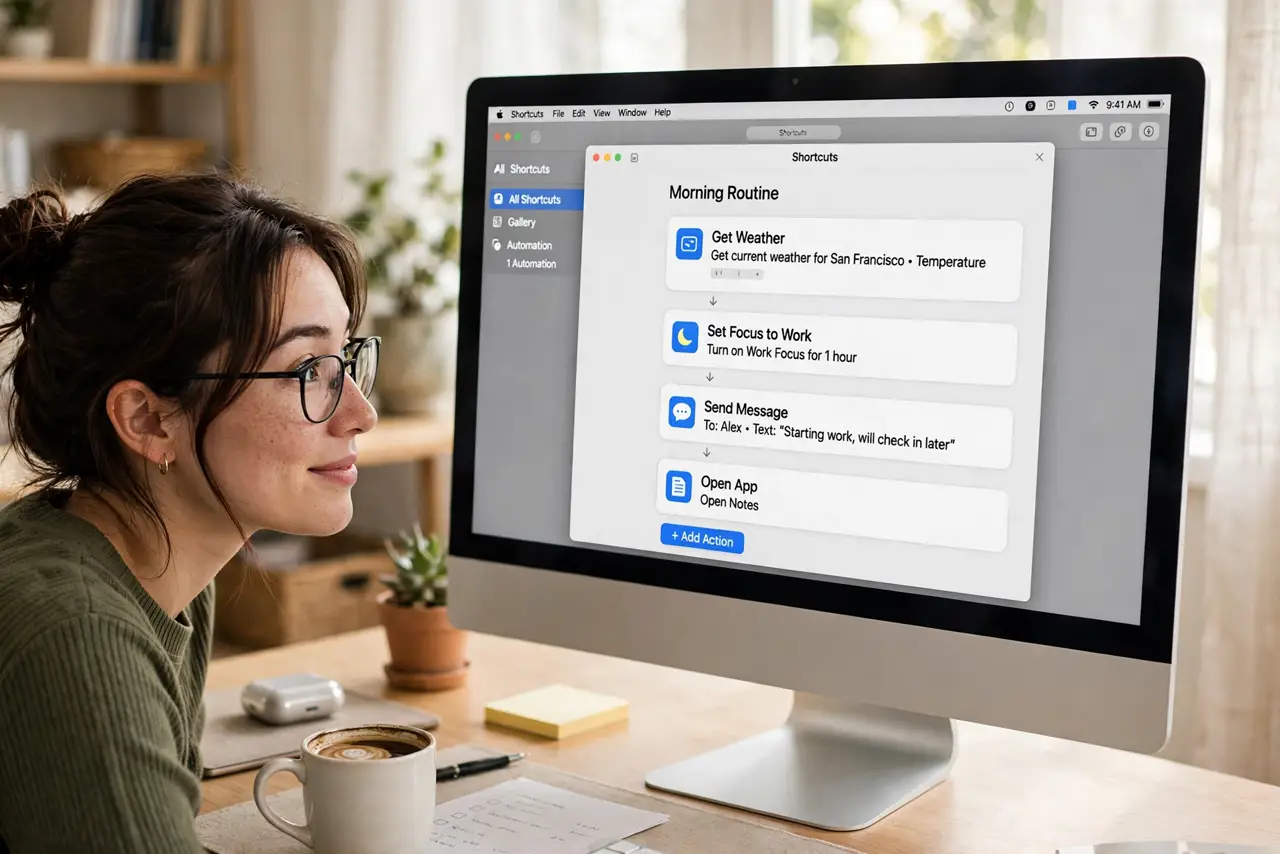
- Build a simple one. Create a new shortcut and drag actions from the sidebar: for example, 'Get current weather,' then 'Show notification.' Two actions, one automation — you now understand the whole paradigm.
- Trigger it conveniently. Pin shortcuts to the menu bar, assign a keyboard shortcut, or add them to the Services menu. An automation you cannot trigger easily is an automation you will not use.
- Automate a real chore. Rename a batch of files, resize images for email, or text your ETA when leaving work — pick one genuine annoyance and automate it fully. Real chores teach faster than tutorials.
- Debug calmly when it breaks. Shortcuts fail most often on permissions or changed app states. Run it step by step (the editor shows each action's result) and fix the failing action — the never-runs guide covers the stubborn cases.
What NOT to do
- Do not automate what you do twice a year. The setup time has to beat the manual time — automate the dailies and weeklies, not the rarities.
- Do not grant every permission blindly. Shortcuts can touch files, messages, and accounts — review what each action accesses before running.
- Do not build a fifty-action monster as your first project. Start tiny, verify each step works, then grow — debugging a giant is miserable.
- Do not forget shortcuts sync via iCloud. A shortcut that works on your Mac may behave differently on iPhone — test on each device you use.
Frequently asked questions
What's the difference between Shortcuts and Automator?
Shortcuts is the modern replacement — simpler, synced via iCloud, and shared with iPhone. Automator still exists for legacy workflows but is effectively retired.
Can Shortcuts control other apps?
Yes — apps expose actions to Shortcuts, and the set grows constantly. If an app lacks actions, AppleScript or shell actions can often fill the gap.
Why did my shortcut stop working?
Usually a permission revoked by an update, or an app whose state changed. Re-run it step by step to find the failing action — then check that action's permissions.