Siri on Mac? The Basics
Siri lives on your Mac too — not just your iPhone — and it can do more than set timers. On macOS it searches files, changes settings, does math, and answers questions, all from a keyboard shortcut or menu bar click. Most Mac owners never turn it on. This guide covers setup and the genuinely useful things to ask.
TL;DR / Quick Fix
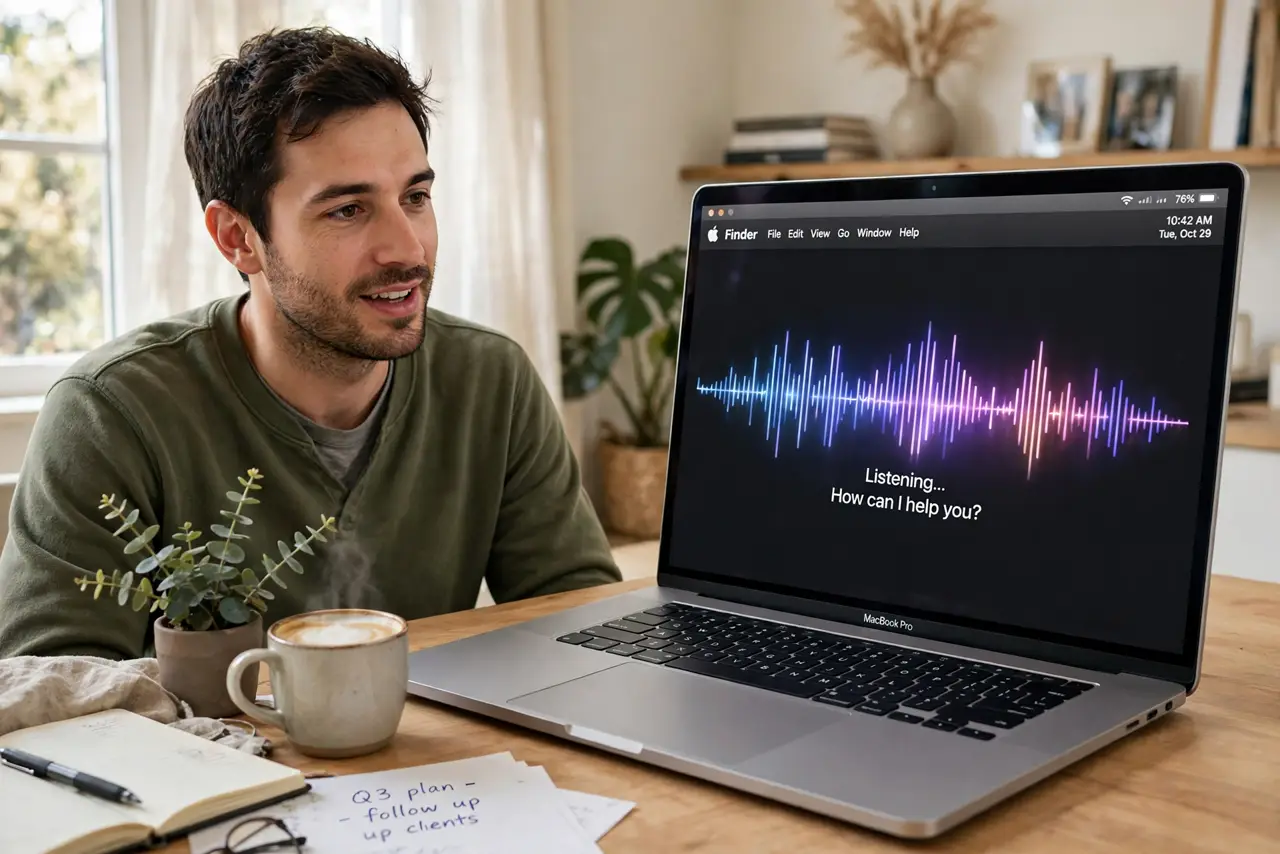
Quick fix: enable Siri in System Settings under Apple Intelligence & Siri, then summon it with the menu bar icon or a keyboard shortcut. Ask it to find files, toggle settings, do math, or set reminders. If it mishears you, check the microphone input in Sound settings first.
Follow these steps
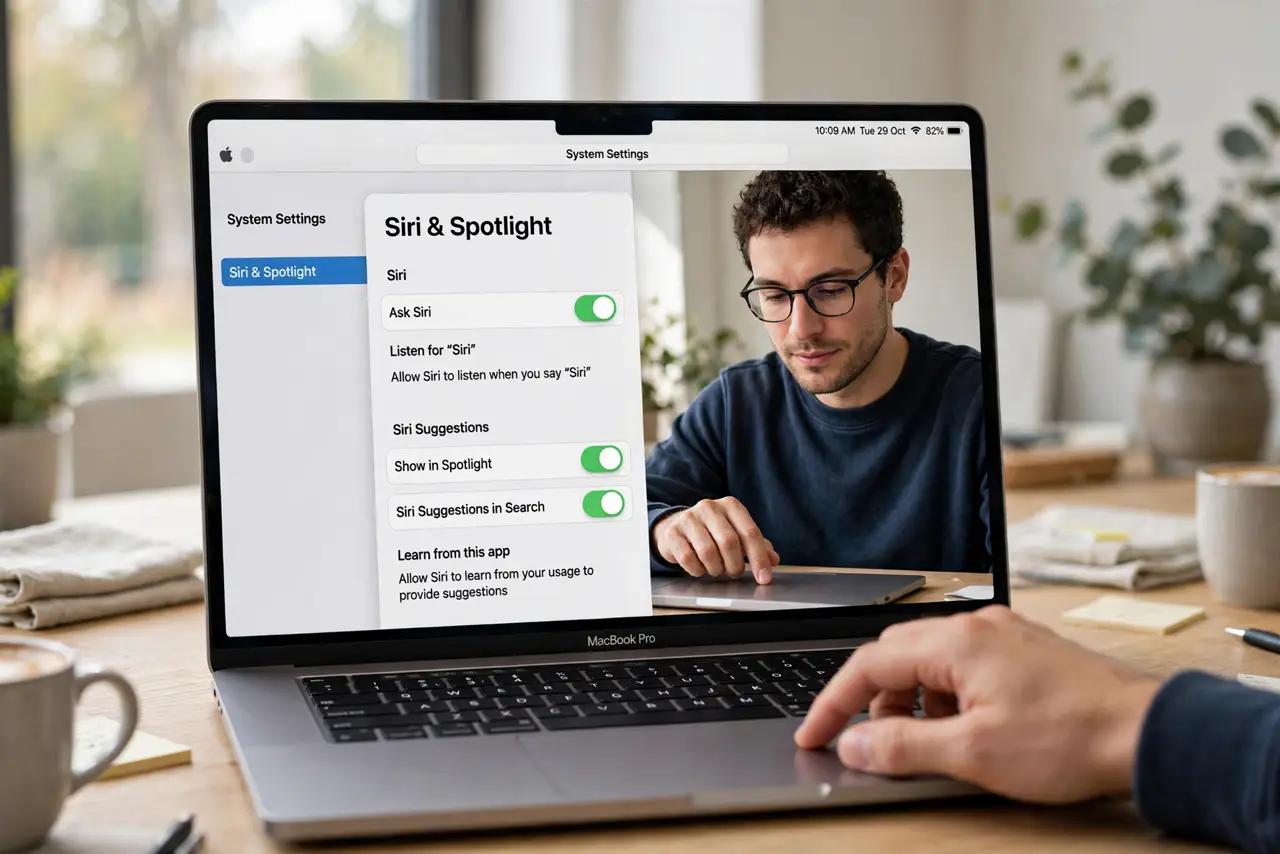
- Turn Siri on. Open System Settings, go to Apple Intelligence & Siri, and enable Ask Siri. Pick a keyboard shortcut and decide whether you want it listening for a wake phrase or only on demand.
- Learn the summon methods. Click the Siri icon in the menu bar, use your keyboard shortcut, or say the wake phrase if enabled. On demand is more private — see privacy settings to control what Siri stores.
- Ask it to find things. Siri searches your Mac brilliantly: ask for the spreadsheet from last Tuesday or photos from the beach. It's faster than digging through Finder for most people.
- Ask it to change settings. Ask Siri to turn on Do Not Disturb, raise the brightness, or toggle Wi-Fi — it flips system settings hands-free, handy when your hands are full or the setting is buried.
- Use it for quick math and facts. Unit conversions, calculations, sports scores, weather — the quick questions you'd otherwise unlock your phone for. Answers appear in the Siri window, pinnable to Notification Center.
- Fix it when it mishears. Wrong answers usually mean a wrong microphone or too much background noise. Check the input device in Sound settings, and see can't-hear-you fixes if it consistently misunderstands.
What NOT to do
- Do not enable the wake phrase on a shared Mac. Anyone in the room can trigger it — on shared machines, keep Siri on-demand only.
- Do not dictate passwords or sensitive numbers to Siri. Voice requests can be logged — type credentials, don't speak them.
- Do not expect iPhone-level smart home control. Siri on Mac handles HomeKit basics, but complex automations still belong on your iPhone.
- Do not assume Siri heard you correctly for important actions. Confirm before sending messages or deleting — a misheard command can do real damage.
Frequently asked questions
Why won't Siri activate?
Usually it's disabled in settings, the microphone is muted, or headphones are confusing it. Check System Settings first, then see headphone activation issues if it only fails with headphones in.
Can I change the Siri keyboard shortcut?
Yes — in the Siri settings you can assign any keyboard shortcut you like. Pick something you won't hit by accident during normal typing.
Does Siri on Mac work offline?
Basic commands like opening apps work offline, but web answers, dictation improvements, and most knowledge questions need an internet connection.