Siri Privacy Settings? Review
Siri processes a lot on-device — Apple is genuinely better here than most — but dictation, Siri history, and 'improve Siri' analytics still send data to Apple. The toggles to trim it live in two places on your iPhone. Here is the quick pass.
TL;DR / Quick Fix
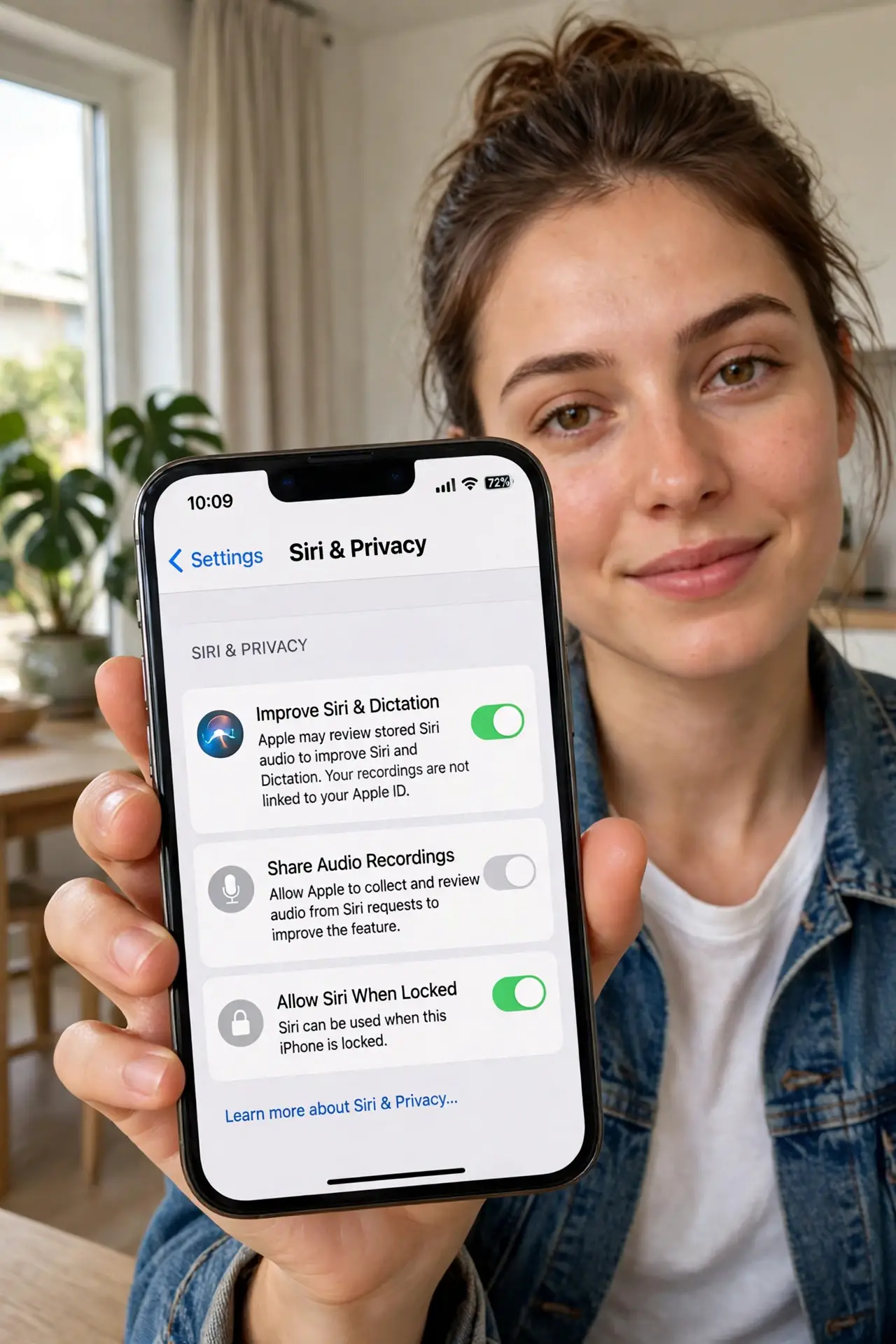
Siri processes on-device, but request history and improvement analytics still send data to Apple. Open Settings > Siri, delete Siri and dictation history, then go to Privacy & Security > Analytics and switch off 'Improve Siri & Dictation.' Review per-app 'Learn from this App' toggles too. Siri keeps working normally.
Follow these steps
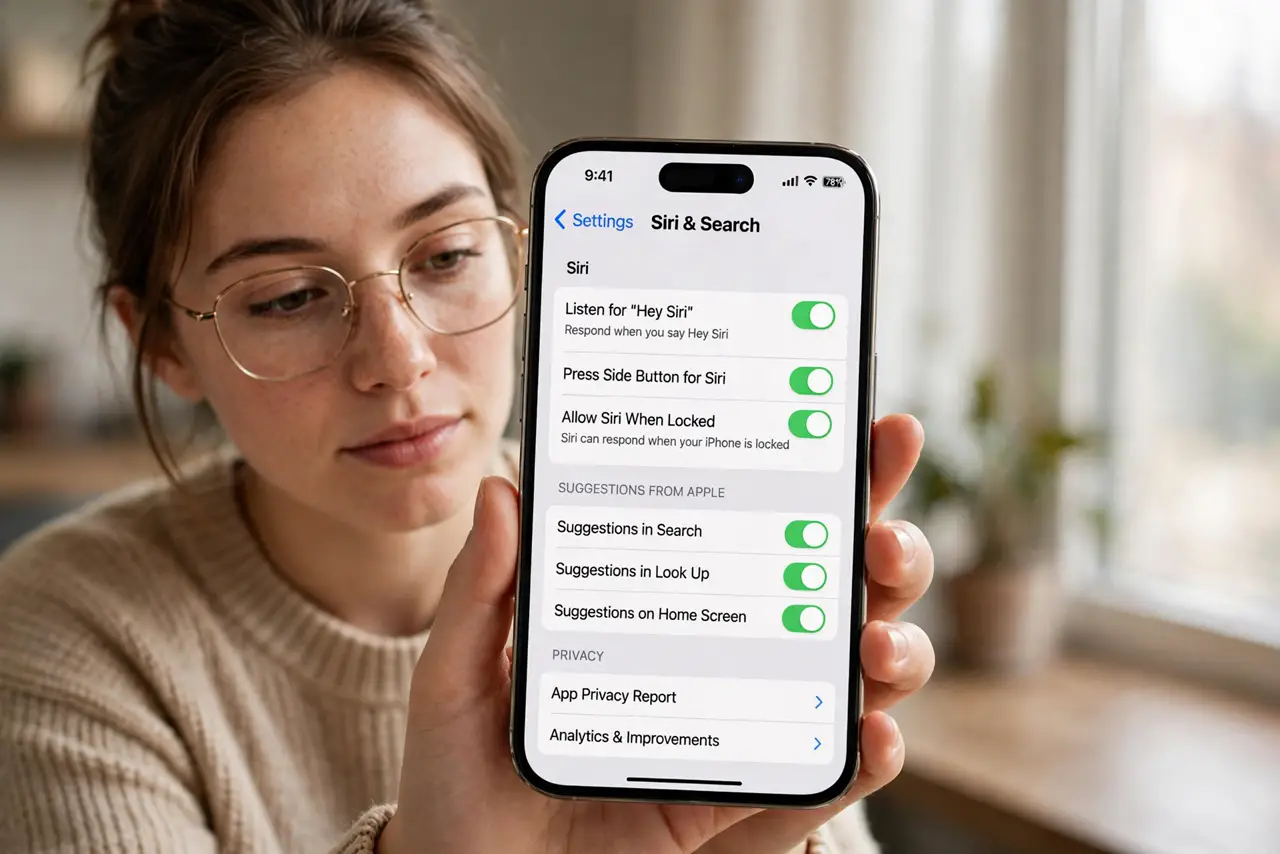
- Open Settings > Siri. On newer iPhones this may be labeled Apple Intelligence & Siri. The privacy-relevant options are the same.
- Delete Siri and dictation history. There is a dedicated delete-history option in the Siri settings. Use it to clear what is stored now.
- Switch off 'Improve Siri & Dictation.' This lives under Settings > Privacy & Security > Analytics & Improvements. It stops your transcripts feeding Apple's training.
- Review 'Learn from this App' per app. Under each app's Siri settings, decide whether Siri may learn from it. Trim the ones holding sensitive content.
- Check keyboard dictation separately. Dictation has its own data flow apart from Siri requests. The same Analytics toggle covers the improvement side.
- Re-check after iOS updates. Major updates sometimes restore analytics opt-ins. The permission creep check takes a minute.
What NOT to do
- Do not expect Siri to stop working. On-device processing handles most requests; you are trimming the cloud extras.
- Do not confuse Siri history with Safari history. They are separate stores with separate delete buttons.
- Do not leave the 'improve' analytics on if the idea bothers you. It is opt-out, and off is a supported choice.
- Do not forget the Watch and HomePod. They share your Apple ID's Siri settings — check the same toggles there.
Frequently asked questions
Does Apple sell Siri data?
Apple states it does not sell personal data. It does use transcripts for service improvement unless you opt out — which is what this guide switches off.
Will Siri get worse if I opt out?
Marginally less personalized suggestions. Everyday requests, dictation, and device control are unaffected.
Is Siri more private than other assistants?
Yes, thanks to heavier on-device processing — but the history and analytics toggles still deserve your attention.