Spotlight Tricks Worth Knowing
Spotlight is the search bar hidden behind Command-Space, and most Mac owners use it for almost nothing. It launches apps, does math, converts units, finds files by content, and previews results without opening anything. A few minutes of practice turns it into the fastest way to work on a Mac. These are the tricks worth learning, with nothing to install and nothing to delete.
TL;DR / Quick Fix
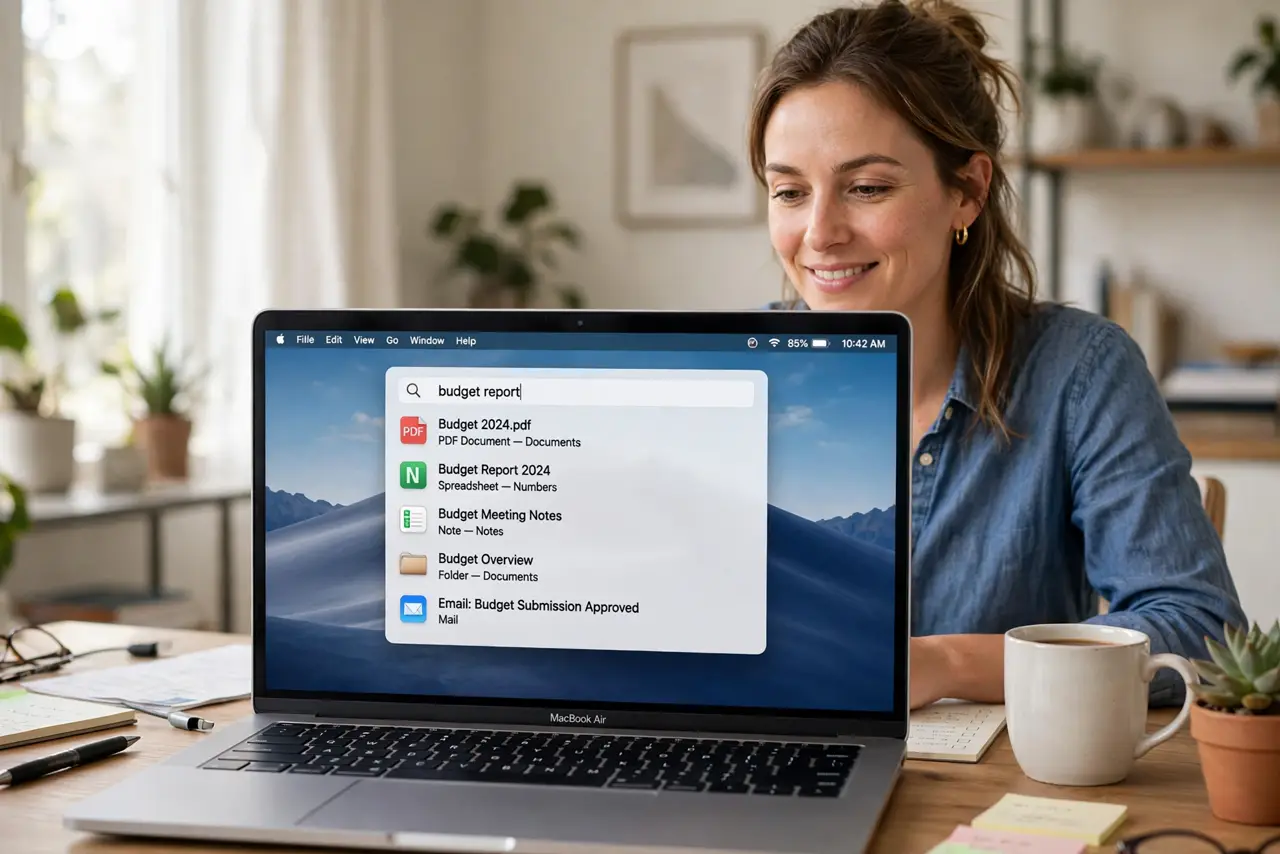
Quick fix: press Command-Space and start typing — Spotlight finds apps, files, and contacts, and answers math and unit questions instantly. Arrow keys move between results; Enter opens the top one. Narrow file searches with 'kind:pdf' or dates. Five tricks learned, and folders become the last resort.
Follow these steps
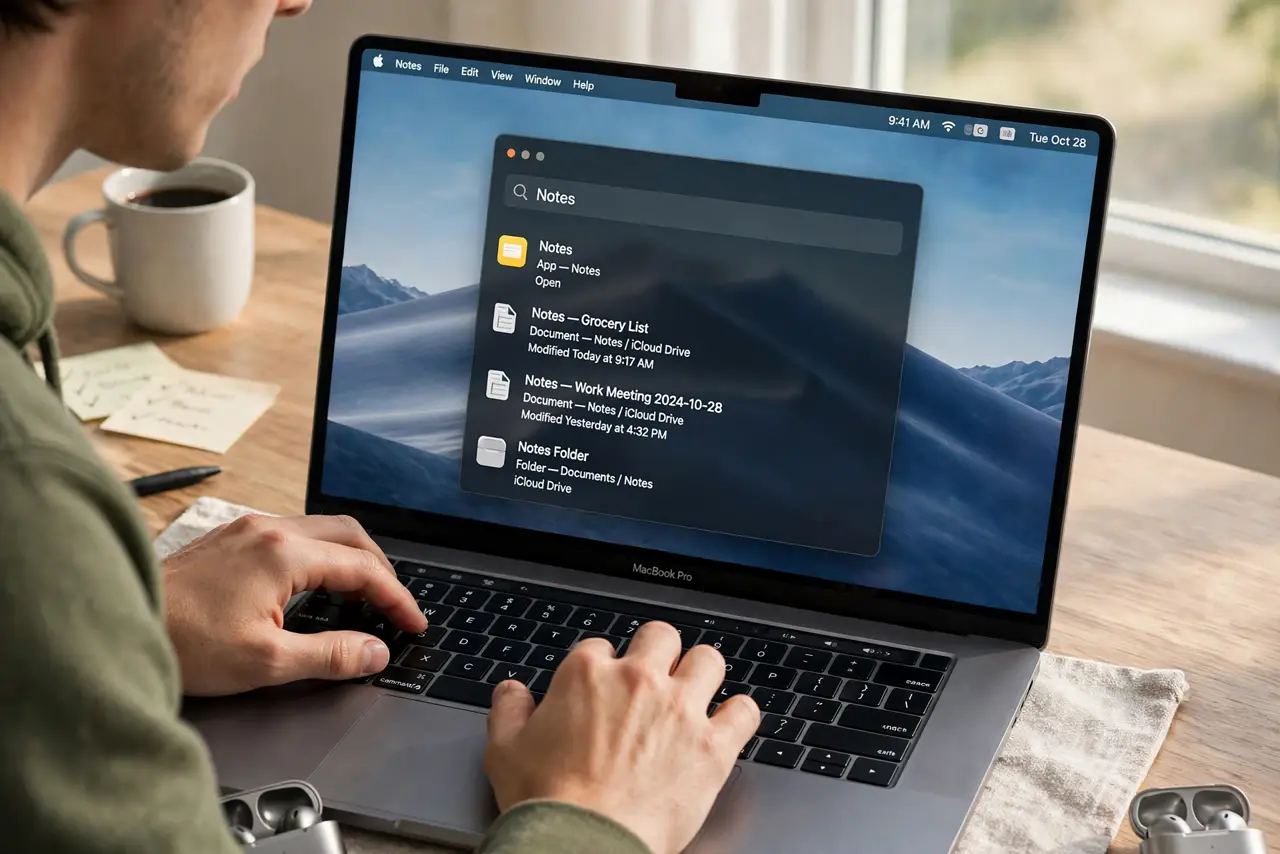
- Launch anything by name. Press Command-Space and type the first few letters of any app, file, or setting. Spotlight ranks as you type, and the top result is usually right. Press Enter to open it — faster than the Dock or Finder for almost everything.
- Do math and conversions inline. Type '45*12' or '100 usd in eur' directly into Spotlight and the answer appears live. Unit conversions, percentages, and currency all work without opening Calculator or a browser. It is the fastest scratch pad on the Mac.
- Search file contents, not just names. Spotlight indexes what is inside documents, so typing a phrase finds the PDF or note containing it. Narrow results with 'kind:pdf', 'kind:image', or a date like 'last week'. If a file never appears, check the Spotlight exclusions to see if its folder was blocked.
- Preview before opening. Highlight any result and press Space for a Quick Look preview. Read the document, view the photo, or check the contact without launching anything. Press Escape to close the preview and keep typing.
- Drag results where you need them. You can drag a Spotlight result straight into an email, a document, or a Finder window. It beats opening the file's folder and hunting for it. Dragging an app result onto the Dock pins it there too.
- Tame a misbehaving Spotlight. If results go missing or stale, the index may need a rebuild: remove your drive from Spotlight Privacy in System Settings, then add it back. If Spotlight finds nothing at all, that rebuild is the standard fix — safe, and your files stay untouched.
What NOT to do
- Do not reinstall macOS to fix bad Spotlight results. A corrupt index is fixed with a reindex, not an OS reinstall.
- Do not add your whole drive to the Privacy exclusion list by accident. Excluded folders are invisible to Spotlight — that setting is usually why files 'disappear.'
- Do not trust Spotlight for sensitive filenames on shared Macs. Anyone with Command-Space can search your indexed files — keep private items in an encrypted disk image.
- Do not type passwords into Spotlight. It looks like a handy scratch pad, but anything typed there can be logged or suggested later.
Frequently asked questions
Why won't Spotlight find my apps?
The app may sit outside the indexed folders, or the index is stale. Rebuild the index by toggling the drive in Spotlight Privacy settings. The app search fix walks through the same safe rebuild step by step.
Can Spotlight search the web?
Yes — type a question and scroll to the web results, or press Enter on a web suggestion to open it in Safari. You can turn web results off in System Settings if you prefer Spotlight to stay local.
Does Spotlight work offline?
For files, apps, and math, yes — all local. Web suggestions, currency conversion, and Siri-style answers need an internet connection.