Set Up Time Machine
One spilled coffee, one failed drive, one ransomware scare — and years of photos and documents are gone unless a backup exists. Time Machine is macOS's built-in answer: plug in a drive once, and it quietly versions everything, every hour. Setup takes five minutes and then you never think about it again.
TL;DR / Quick Fix
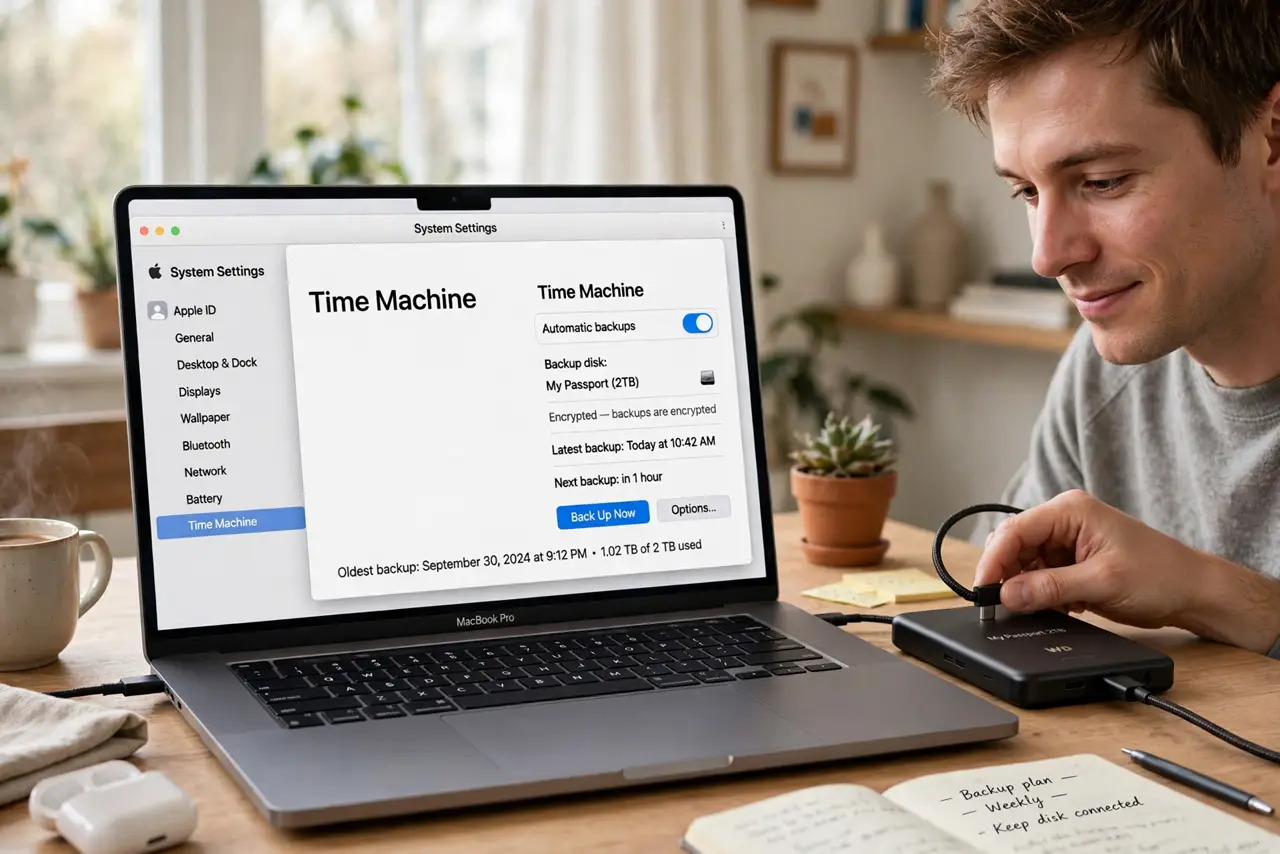
Quick fix: connect an external drive, open System Settings, go to General, then Time Machine, and add the drive as your backup disk. Time Machine then backs up automatically every hour. Use a drive at least twice the size of your data, and leave it connected regularly.
Follow these steps
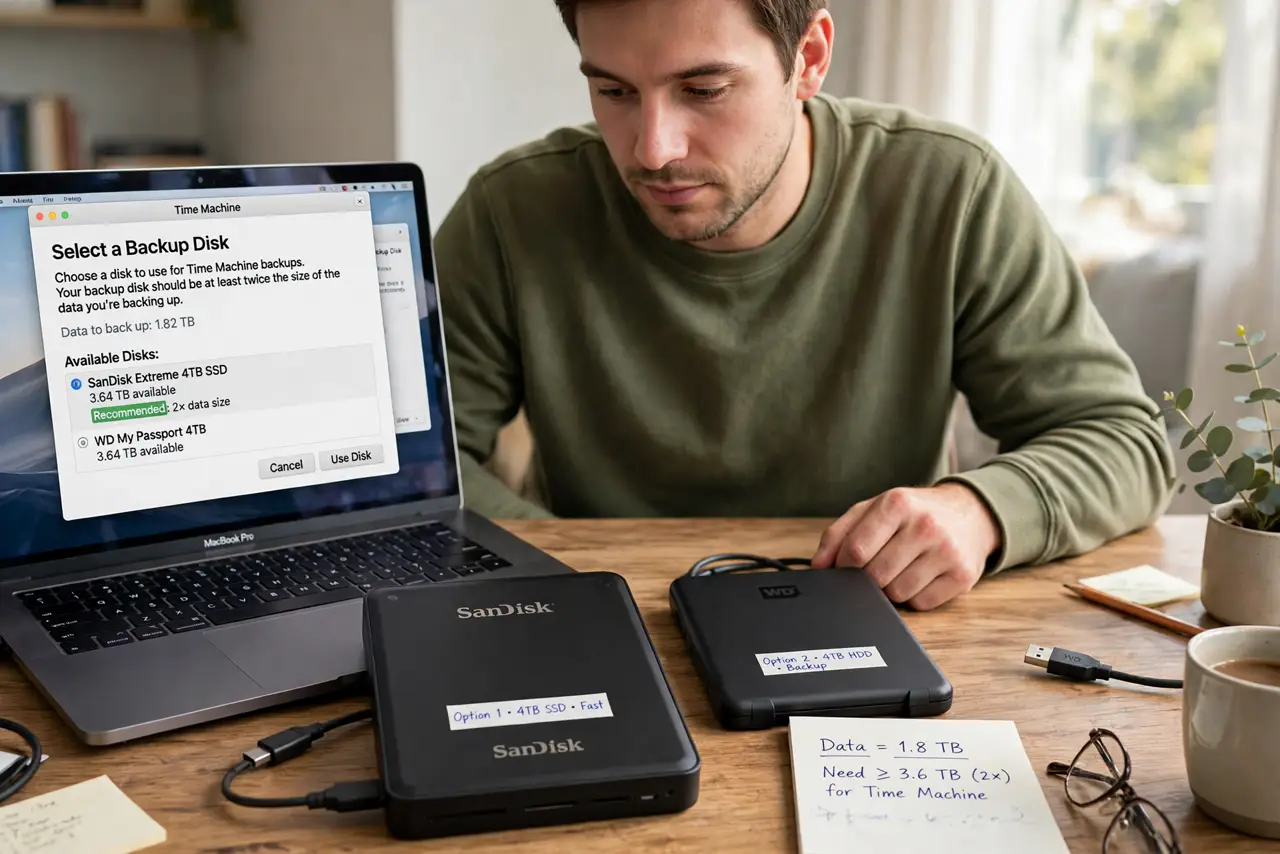
- Get a dedicated external drive. Time Machine wants its own drive — ideally twice the size of the data you back up. Bigger means deeper history, not just more room.
- Connect and format if asked. macOS may offer to format the drive for Time Machine. Say yes for a dedicated backup drive — this erases it, so use an empty one.
- Add the disk in Time Machine settings. In System Settings, go to General, then Time Machine, and add the drive as your backup disk. This one action starts the whole system — the classic Time Machine backup flow.
- Let the first backup finish. The initial backup copies everything and takes hours. Leave the Mac plugged in and connected — interruptions just resume later.
- Keep the drive connected regularly. Hourly backups only happen when the drive is attached. Dock the Mac daily, or leave a desktop drive plugged in permanently.
- Exclude what does not need backing up. In Time Machine options, exclude giant regenerable folders like downloads or caches. Smaller backups mean longer history on the same drive.
What NOT to do
- Do not use your only copy of files as the 'backup' drive. A drive holding originals is not a backup — Time Machine needs a separate disk.
- Do not unplug the drive mid-backup repeatedly. Occasional interruptions are fine; yanking it every hour corrupts the backup history.
- Do not back up to the same physical drive as your data. A dead drive takes the originals and the 'backup' together.
- Do not skip the first full backup 'to save time.' An incomplete first backup is barely a backup at all — let it finish.
Frequently asked questions
How much space does Time Machine need?
At minimum, the size of your data — but twice the data size gives months of hourly history. More is always better here.
Can I back up to a network drive?
Yes — Time Machine supports network destinations, including many NAS boxes. It is slower than USB but fine for overnight backups.
Does Time Machine back up when the drive is unplugged?
No. Laptops make local snapshots as a stopgap, but real backups resume only when the drive reconnects.