Type in Another Language
You need to write in Spanish, Japanese, or Arabic on your Mac, and the keyboard stubbornly types only English. macOS supports hundreds of input sources — you just have to add them and learn the switch shortcut. Five minutes of setup, then language-switching becomes muscle memory.
TL;DR / Quick Fix
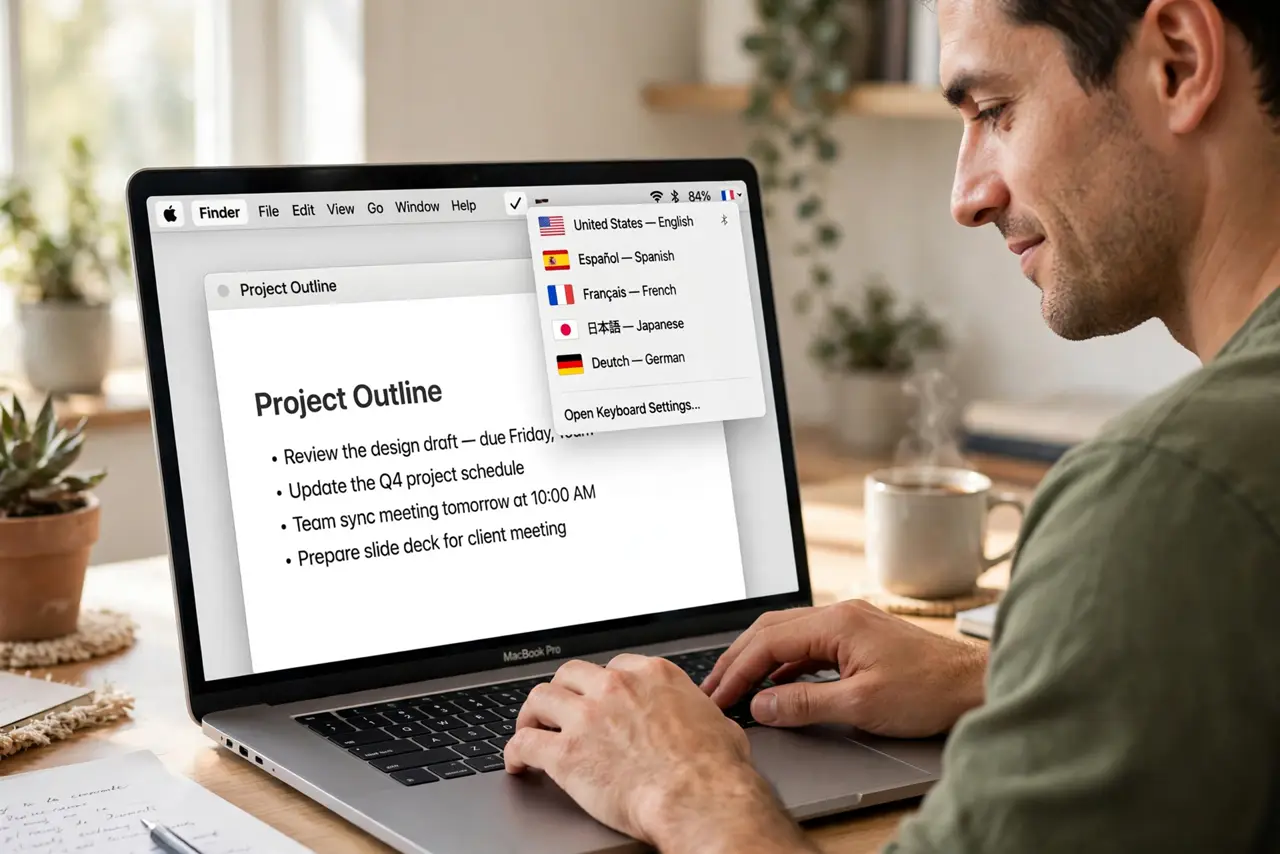
Quick fix: add the language in System Settings, Keyboard, Text Input, then switch with Control + Space or the flag in the menu bar. Each app remembers its own input source, so you can write email in Spanish and code in English without switching back and forth manually.
Follow these steps
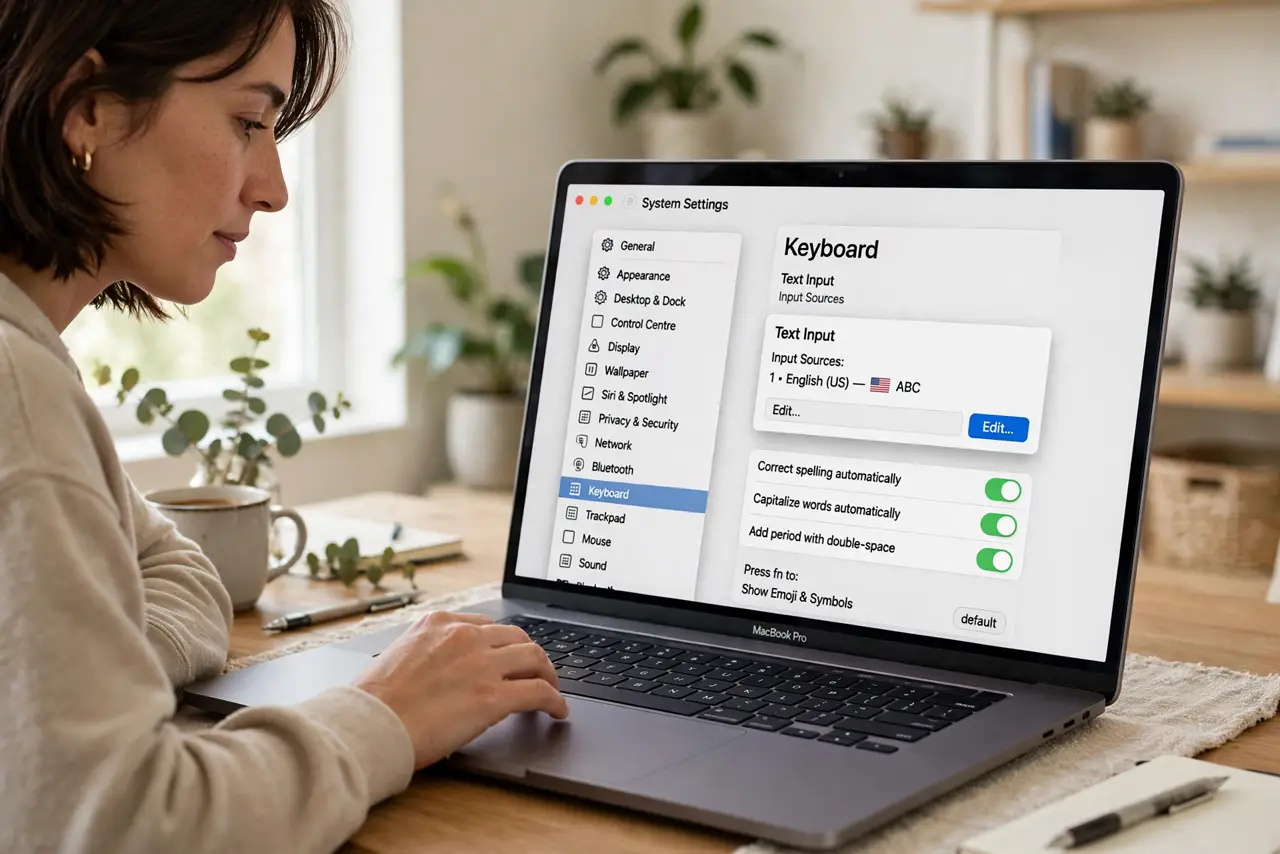
- Open the keyboard input settings. Go to System Settings > Keyboard > Text Input > Edit. This is the control room for every language your Mac can type — layouts, handwriting, and dictation languages all live here.
- Add your language. Click the plus button, find your language, and add the layout you want. For languages with multiple layouts (like Spanish — ISO vs ANSI), pick the one matching your physical keyboard or the standard for that language.
- Learn the switch shortcut. Press Control + Space (or Fn/Globe key on newer Macs) to cycle input sources. A flag or language code appears in the menu bar showing what is active — see how keyboard language switching differs on Windows if you use both.
- Set per-app or global switching. In the same settings, choose whether the input source switches per document/app or stays global. Per-app is magic for bilingual work: Spanish in Messages, English in the code editor, automatically.
- Add the menu bar indicator. Enable 'Show Input menu in menu bar' so the current language is always visible. Clicking it also switches languages with the mouse — handy while you are learning the shortcut.
- Test in a real document. Open a text app, switch languages, and type the special characters — accents or the target script. Confirming it works now beats discovering a missing layout mid-deadline.
What NOT to do
- Do not confuse input sources with the system language. Input sources change what you type; the system language changes the menus — different settings, different jobs.
- Do not add ten layouts 'just in case.' Every extra layout is another Control+Space press to cycle through — add only what you type weekly.
- Do not forget the Globe/Fn key shortcut on laptops. It is faster than Control+Space once it is in your fingers.
- Do not panic when autocorrect fights the new language. Each input source has its own dictionary and autocorrect — give it a day to learn you.
Frequently asked questions
Why did my keyboard layout change by itself?
You probably bumped the switch shortcut, or per-app memory switched it. Check the menu bar flag — one shortcut press switches it back.
Can I type accents without switching languages?
Yes — on the US layout, hold a vowel key to pick accented variants, or use Option-key combos. Full input sources are for whole-language typing.
Does dictation work in other languages?
Yes — add the dictation language in the same settings area, then dictate in that language. It uses the matching language model automatically.