Add Another Keyboard Language
You need to type in another language — accents, a different alphabet, or a colleague's layout — but the keyboard only speaks one. Windows supports adding extra keyboard languages you can flip between with a shortcut. The letters you need are two minutes away.

TL;DR / Quick Fix
Quick fix: open Settings, go to Time & language, then Language & region, and add the language. Its keyboard installs with it. Press Win+Space anytime to switch layouts, and watch the taskbar indicator to see which one is active before typing.
Follow these steps
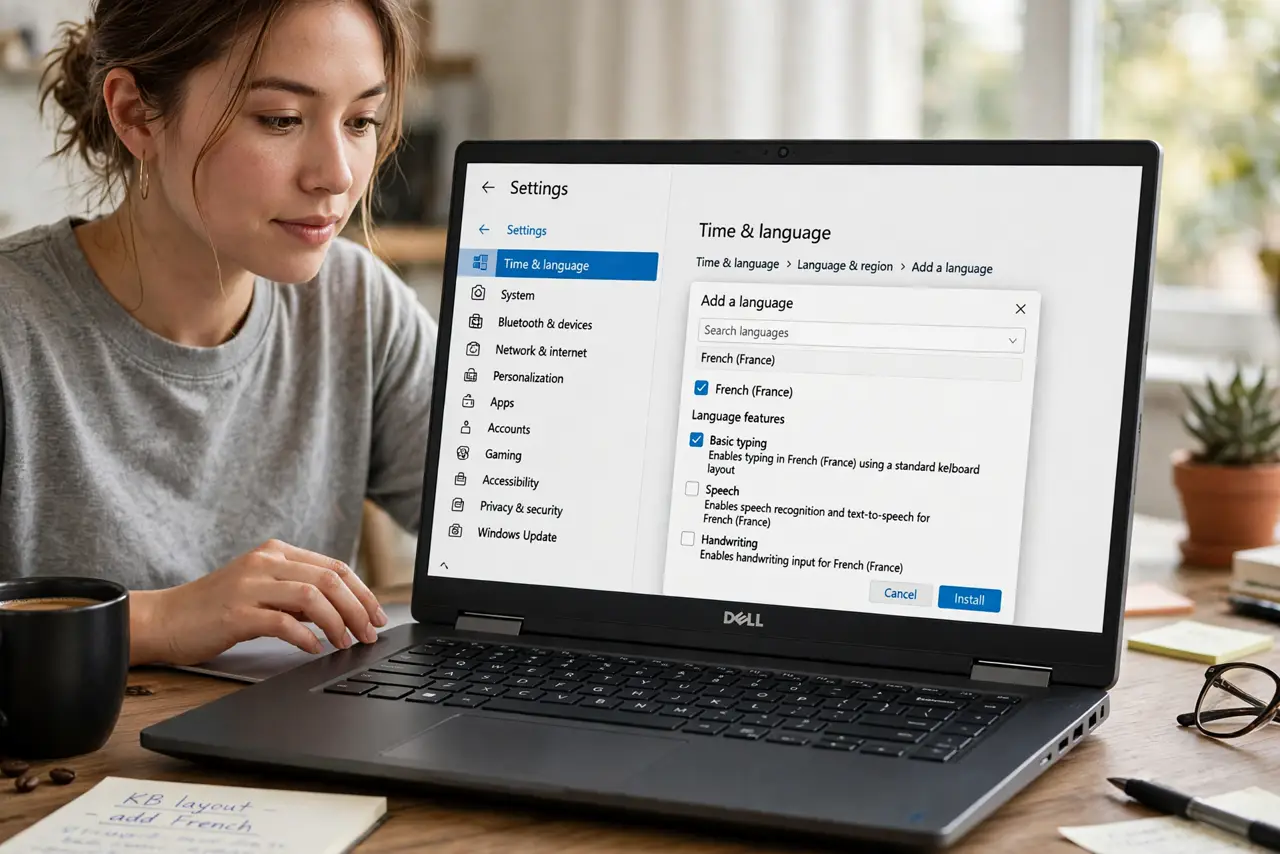
- Add the language. Settings > Time & language > Language & region > Add a language. You only need the basic typing component, not the full display pack.
- Check the keyboard installed with it. Select the language's options (the ... menu) and confirm a keyboard layout is listed. Add another layout from the same menu if you want variants.
- Learn the switch shortcut. Win+Space flips to the next layout; Win+Space held shows the picker. This is the fastest way and worth memorizing.
- Watch the taskbar indicator. The three-letter code (ENG, ESP, FRA) by the clock shows the active layout. Glance at it before typing passwords — wrong layout, wrong characters.
- Remove layouts you don't use. Extra layouts invite accidental switches. If the layout switches by itself, pruning the list usually ends it.
- Pair it with the display language if needed. Typing language and interface language are independent — set the display language separately if you also want menus translated.
What NOT to do
- Do not add five layouts 'just in case.' Every extra layout is another accidental Win+Space away from typing gibberish.
- Do not type passwords without checking the indicator. A switched layout turns a correct password into a failed login.
- Do not confuse the language bar with a problem. It appears because you have multiple layouts — it's the indicator, not an error.
- Do not reinstall the keyboard driver for layout issues. Layouts are settings, not hardware — the driver is innocent.
Frequently asked questions
Why does my keyboard type the wrong characters suddenly?
You bumped Win+Space and switched layouts. Press Win+Space to flip back, and check the taskbar indicator to confirm.
Can I switch layouts per app?
Yes — Windows can remember a different layout per application window. It's in the advanced keyboard settings if you want per-app memory.
What's the difference between a language and a keyboard layout?
A language is what you type in; a layout is where the keys are. One language can have several layouts (e.g., US vs. international keyboards).