Zip Files on Mac
You need to email a folder, and email does not do folders — it does files. Zipping compresses the folder into a single file that attaches cleanly, and macOS does it with a right-click. No extra software, no terminal, no fuss: select, compress, attach.
TL;DR / Quick Fix
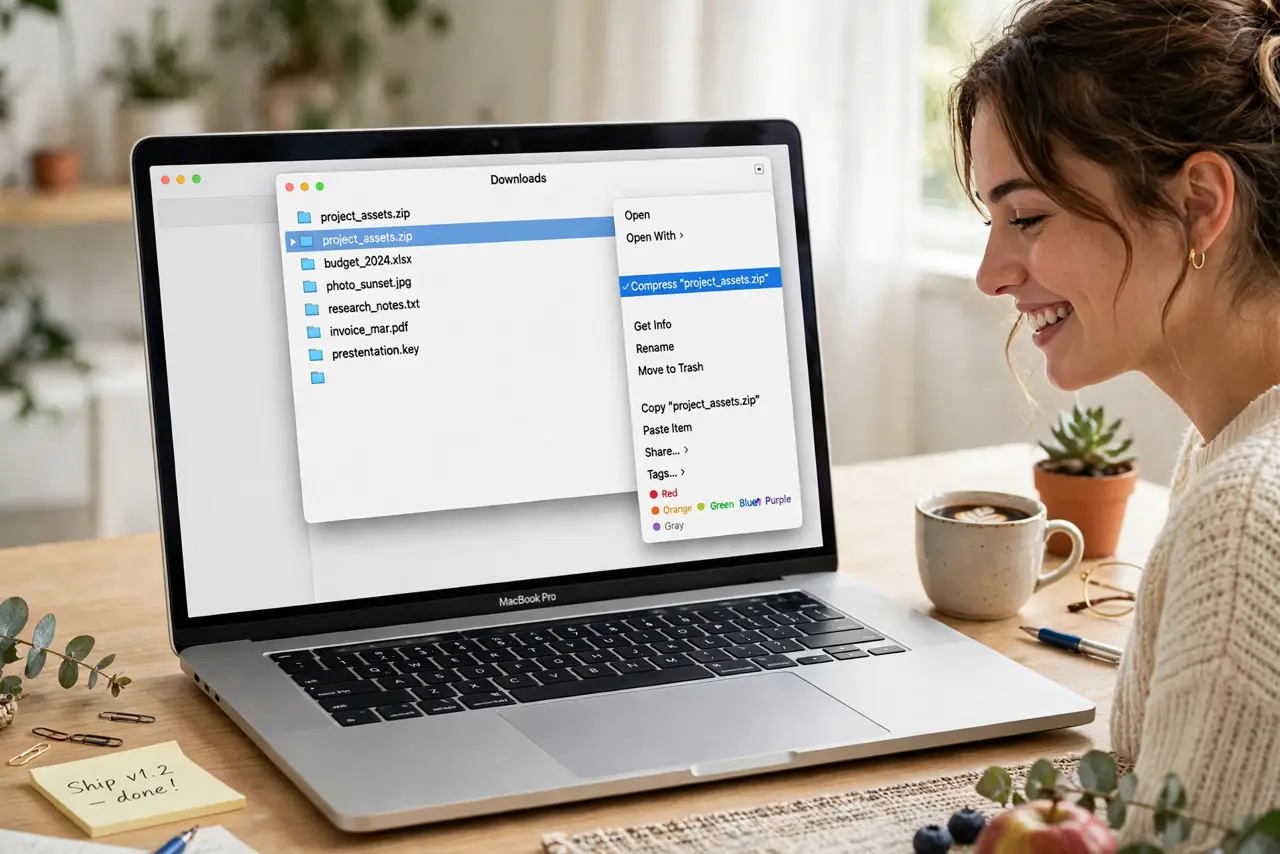
Quick fix: in Finder, select the files or folder, right-click, and choose Compress. macOS creates a zip archive beside the originals. Attach the zip to your email. Double-click any zip to unpack it — the originals stay untouched, since compressing only copies.
Follow these steps
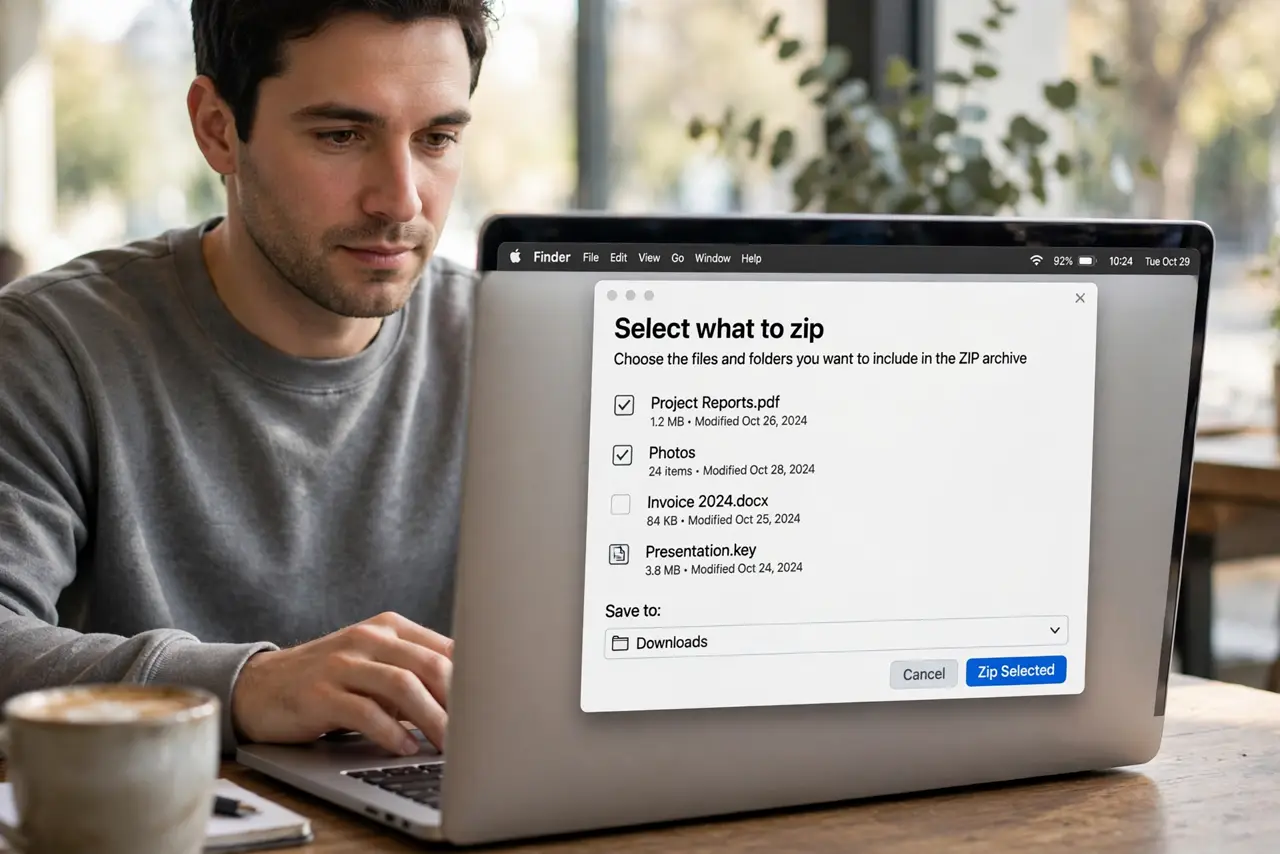
- Select what to zip. In Finder, click the folder or Command-click multiple files to select them. What you select is exactly what goes into the archive — check the selection before compressing.
- Right-click and choose Compress. Right-click the selection and choose Compress 'Name' from the menu. Finder builds the zip instantly for small selections; big folders take a little longer with a progress indicator.
- Find the new archive. The zip appears in the same folder, named after the first item with a .zip extension. It sits beside your originals — compressing copies, it never moves or deletes.
- Check the size. Right-click the zip and choose Get Info to see its size. If it is still too big to email, the files may already be compressed (photos, videos) — zipping those barely shrinks them.
- Attach it to your email. Drag the zip into your email compose window or use the attach button. One file, one attachment — the recipient gets the whole folder in a single download.
- Unzip by double-clicking. On the receiving end, double-clicking a zip unpacks it into a folder beside the archive. macOS handles this natively; no app needed on either side.
What NOT to do
- Do not delete the originals after zipping. The zip is a copy for sending — your originals are the real files.
- Do not expect big savings on photos and videos. Already-compressed files barely shrink; zipping them is about packaging, not space.
- Do not email giant zips. Mail providers cap attachments around 20-25 MB — for bigger bundles use a cloud link instead.
- Do not zip system folders for backup. Compress is for sharing, not for backups — use Time Machine for the real thing.
Frequently asked questions
Where did my zip go?
It lands in the same folder as the originals. Sort by Date Modified if the folder is crowded — the zip is the newest item.
Can I password-protect a zip on Mac?
Not with the built-in Compress — it makes plain zips. For passwords you need the terminal or a third-party tool.
Why is the zip almost as big as the originals?
Photos, videos, and music are already compressed, so zipping repackages without shrinking. Documents and raw data compress dramatically.