Unzip Files Fast
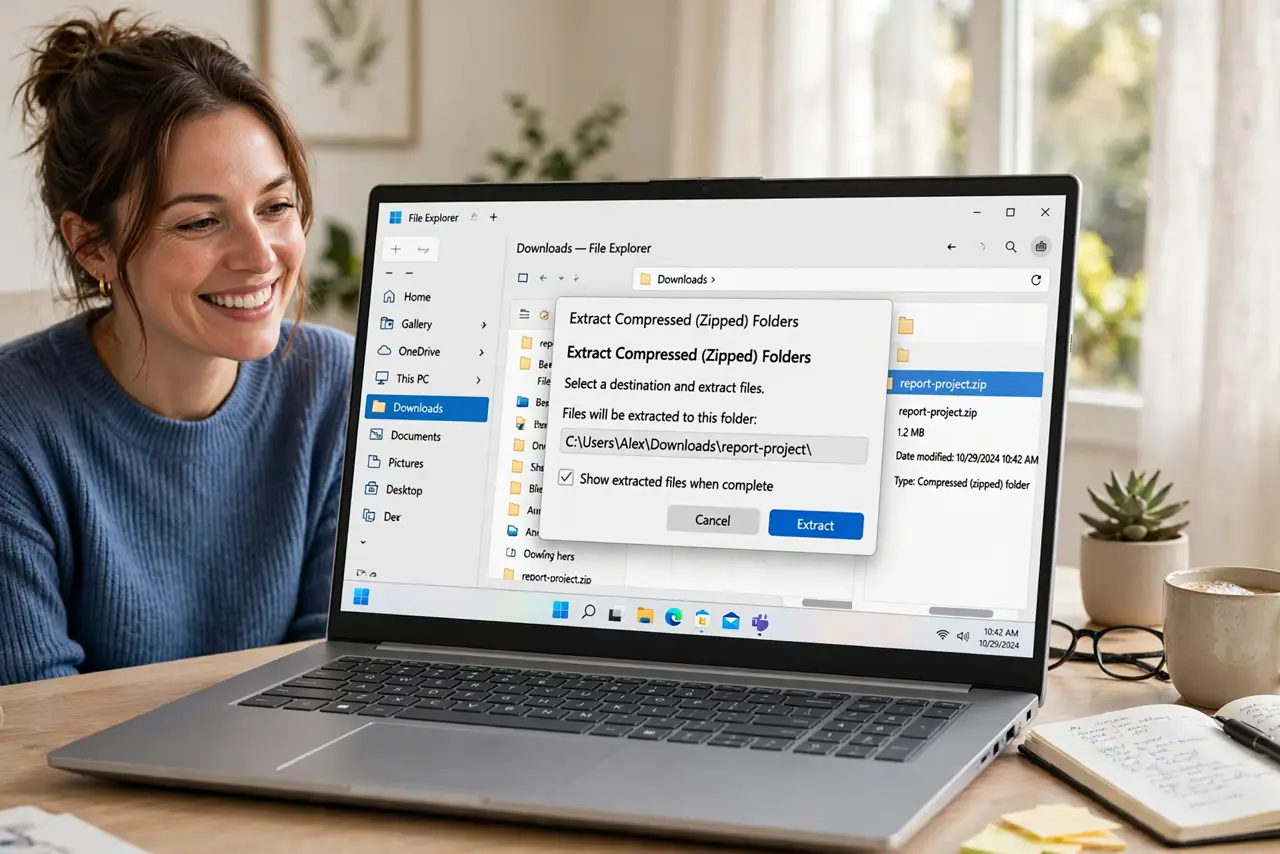
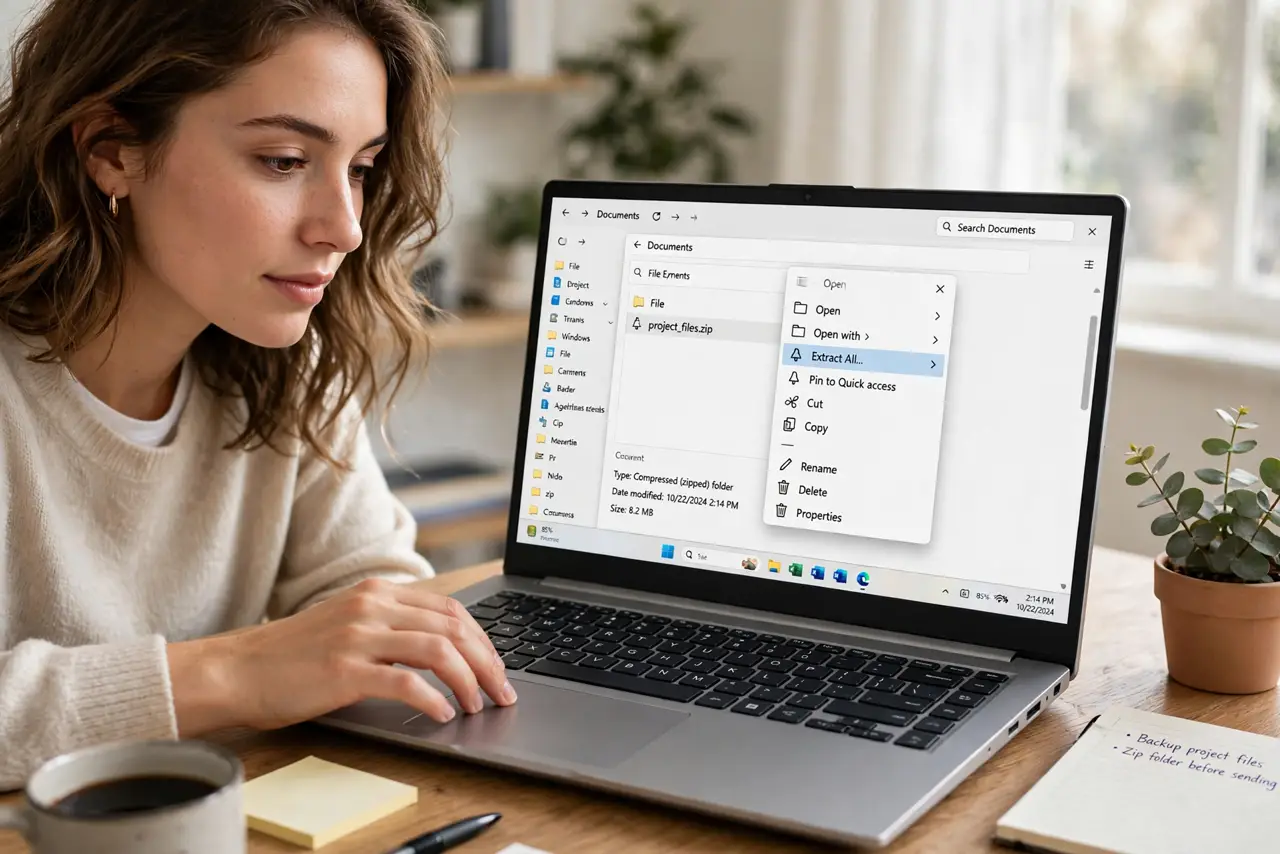
You downloaded the files you need and they are trapped inside a zip — and every guide starts with 'first install this extractor.' Stop: Windows unzips natively. Right-click, Extract All, done. For the fastest workflow, extract straight into the current folder instead of navigating the wizard every time.
TL;DR / Quick Fix
Quick fix: right-click the zip file and choose Extract All, then pick where the files go. For speed, extract into the current folder and move the files after. The zip stays intact as your backup copy — extracting copies files out, it never deletes the archive.
Follow these steps
- Right-click the zip. In File Explorer or on the desktop, right-click the zip file. The Extract All option sits right in the context menu — no software to install, no wizard to download.
- Choose Extract All. Click Extract All. Windows asks where to put the files, defaulting to a new folder beside the zip named after the archive. Accept the default unless you have a reason not to.
- Extract here for speed. To skip the destination dialog on repeat jobs, open the zip by double-clicking it, select everything inside with Ctrl+A, and drag it to the folder you want. Same result, fewer clicks.
- Check the extracted files. Open the new folder and confirm everything arrived — file counts, mostly. Corrupted downloads unzip partially or error out, and catching that now beats discovering it mid-project.
- Keep or delete the zip. The original zip remains untouched and works as a backup. Delete it once you have verified the contents, or keep it — zips are small insurance.
- Handle password zips. If Windows asks for a password, you need it from the sender — there is no legitimate bypass. For password-protected archives regularly, a third-party tool is the one good reason to install one.
What NOT to do
- Do not install an extractor for basic zips. Windows handles standard archives natively — freeware extractors mostly add adware.
- Do not double-click files inside the zip and edit them. You are editing a temp copy; save it outside the zip or your changes vanish.
- Do not extract zips from untrusted senders blindly. Scan unexpected attachments first — zips are a classic malware wrapper.
- Do not extract everything to the desktop. A dedicated downloads or project folder keeps extracted files findable — desktop sprawl is how files get lost.
Frequently asked questions
Why does the zip open like a folder?
Windows shows zips as browsable folders for convenience. You are peeking inside, not extracting — drag files out to actually extract them.
The zip says it is corrupted. Now what?
Re-download it — most corruption is a bad download, not a bad file. If the second copy fails too, the source file itself is broken.
Can I unzip just one file?
Yes — open the zip, drag out only the file you need. No need to extract all 500 files for the one document.