Noise Cancellation in Meet?
Google Meet can erase background noise — barking dogs, keyboard clatter, street sounds — before it reaches the other participants. It is genuinely good technology, and it is buried in the settings where most people never look. If your meetings have ever paused for 'sorry, could you mute?', this is the fix that prevents the apology.
TL;DR / Quick Fix
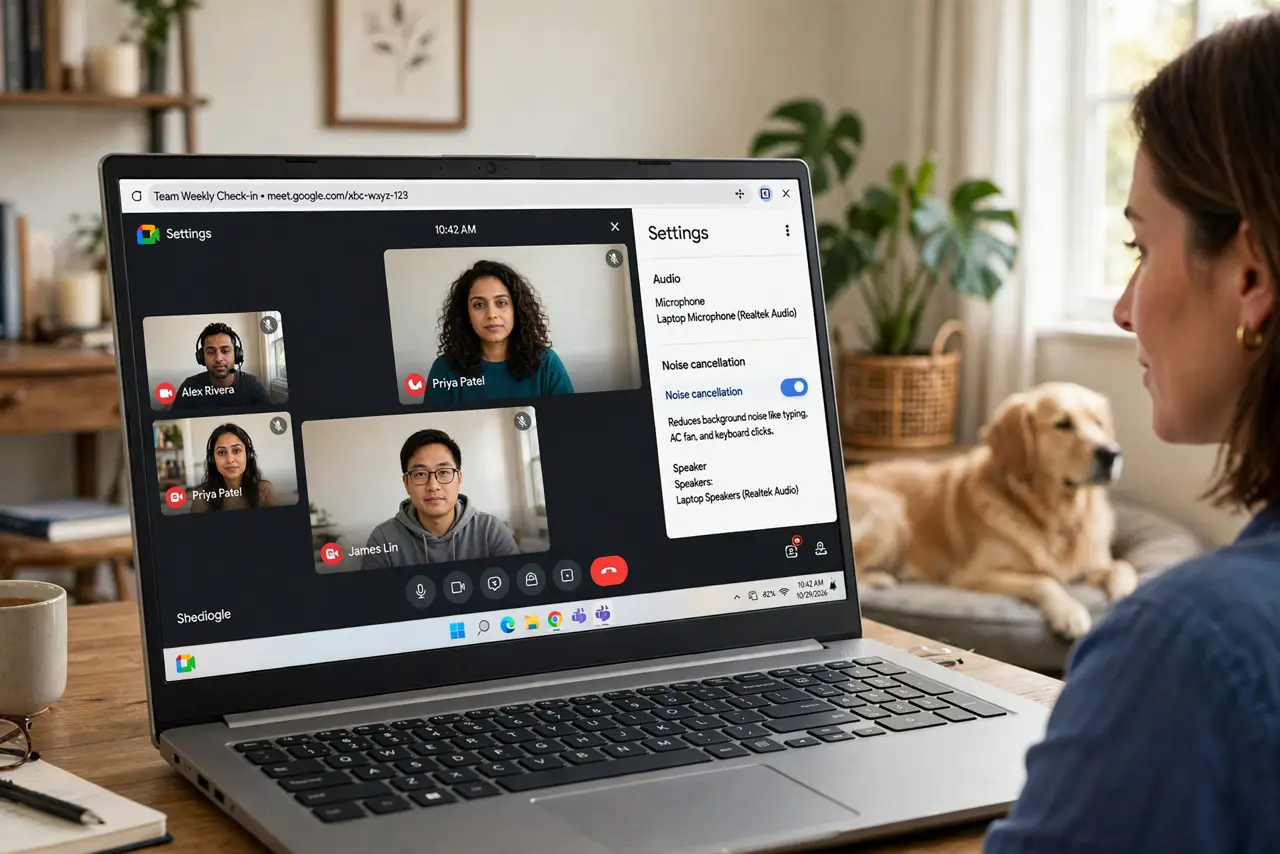
Quick fix: in Google Meet, open Settings, then Audio, and turn noise cancellation on — it filters background noise before others hear it. It works best on steady sounds like fans and typing. Mute by default in truly chaotic environments.
Follow these steps
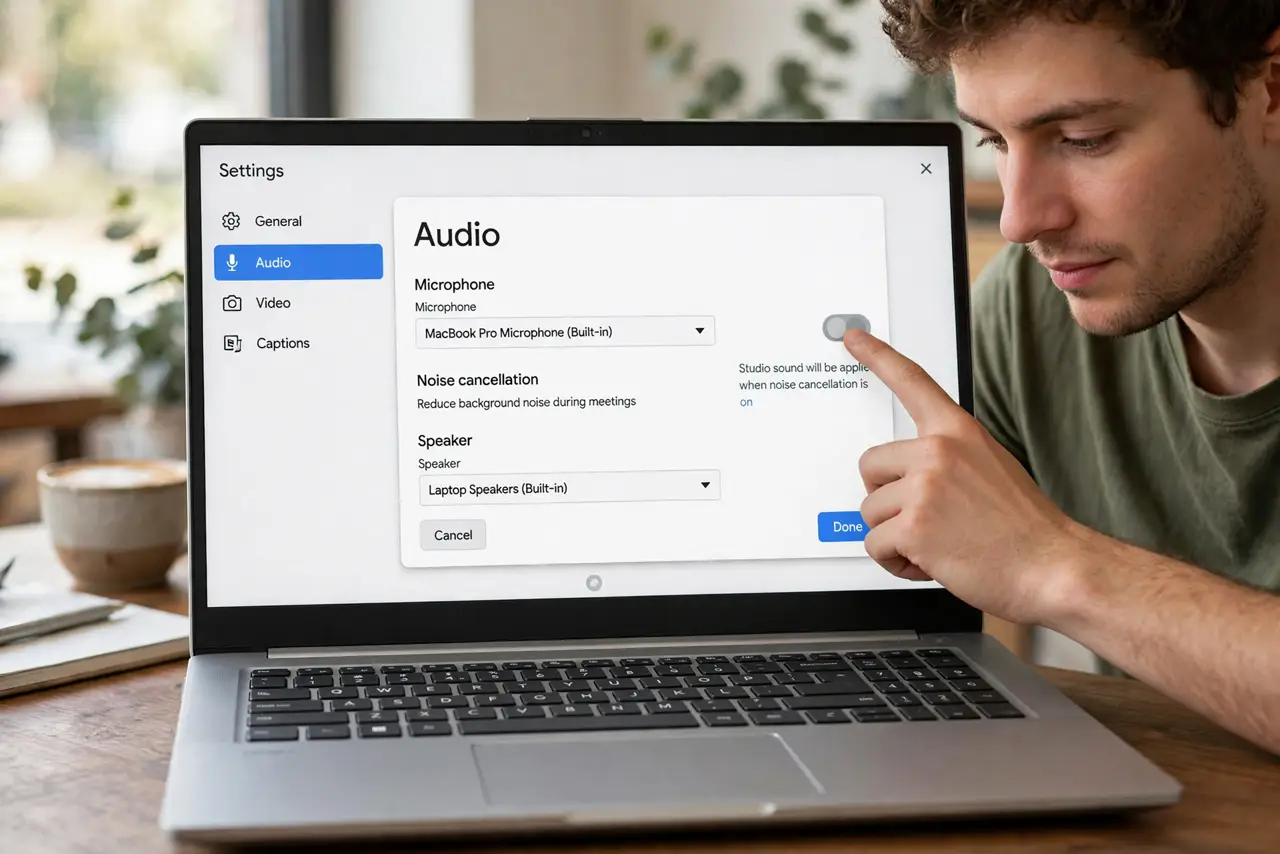
- Turn it on in Audio settings. In the Meet call, click the three dots, Settings, Audio, and enable noise cancellation. One toggle — it applies to your microphone for everyone else's benefit.
- Know what it removes. Steady and repetitive sounds — fans, air conditioners, keyboard typing, traffic hum — vanish impressively. Sudden sharp sounds (a door slam) may still punch through.
- Know what it cannot fix. Another person talking loudly next to you, heavy wind directly on the mic, or a terrible microphone — cancellation polishes audio, it does not resurrect it.
- Combine it with a decent mic. Cancellation plus a reasonable microphone (even earbuds) beats cancellation plus a laptop mic across the room. Distance is still the enemy — stay near the mic.
- Test it before the important call. Record a quick test or ask a colleague how you sound. Hearing the before-and-after once builds the confidence to rely on it.
- Use push-to-talk for chaos. For truly wild environments (construction outside, toddlers inside), mute by default and unmute to speak. Cancellation handles noise; muting handles chaos.
What NOT to do
- Do not assume it fixes a bad room. Cancellation removes noise, not echo — a bare echoing room still sounds like a cave; soft furnishings fix that.
- Do not leave it off out of habit. It costs nothing and helps everyone — the default should be on unless you have a reason.
- Do not rely on it for music or non-speech audio. It is tuned for voices — playing an instrument or sharing audio needs it off or a dedicated share mode.
- Do not forget the other side. Your cancellation cleans your audio; their noise needs their toggle — suggest it kindly when their background roars.
Frequently asked questions
Why do I still hear my own echo?
Echo is usually the other person's speakers feeding your voice back into their mic — ask them to use earbuds. Your cancellation cannot fix their setup.
Does noise cancellation work on phone calls?
In the Meet mobile app, yes — same toggle. It is especially useful on mobile, where environments are unpredictable.
Will it remove my coworker's loud typing?
Only if it is your mic — cancellation applies per-microphone. Their typing needs their toggle on; yours is already handled.