Microphone Too Quiet on Calls? Fix It
When people can barely hear you on calls, the cause is often a low input volume, the wrong microphone selected, or a headset mic that is muted. Each check takes a minute, and testing before a real call saves embarrassment.
TL;DR / Quick Fix
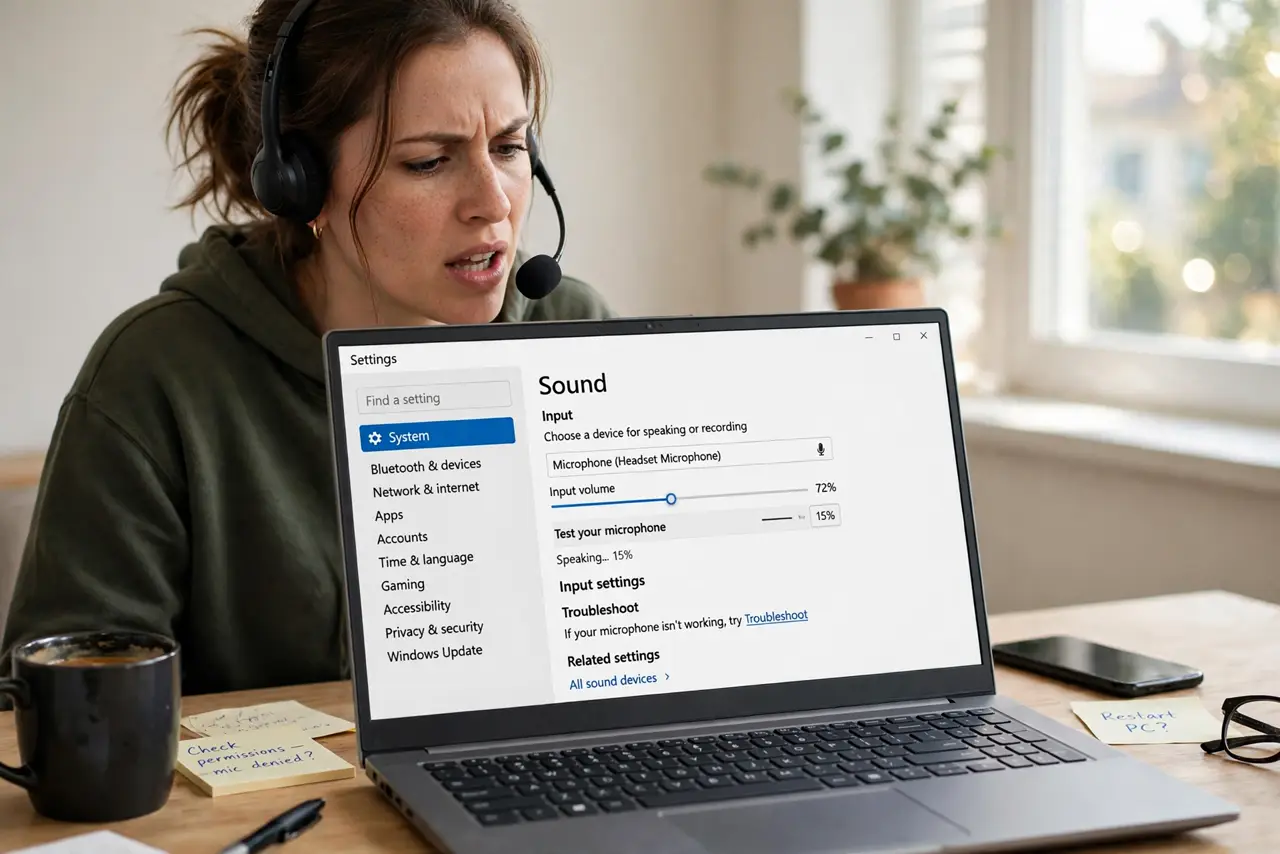
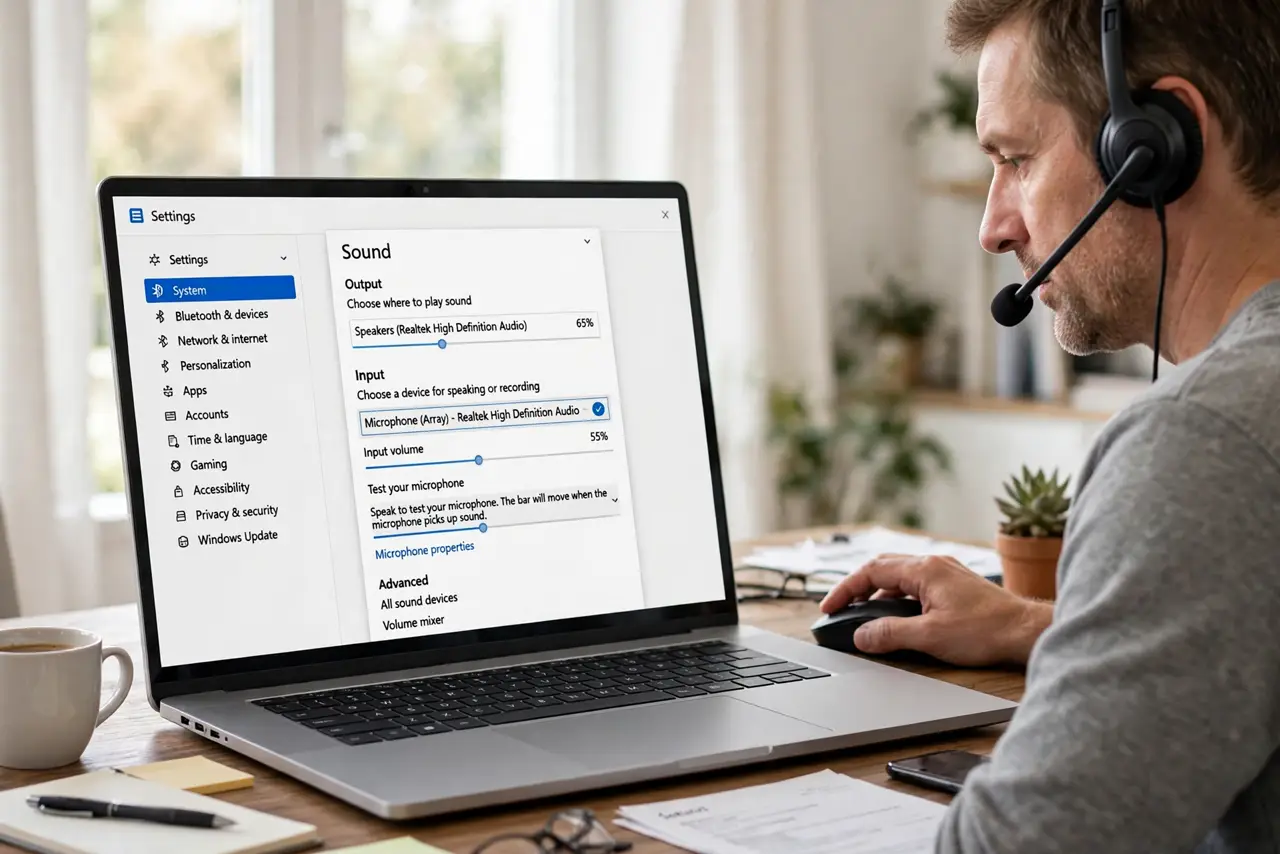
Quick fix: open Settings, then System, then Sound, then Input, and pick the microphone you are actually using. Drag the input volume up and watch the test bar move while you speak. If the bar barely moves, try a different microphone or move closer to it.
Follow these steps
- Pick the microphone you are using. Open Settings, then System, then Sound, then Input, and choose the microphone you actually speak into. Laptops often list a built-in mic and a headset mic separately.
- Raise the input volume. On the same Input page, drag the volume slider up while you speak normally. Watch the test bar: it should move clearly with your voice, without staying at the top.
- Check the physical mute switch. Many headsets and webcams have a mute button or switch. Check it, and check the mute button in your call app, before changing any setting.
- Move closer and speak normally. Sit at a normal distance and speak at a normal volume. A mic across the room or behind a monitor will sound quiet no matter how high the volume is set.
- Test in the call app settings. Open your call app settings and run its microphone test. Some apps have their own input volume and noise reduction, separate from Windows.
- Try another microphone. If you have a second headset or a phone headset, try it. If the second mic sounds fine, the first mic or its cable is the problem.
What NOT to do
- Do not set input volume to maximum and leave it there. Maximum volume picks up keyboard noise and room echo, and it can distort your voice.
- Do not speak louder and louder to compensate. Shouting sounds worse than a properly set mic, and it tires your voice on long calls.
- Do not change every sound setting at once. Change one setting, test it, and only then move on, or you will not know which change helped.
- Do not buy a new microphone before testing the input setting. A wrong device choice is free to fix, and a new mic will sound quiet on the same wrong setting.
Frequently asked questions
Why can people hear me on one app but not another?
Each app can pick its own microphone. Check the input device in that app settings, not just in Windows.
The test bar moves but callers hear nothing. Why?
The call app may be muted or using a different mic. Check the app mute button and its input device choice.
Should I turn on microphone boost?
Only if normal volume is still too low after picking the right mic. Boost adds noise, so use the smallest boost that works.