Microsoft To Do? Basics
Microsoft To Do is Microsoft's free task app — clean, simple, and deeply tied into Outlook and Microsoft 365. If your work life runs on Outlook, your flagged emails can become tasks automatically, which is a genuinely useful trick. For Microsoft households it is the path of least resistance. Here is the plain basics.
TL;DR / Quick Fix
Quick fix: Microsoft To Do is a free, simple task manager that shines inside the Microsoft ecosystem — flagged Outlook emails become tasks, and lists sync across devices. Use My Day each morning to plan, add due dates, and keep lists few. Outside Microsoft 365, other apps fit better.
Follow these steps
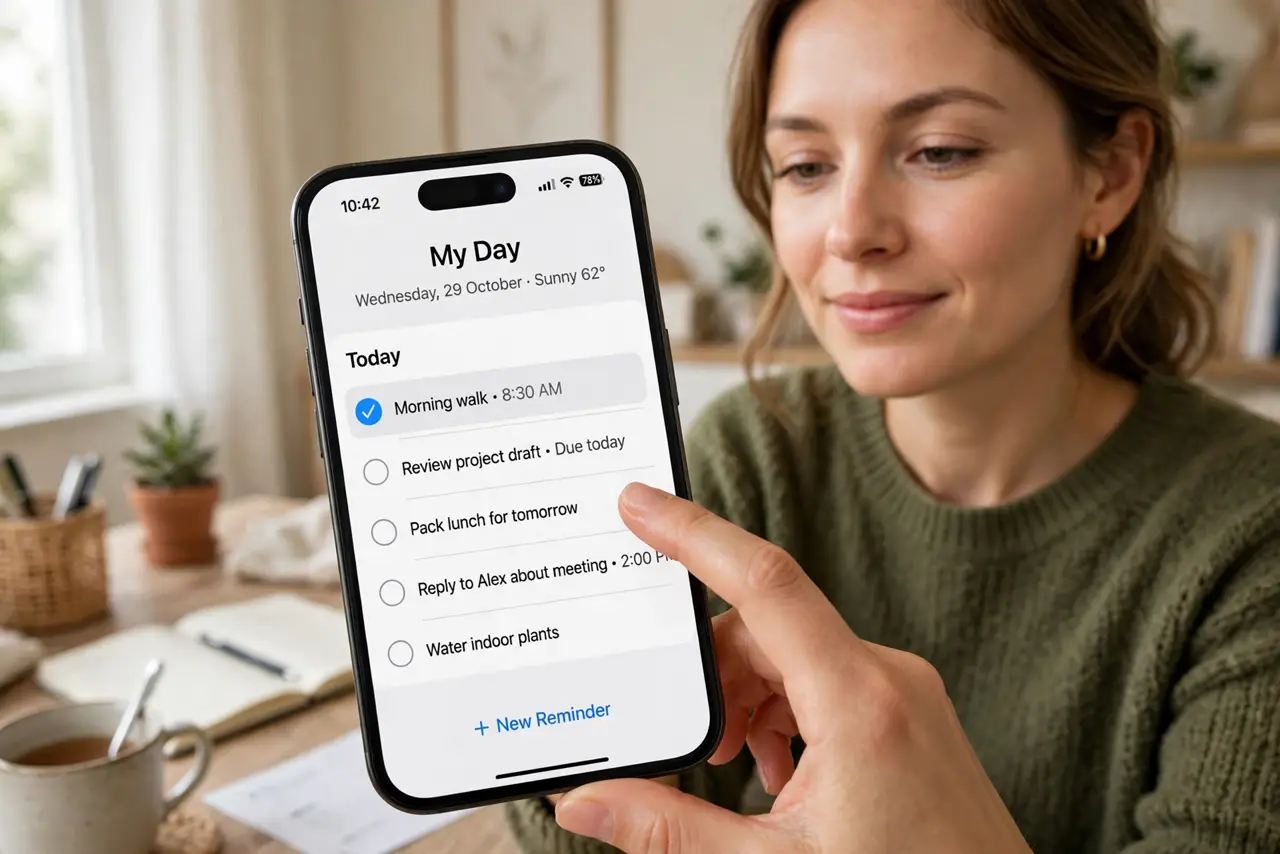
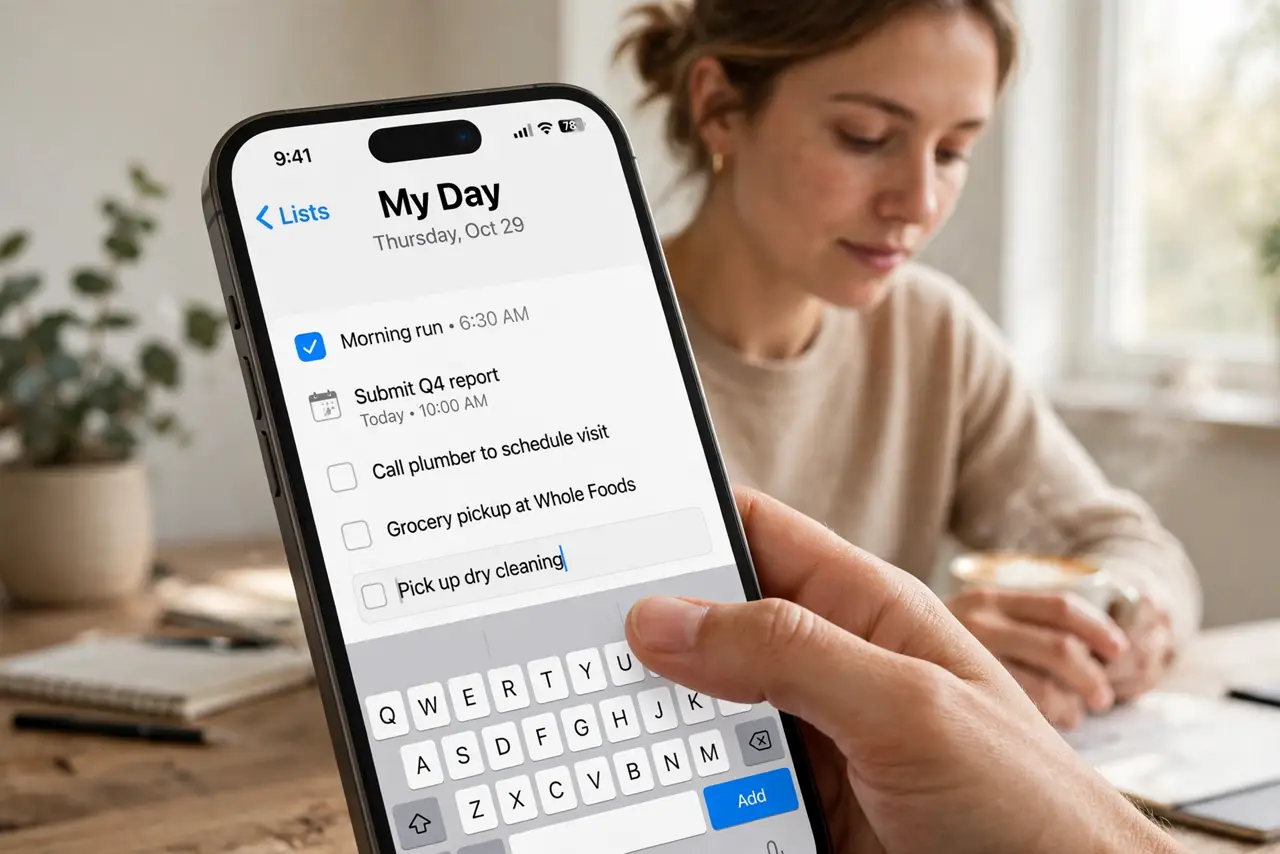
- Start with My Day. My Day is To Do's killer view — each morning, add today's tasks to it from your lists. The ritual of planning the day in My Day is the whole productivity system; everything else is storage.
- Connect your Outlook. Flagged emails in Outlook appear as tasks automatically — the standout integration. An email you flag at work becomes a task you see at home. This alone justifies To Do for Outlook users.
- Keep lists few. Work, Personal, Shopping — a handful of lists beats a taxonomy. To Do has no tags or priorities beyond flags, so lists carry the organization load; keep them light.
- Use due dates and reminders. Tasks support dates, reminders, and repeat schedules. Dated tasks surface in My Day suggestions — undated ones sink. Date what matters.
- Share the household lists. Lists share easily — the family shopping list or shared chores update live for everyone. Microsoft accounts are free, so sharing costs nothing.
- Know the limits. No natural-language dates, no priorities beyond important-flags, no projects. When you outgrow it, Todoist adds power or Google Tasks offers the Google-side equivalent. Pick the ecosystem you actually live in.
What NOT to do
- Do not build elaborate systems in To Do. No tags, no real priorities — it is a clean simple list, and fighting that wastes time.
- Do not ignore My Day. Lists without the daily My Day ritual become the same forgotten graveyard as any other app.
- Do not use it outside Microsoft 365 without reason. Its superpower is the Outlook integration — without that, competitors fit better.
- Do not let flagged emails pile up unprocessed. A hundred flagged emails is not a task system — triage them into real tasks or unflag.
Frequently asked questions
To Do vs Todoist?
To Do is free, simple, and best inside Microsoft 365. Todoist is more powerful everywhere else — natural language, projects, priorities. Ecosystem decides.
Is it really free?
Yes — free with any Microsoft account, no 365 subscription needed. The paid tier buys you nothing extra here; the app is the free product.
Can I use it with Gmail?
The app works standalone, but you lose the Outlook magic — flagged-email tasks are the headline feature. Gmail users are happier with Google Tasks or Todoist.