Monitor Backlight Flickers? Fix It Safely
A flickering backlight makes the screen brightness pulse or strobe, which strains eyes and signals a power or backlight fault. Some flicker comes from a loose cable or a brightness setting, which you can fix, while other flicker means the monitor needs repair. Check the safe causes first, and stop if the screen dims badly or smells odd. A screen that changes colour or washes out needs different checks from a refresh-rate flicker guide.
TL;DR / Quick Fix
Quick fix: Reseat the video cable at both ends. Try a different cable and port. Then work through the remaining steps in order, checking one change at a time, and stop for a technician if you see damage, swelling, or a burning smell.
Follow these steps
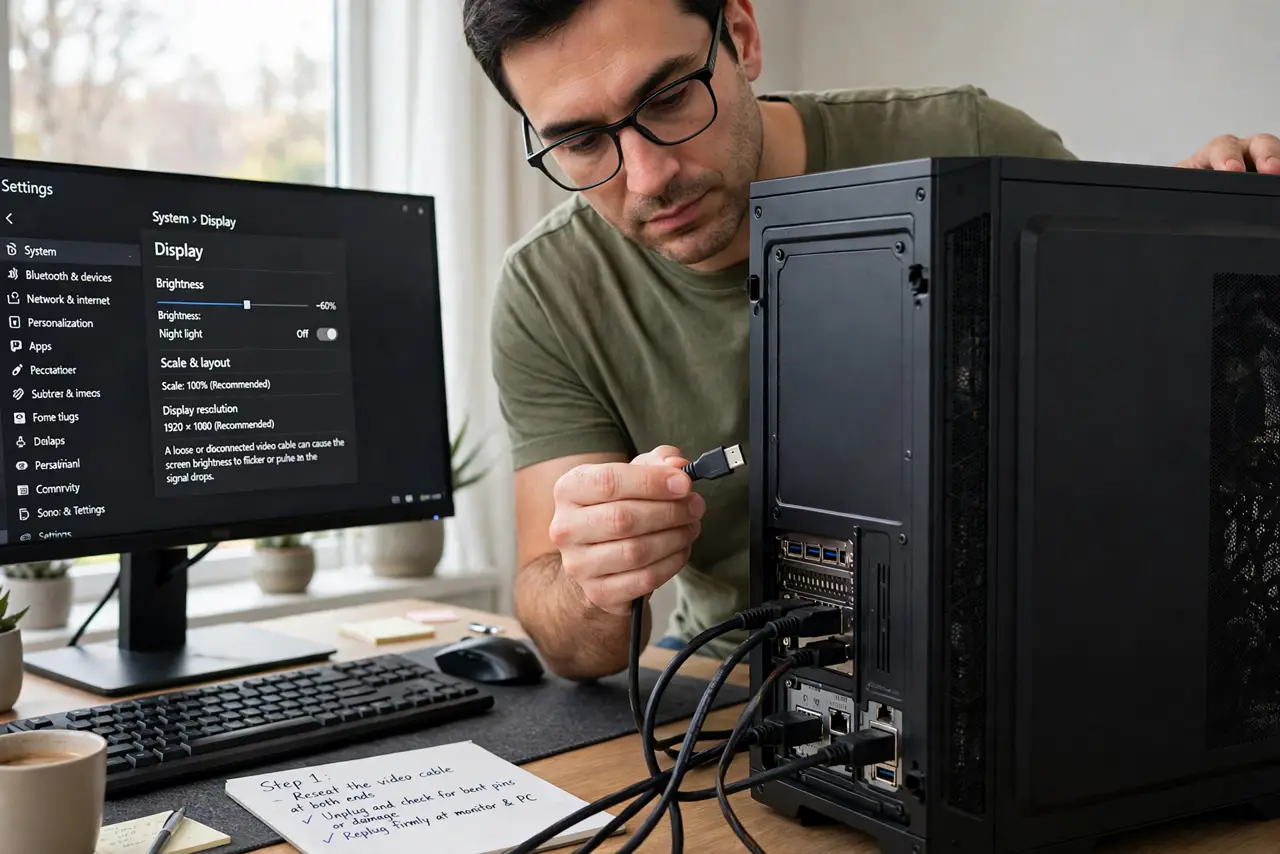
- Reseat the video cable at both ends. Unplug the video cable, check for bent pins or damage, then push it firmly back in at the monitor and the PC. A loose cable can make brightness pulse as the signal drops in and out.
- Try a different cable and port. Swap to a spare cable and, if the monitor has one, a different input port. This separates a cable fault from a monitor backlight fault in one test.
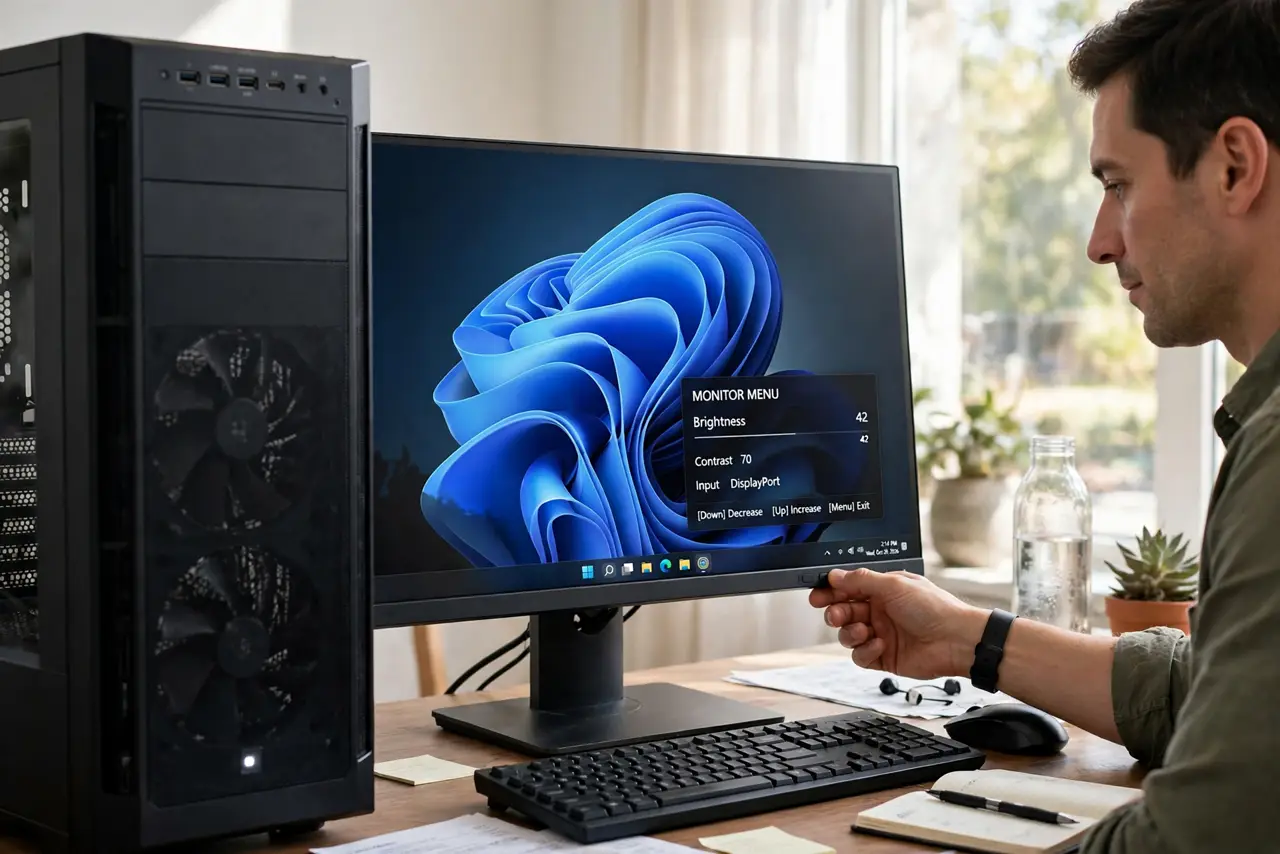
- Change brightness away from the extremes. Set monitor brightness to a middle value using the monitor menu, not just the PC slider. Flicker that appears only at very low or very high brightness points to the backlight driver.
- Test the monitor on another PC. Connect the monitor to a second PC with a known-good cable. Flicker that follows the monitor proves the monitor is at fault, while flicker that stays with the first PC points to graphics or cable.
- Check the monitor power supply. Push the power cable firmly in, try another wall socket, and if the monitor uses an external power brick, check it is not hot, damaged, or loose. Unstable power makes backlights flicker.
- Stop using the monitor if flicker worsens. If flicker grows, the screen dims badly, or you smell burning, unplug the monitor and book a repair. A failing backlight is not a user repair, and continued use risks further damage.
What NOT to do
- Do not open a monitor to fix a backlight. Monitors hold dangerous charge even unplugged, and backlight repair belongs to a technician.
- Do not keep using a strongly flickering screen for hours. Strong flicker strains eyes and can trigger headaches, so stop and use another screen while you arrange a repair.
- Do not ignore a burning smell from a monitor. Unplug it at once, do not plug it back in to test, and book a repair or replacement.
- Do not set brightness to maximum to hide flicker. Maximum brightness stresses a failing backlight further and hides a fault that needs attention.
Frequently asked questions
Is backlight flicker dangerous?
Mild flicker from a cable is not dangerous, but strong flicker with dimming or smell means a failing backlight or power part. Stop using it and book a repair in that case.
Why does flicker appear only at low brightness?
Backlight drivers struggle most at low brightness on some monitors. A middle brightness that stops flicker points to the driver, not to the PC.
Can a cable really cause flicker?
Yes. A loose or damaged cable drops the signal in pulses, which looks like brightness flicker. Cable and port tests rule that out fast.