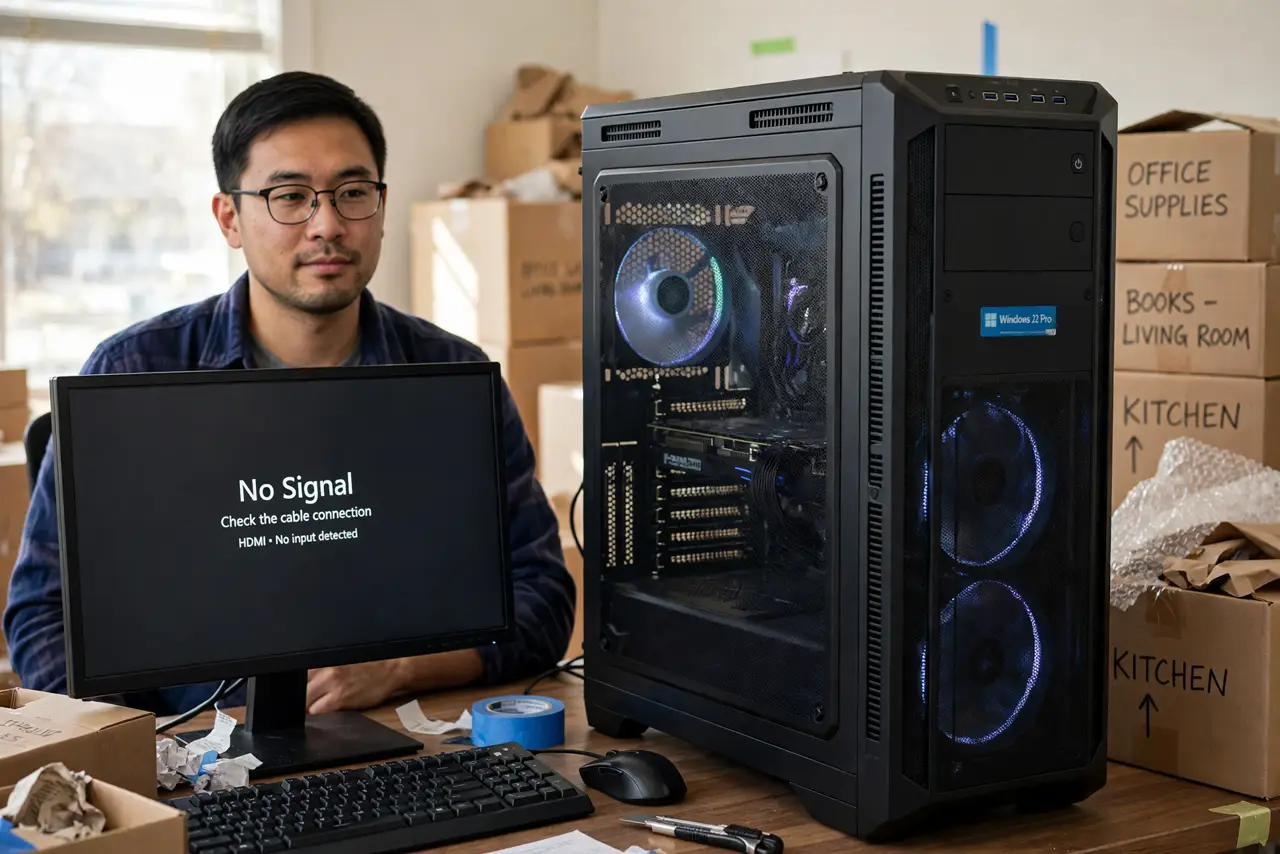
Display Shows No Signal After Moving Your PC?
Moving a PC shakes loose exactly the parts that carry the picture: video cables, memory sticks, and graphics cards. A no-signal message after a move rarely means a dead computer, it usually means something shifted. Check the outside first, then the inside, and use the second monitor no signal checks if only one of two screens is affected.
TL;DR / Quick Fix
Quick fix: Push every video cable firmly back in. Confirm the monitor input matches the cable. Then work through the remaining steps in order, checking one change at a time, and stop for a technician if you see damage, swelling, or a burning smell.
Follow these steps
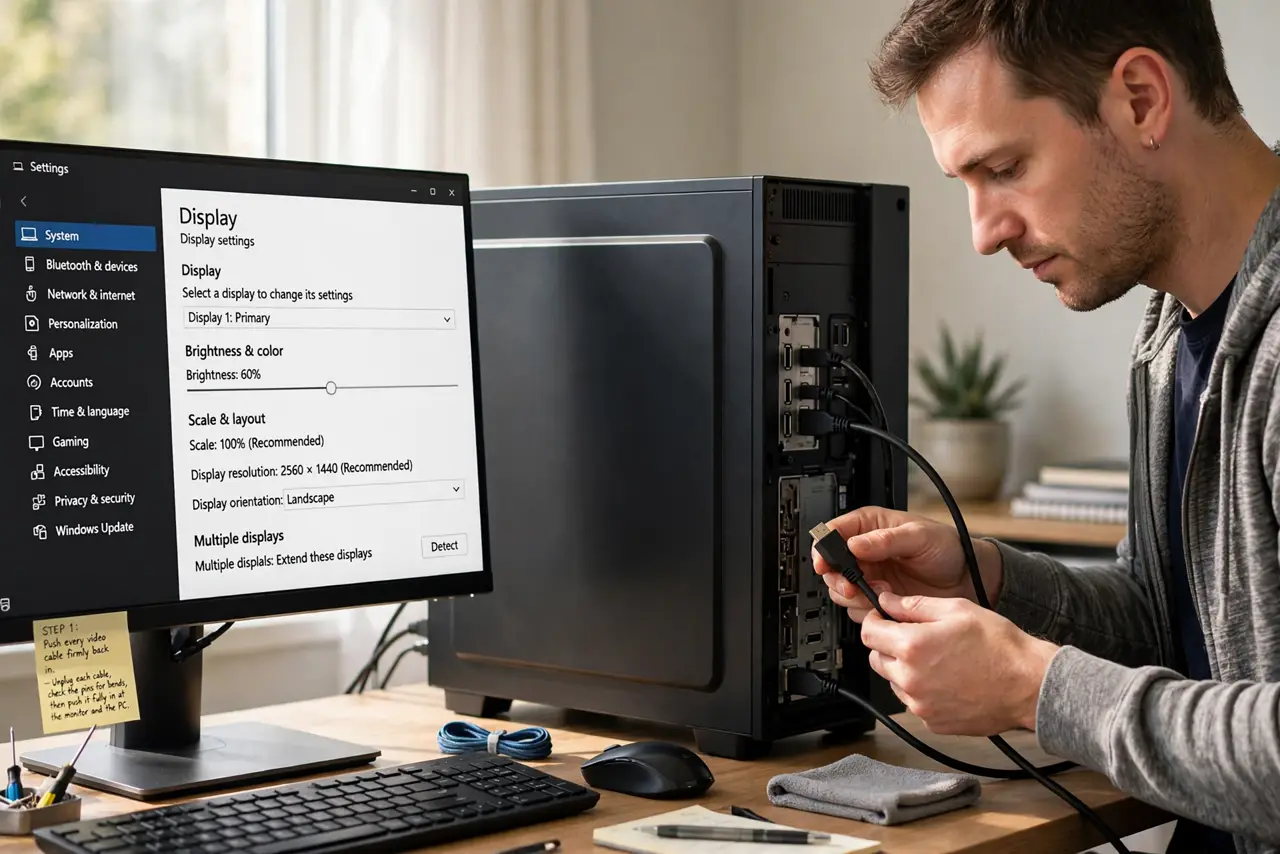
- Push every video cable firmly back in. Unplug each video cable, check the pins for bends, then push it fully in at the monitor and the PC. A cable that looks connected can still be a millimetre short after a move.
- Confirm the monitor input matches the cable. Press the monitor input button and select the input your cable actually uses. Moves often reset monitor settings, and a wrong input shows no signal on a healthy PC.
- Try a different cable and port. Swap to a spare cable, and if the PC has a second video port, try that too. This separates a shifted cable fault from a port fault in one test.
- Reseat memory if the PC still shows nothing. Unplug the PC, ground yourself, and reseat the memory sticks until both clips click. Memory loosened in transit is a leading cause of no signal after a move.
- Reseat the graphics card on a desktop. Unplug the PC, open the side panel, and press the graphics card firmly into its slot, checking its power cables are fully seated. Heavy cards sag and shift during moves.
- Test with one monitor only. Disconnect any second monitor and test with a single screen. If the single screen works, the move disturbed the multi-monitor setup, not the whole PC.
What NOT to do
- Do not force a cable with bent pins into a port. Bent pins can damage the port, so straighten nothing by force and replace the cable instead.
- Do not open the PC while it is plugged in. Unplug it and drain leftover charge with the power button before touching parts inside.
- Do not shake or tilt the PC to test it. Shaking loosens more parts and can damage a spinning hard drive, so keep the PC still and level.
- Do not buy a new monitor before testing another cable and port. A shifted cable is a free fix, while a new monitor may not fix the real fault.
Frequently asked questions
Why does moving a PC break the display?
Vibration and tilts loosen cables, memory, and heavy graphics cards. The parts still work, they just lost full contact during the move.
Can a move damage the monitor itself?
It can, but test the PC on another screen first. If the PC works elsewhere, the monitor or its cable took the knock.
What if reseating does not help?
Test the monitor on another PC. If the monitor works there, the PC graphics or board may need a technician to test with known-good parts.