Name Files So You Find Them
Your files are named final-final-v2-ACTUAL.pdf and IMG_4829.jpg, scattered across Downloads, Desktop, and three cloud folders. Finding anything means searching and hoping. A simple naming system fixes this permanently: dates first, descriptive names, no spaces. Ten minutes of setup saves hundreds of frustrated searches.
TL;DR / Quick Fix
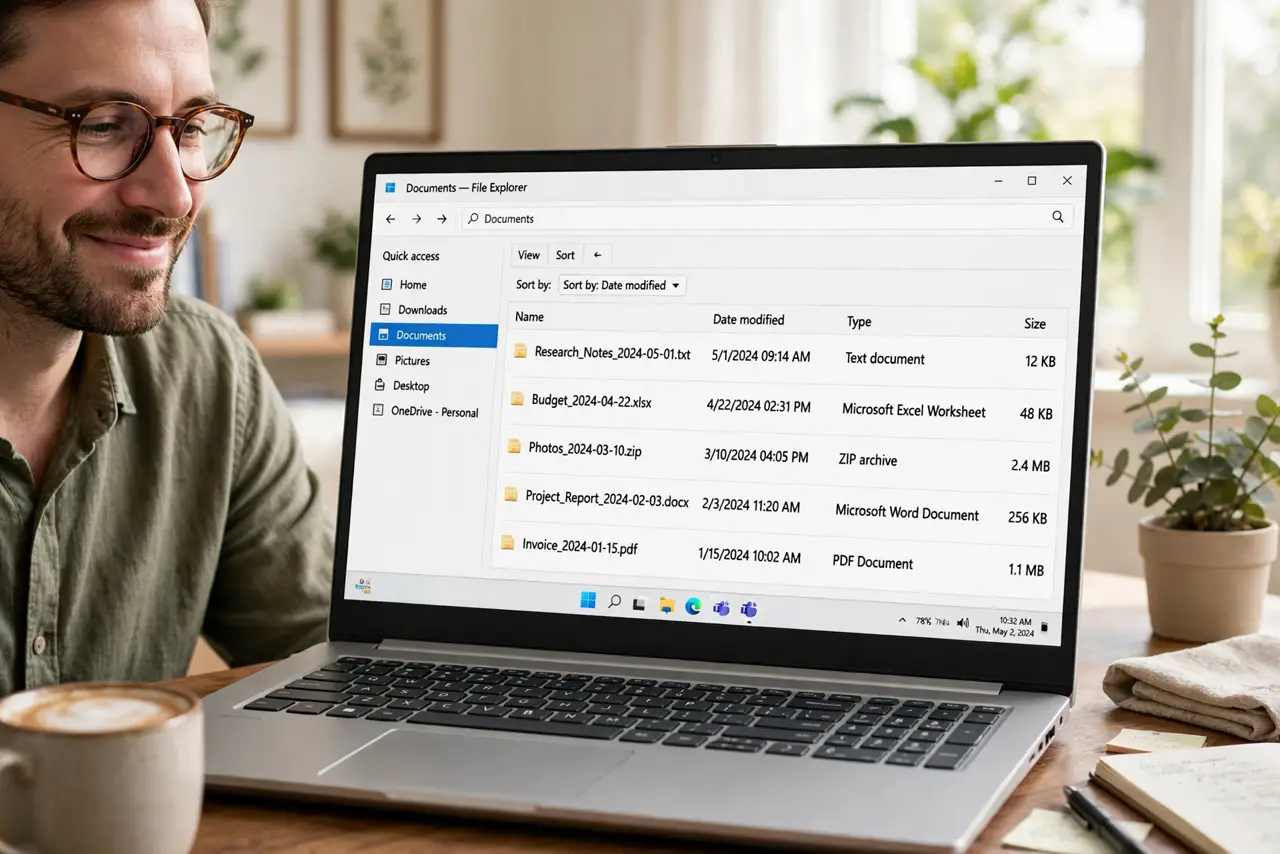
Quick fix: name files with the date first in YYYY-MM-DD order, then a short descriptive name with hyphens, like 2026-10-29-electric-bill.pdf. Dates sort chronologically, hyphens beat spaces, and specifics beat vague. Rename in batches weekly — a consistent system beats a clever one you abandon.
Follow these steps
- Put the date first. Start filenames with YYYY-MM-DD. Files then sort chronologically automatically — in any folder, on any system, forever. This one habit does half the work.
- Use hyphens, not spaces. Spaces break in links, scripts, and some systems. Hyphens read just as well: electric-bill-october beats electric bill october everywhere it matters.
- Be specific, not clever. Name what the file IS: 2026-10-29-electric-bill.pdf, not document1.pdf. Future you has no memory of what document1 was — see the naming system guide for the full pattern.
- Version with numbers, not adjectives. Use v2, v3 instead of final, FINAL-final, really-final. Numbers sort; adjectives lie — the version naming trap explains why teams standardize this.
- Rename in weekly batches. Do not reorganize your whole drive today. Rename new files correctly going forward, and fix old ones in a weekly ten-minute batch.
- Keep folder names boring too. The same rules apply to folders: dates, hyphens, specifics. A tidy folder of chaotically named files is still chaos.
What NOT to do
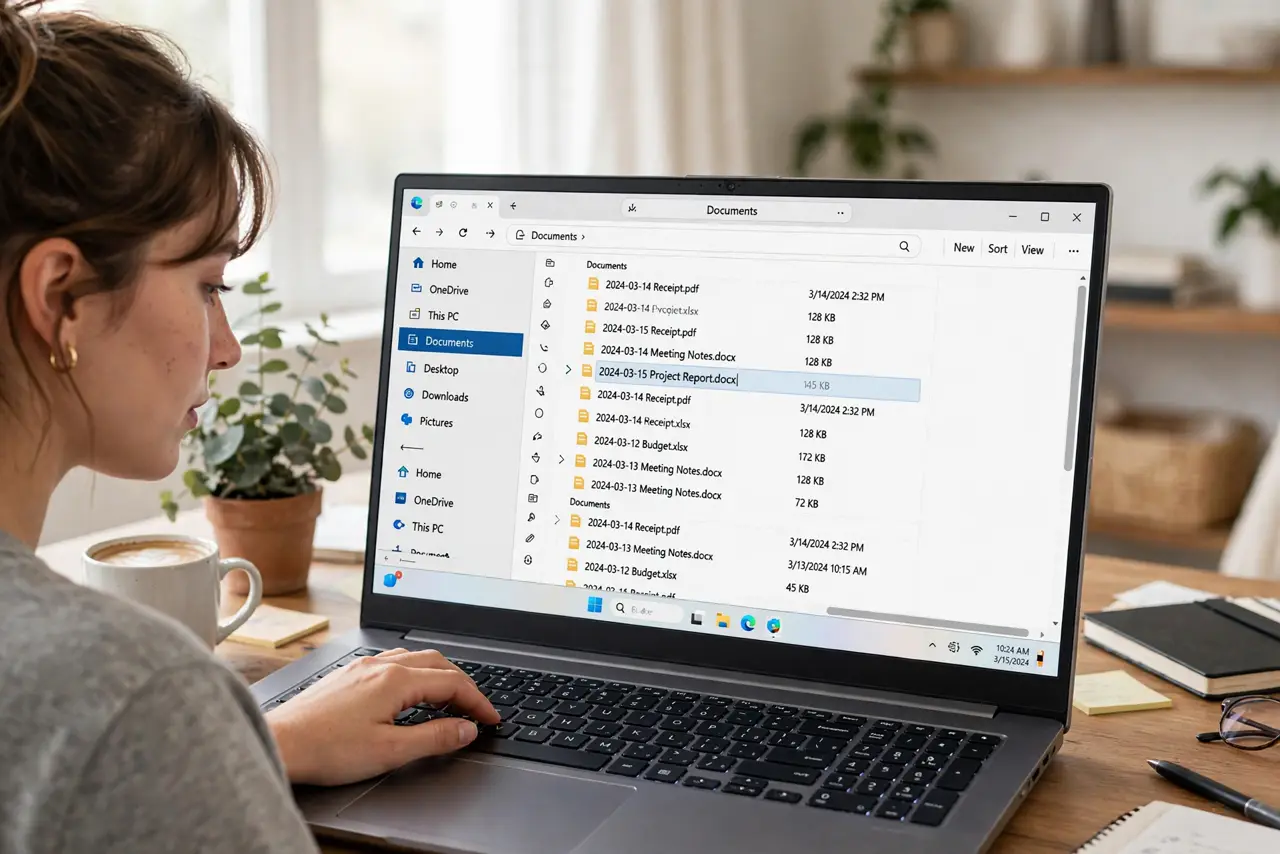
- Do not use special characters in filenames. Slashes, colons, and question marks break on some systems — stick to letters, numbers, hyphens, and underscores.
- Do not rely on memory. If the name only makes sense today, it will be gibberish in six months — write the context into the name.
- Do not create a system so complex you abandon it. Three rules you follow beat thirty you do not.
- Do not rename files inside shared projects unilaterally. Agree the convention with collaborators first, or you break their links.
Frequently asked questions
What is the best date format for filenames?
YYYY-MM-DD — it sorts chronologically as plain text, unlike MM-DD-YYYY or DD-MM-YYYY. International, unambiguous, sortable.
Should I use spaces or underscores?
Hyphens are the sweet spot: readable and web-safe. Underscores work too; spaces cause the most trouble across systems.
How do I rename hundreds of old files?
In batches, newest first — old files you never open can wait. Bulk-rename tools in your file manager speed it up.