New RAM, Now It Won't Boot? Fix It
You installed new RAM and now the PC beeps, shows nothing, or boot-loops. New memory that will not boot is usually a seating problem, a compatibility mismatch, or a BIOS setting — not dead hardware. This guide gets the machine posting again.
TL;DR / Quick Fix
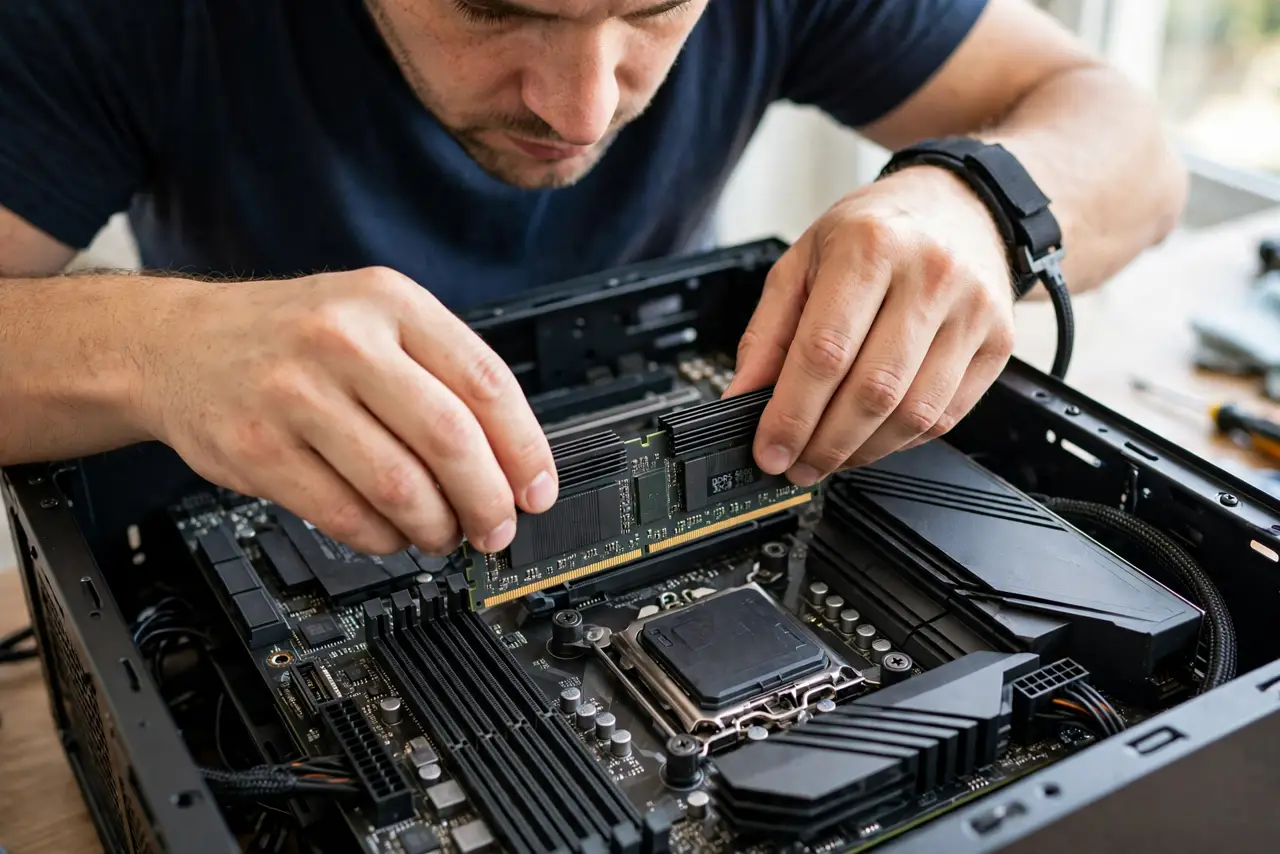
Quick fix: power off, unplug, and reseat the RAM — press firmly until both clips snap shut. If it still will not boot, try one stick at a time in the primary slot. Most no-boot-after-RAM cases are fixed by proper seating or isolating a bad stick.
Follow these steps
- Power off fully and reseat the RAM. Unplug the PC, press the power button to drain residual charge, then remove and reinstall each stick, pressing firmly until both end clips snap. Half-seated RAM is the top cause.
- Try one stick in the primary slot. Install a single stick in the slot the motherboard manual designates as primary. If it boots, add sticks one at a time to find the troublemaker.
- Check the motherboard's compatibility list. Look up your board's QVL — the qualified vendor list — for your exact RAM model. Speeds and timings outside the list can refuse to boot on picky boards.
- Reset the BIOS to defaults. Clear the CMOS — see CMOS battery symptoms if the board also forgets settings — or load optimized defaults. Old overclock or XMP settings from the previous RAM can prevent the new sticks from training.
- Inspect the slots and sticks. Look for dust, bent pins, or debris in the slots, and check the stick's gold contacts. Clean contacts gently with a dry cloth — never with liquids.
- Test the old RAM again. Reinstall the original RAM. If the PC boots, the board is fine and the issue is the new kit — compatibility or a dead stick, both grounds for an exchange.
What NOT to do
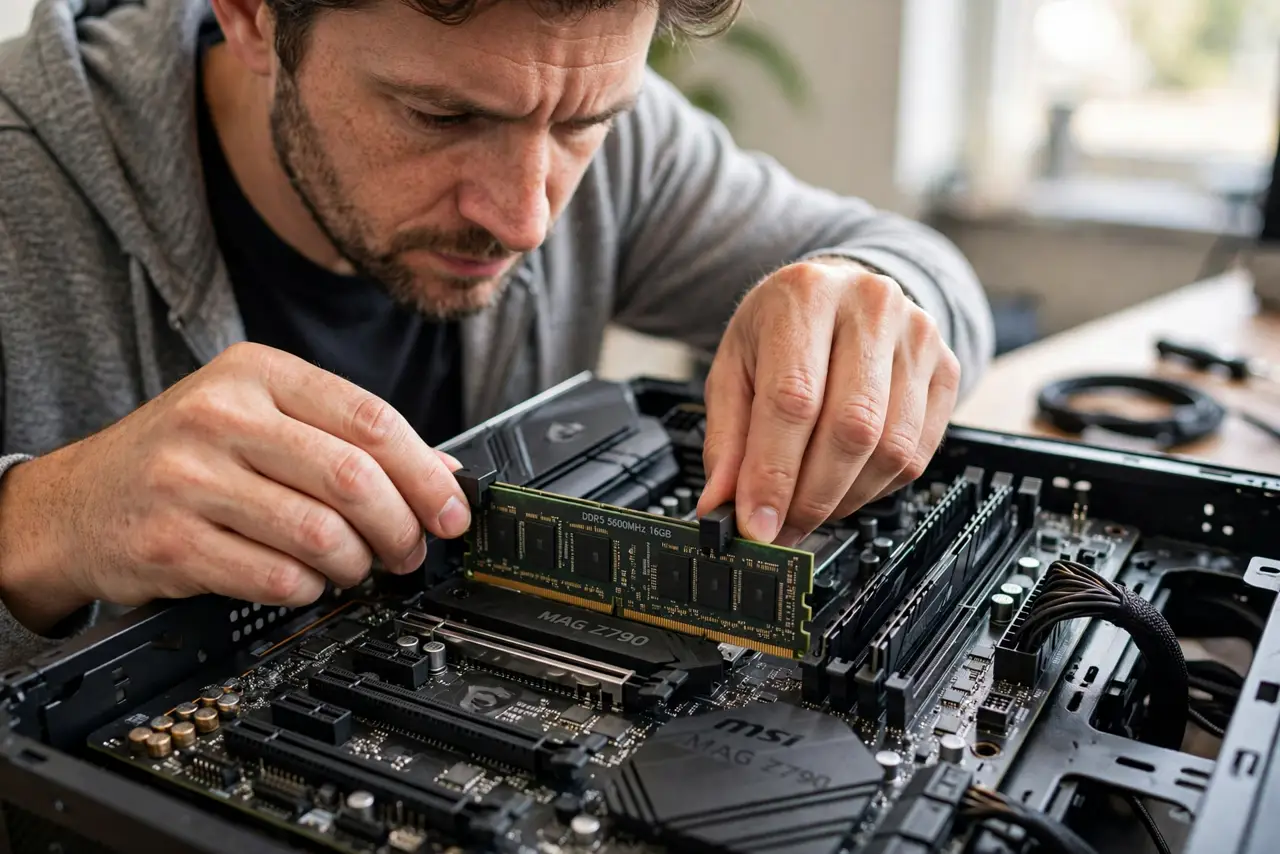
- Do not force a RAM stick that will not seat. RAM fits one way; forcing it can crack the slot or the stick — check the notch alignment instead.
- Do not install RAM with the power connected. Always unplug the PC first; standby power can damage components during installation.
- Do not mix wildly different RAM kits and expect stability. Different speeds and timings can boot — or refuse to — unpredictably.
- Do not touch the gold contacts with your fingers. Skin oil corrodes contacts over time; handle sticks by the edges.
Frequently asked questions
Why does my PC beep after installing RAM?
Beeps are the motherboard's error code for a memory problem — usually unseated, incompatible, or faulty RAM. Count the beeps and check the manual.
Do I need to change BIOS settings for new RAM?
Sometimes. Enable XMP or EXPO for the rated speed, but reset to defaults first if the PC will not boot at all.
Can new RAM be dead on arrival?
Yes, though it is less common than seating or compatibility issues. One-stick-at-a-time testing identifies a dead stick conclusively.