Set Up a Nintendo Switch
A Switch for the kids (or yourself — no judgment) needs more than unboxing: accounts, parental controls, and the day-one update all compete for attention. Setting up a child account with proper restrictions first avoids the awkward 'how did they buy that' conversation later. Here is the family-savvy order.
TL;DR / Quick Fix
Unbox the Switch, attach the Joy-Cons, and connect to Wi-Fi before creating accounts. Set up an adult Nintendo Account first, then add supervised child accounts with spending limits and play-time alarms. Run the system update, install one game to verify. The gaming lag guide covers slow downloads.
Follow these steps
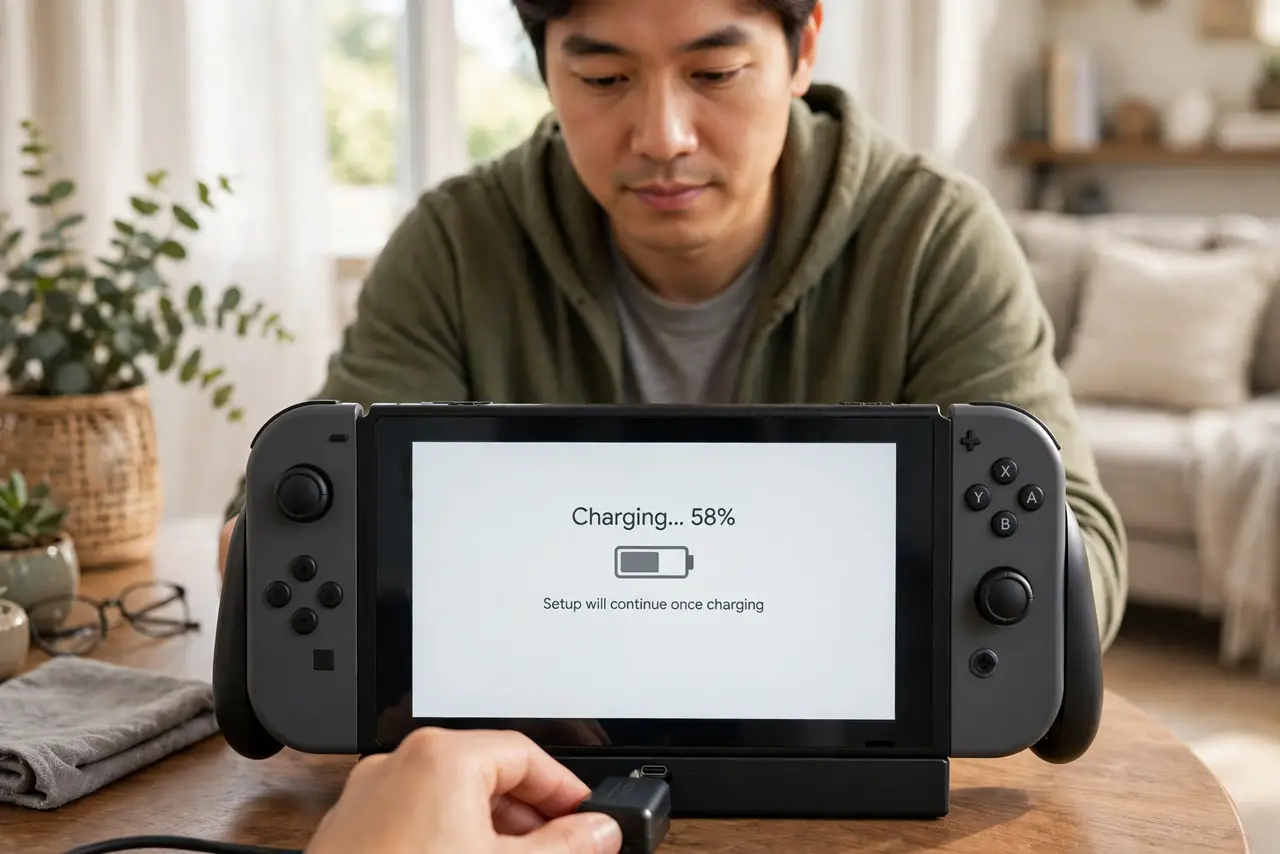
- Charge it before anything else. Plug in the AC adapter and let it charge while you read the quick-start guide. A Switch dying mid-update is the most avoidable setup failure there is.
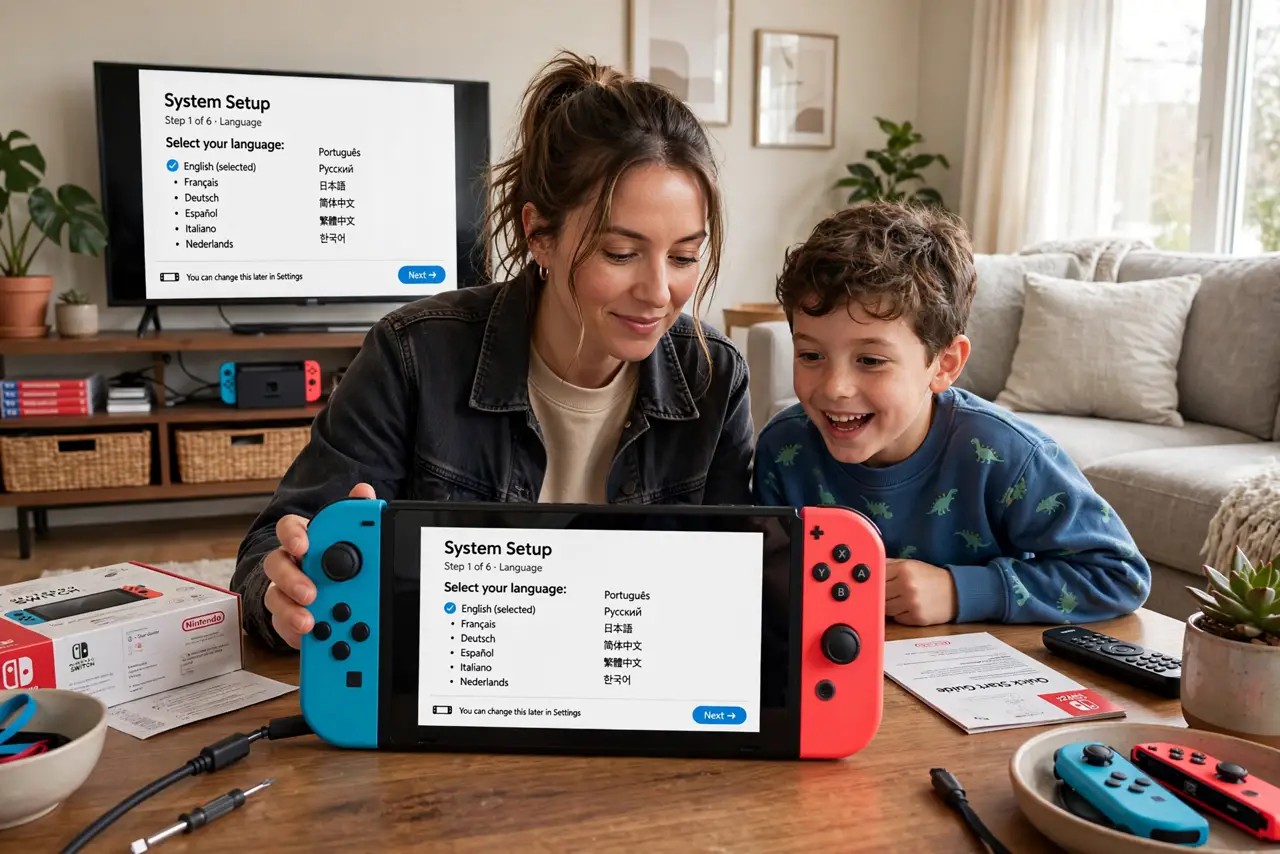
- Attach Joy-Cons and connect to Wi-Fi. Slide the Joy-Cons on until they click, dock or hold the console, and join your Wi-Fi network. Updates and the eShop both need the connection immediately.
- Create the adult account first. Set up a Nintendo Account for the grown-up, with two-step verification on. Child accounts hang off this one — the parent account is the control center.
- Add child accounts with parental controls. Install the Nintendo Switch Parental Controls phone app, link the console, and set age restrictions, spending limits, and play-time alarms. Do this before handing the console over, not after.
- Run the system update. Accept the update prompt in System Settings. Like all consoles, the Switch wants its day-one patch before online features behave.
- Install one game and test. Download or insert a single game, play a few minutes, and confirm saves work. Then set expectations about eShop purchases before the kids discover them.
What NOT to do
- Do not hand over the Switch before parental controls are set. Retroactive restrictions cause arguments; upfront ones are just 'how it works.'
- Do not skip the adult account's two-step verification. The eShop holds your payment method — protect the wallet that funds the fun.
- Do not buy digital games on the wrong region account. eShop regions affect pricing and availability; pick the region you will actually use.
- Do not ignore storage. The base 32 GB fills after a couple of big downloads — a microSD card is practically mandatory for digital buyers.
Frequently asked questions
How much storage does the Switch have?
32 GB internal (64 GB on the OLED model), with a chunk reserved for the system. A 128 GB or larger microSD card is the standard fix.
Can two kids share one Switch?
Yes — each gets a user profile with separate saves. Parental controls apply per-console with per-profile age settings via linked Nintendo Accounts.
Do I need Nintendo Switch Online?
For online multiplayer and cloud saves, yes. The free tier covers eShop and updates; online play needs the subscription.