Databases in Notion?
You have learned Notion pages, and now you keep hearing about 'databases' — tables where every row opens into its own page, with views, filters, and sorting. They sound intimidating, but a simple database is just a list with superpowers. This guide takes you from zero to your first genuinely useful database without the overwhelm.
TL;DR / Quick Fix
Quick fix: a Notion database is a table where each row opens as its own page — perfect for trackers, lists, and collections. Start with a simple table view, add properties like dates and tags, then try a board or calendar view. One small database teaches you the whole concept.
Follow these steps
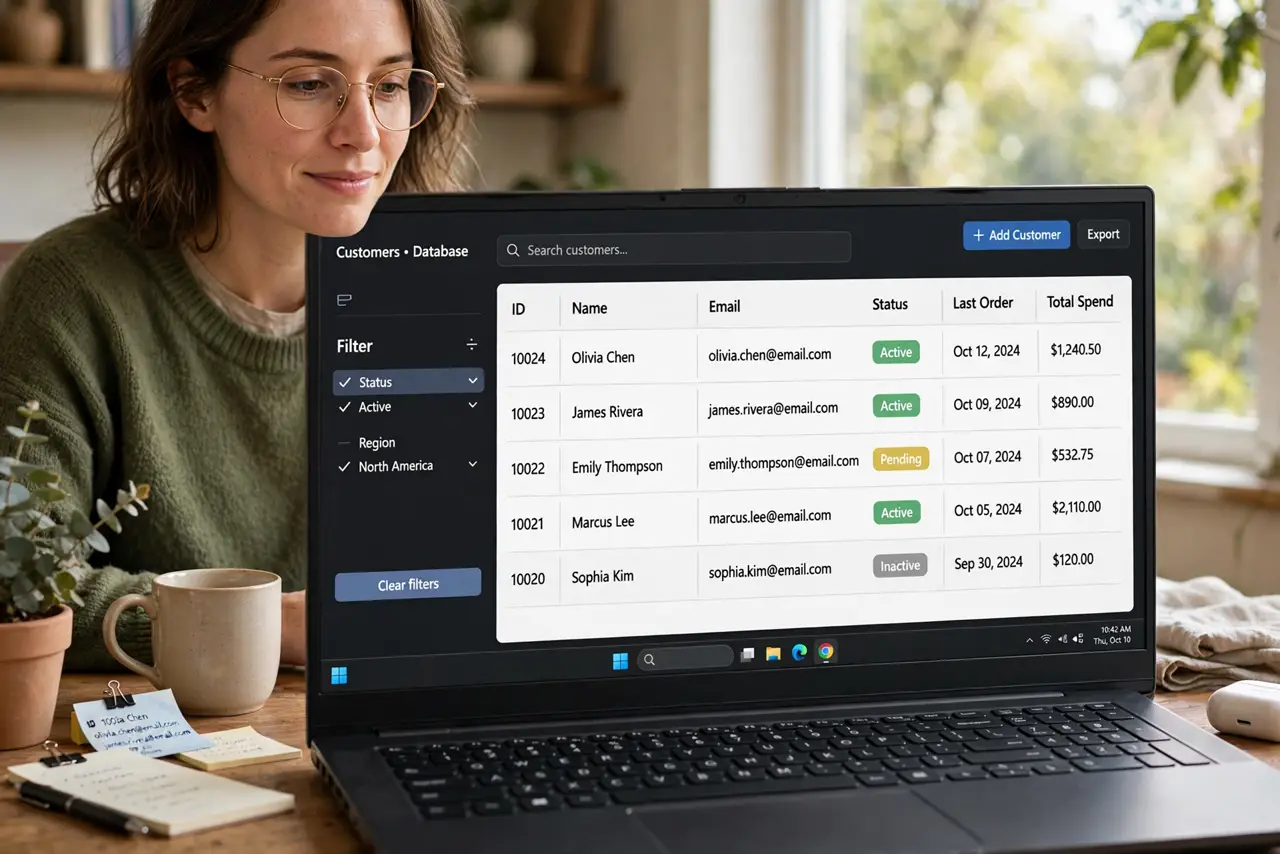
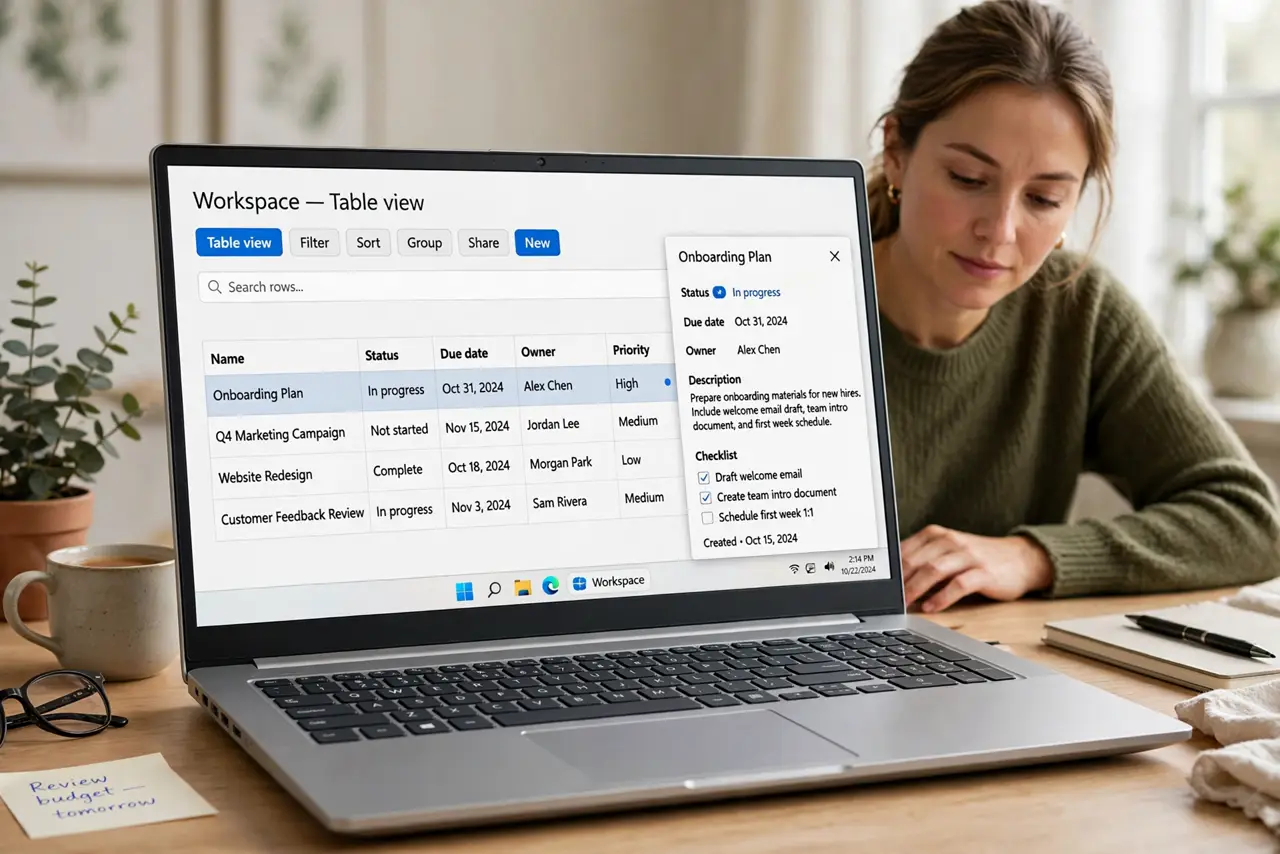
- Start with a table view. Type /table and choose Table view. You get a spreadsheet-like grid — but click any row and it opens as a full page where you can write notes, add images, and more. That row-as-page trick is the whole magic.
- Add useful properties. Properties are columns with types: dates, checkboxes, tags, numbers. A book tracker might have Status (tag), Rating (number), and Finished (date). A few well-chosen properties beat twenty confusing ones.
- Try a second view. The same data can show as a board (kanban), a calendar, or a gallery. Add a view with the + button next to the view tabs. Seeing your tasks as a board after living in a table is a genuine revelation.
- Filter and sort. Filters show only matching rows ('show me overdue tasks'); sorting orders them. These two features turn a dumb list into a smart dashboard. Experiment on a copy of your data first.
- Link databases with relations. A relation connects two databases — tasks linked to projects, books linked to authors. This is advanced but powerful; master simple databases first, then connect them.
- Keep it simple on purpose. The classic beginner trap is building a life-operating-system with twelve linked databases. Start with ONE database that solves ONE problem. Complexity should be earned by real use — see the Notion basics guide if the foundations feel shaky.
What NOT to do
- Do not build a twelve-database system on day one. Start with one database for one problem — complexity without use is just clutter.
- Do not use a database for a simple list. A plain to-do list does not need properties, views, and relations — match the tool to the job.
- Do not share databases without checking permissions. A shared database exposes every row — filter views do not hide data from people with access.
- Do not skip backups of critical trackers. Export important databases periodically; no cloud service should hold your only copy.
Frequently asked questions
What is the difference between a page and a database?
A page holds freeform content; a database holds structured rows that each open as pages. Use pages for writing, databases for tracking collections of things.
Table, board, or calendar — which view?
Table for data entry, board for workflow stages, calendar for anything date-driven. They all show the same data — switch freely.
Can databases get too slow?
Very large databases (thousands of rows with many relations) can lag. For huge datasets, split by year or archive old rows.