Web Clipper? Basics
You find the perfect article, recipe, or product page and want it in your notes — not as a bare link you will never reopen, but as the actual content. OneNote Web Clipper is a free browser extension that saves pages, selections, or screenshots straight into a notebook. Two clicks and the research is filed. Here is how to use it well.
TL;DR / Quick Fix
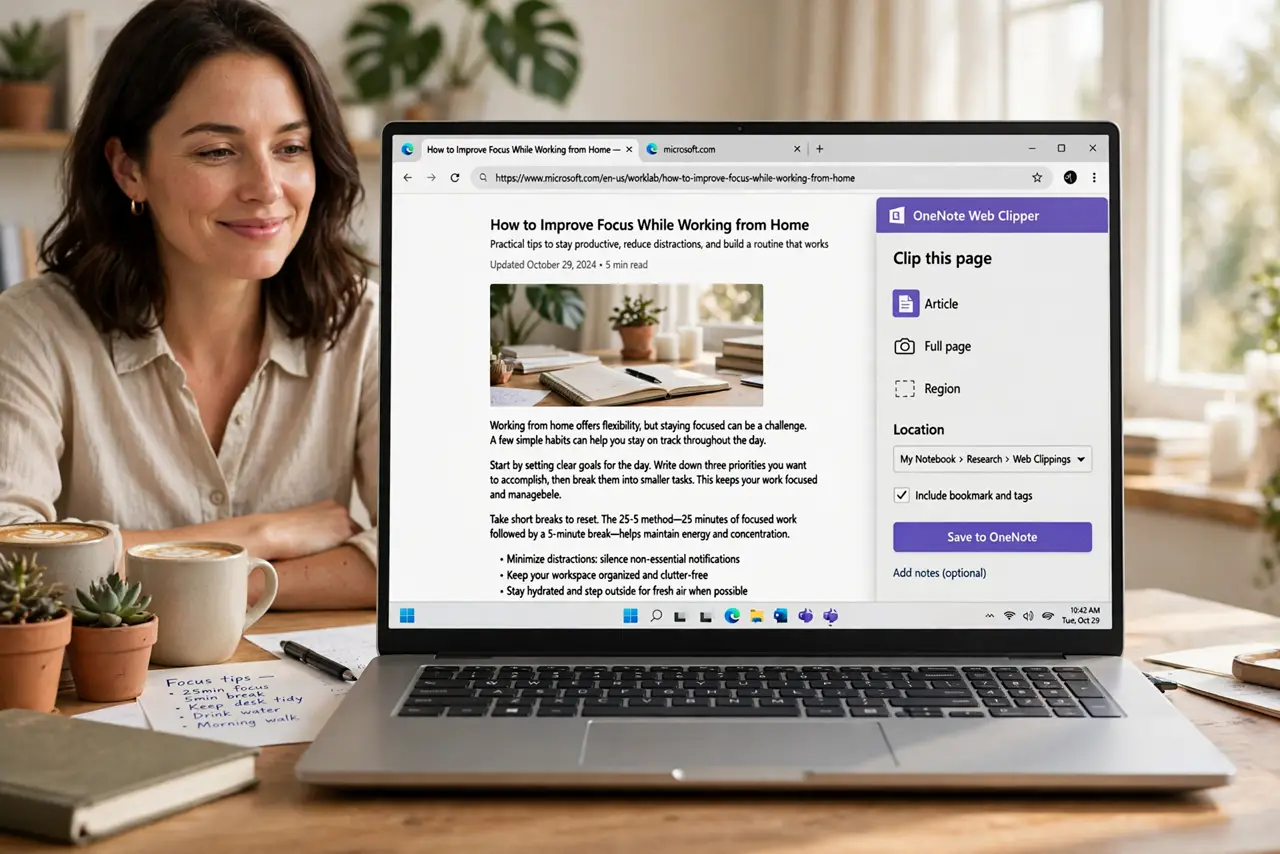
Quick fix: install the OneNote Web Clipper extension for your browser and sign in. On any page, click the Clipper icon, choose Article, Section, or Bookmark, pick the notebook location, and click Clip. The content lands in OneNote, synced to all your devices.
Follow these steps
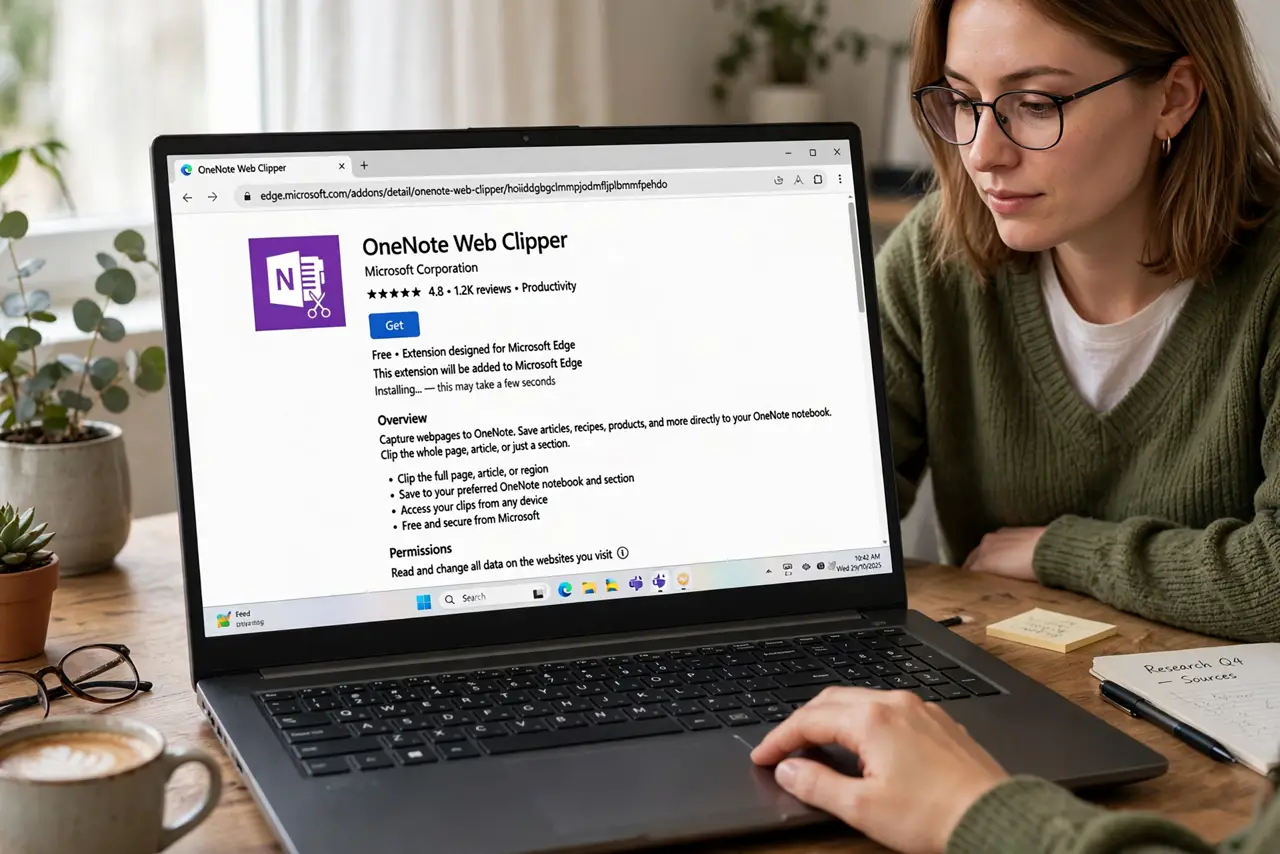
- Install the extension. Get OneNote Web Clipper from your browser's extension store (Edge, Chrome, and Firefox all have it) and sign in with your Microsoft account. Pin the icon to the toolbar for one-click access.
- Choose the right clip mode. Full Page grabs everything; Article extracts the clean text; Region lets you drag-select part of a page; Bookmark saves just the link with a preview. Article mode is the everyday winner — clean text without ads.
- Pick the destination notebook. The Clipper asks where to save each time (or remembers your last spot). Clip research into the project section it belongs to — filing at capture time beats sorting later. See our notebook organization guide for structure ideas.
- Clip selections with right-click. Highlight text on a page, right-click, and clip just the selection. Perfect for saving a quote or a spec table without the surrounding page.
- Edit after clipping. Clipped pages land as editable OneNote content — highlight key passages, add your own notes on top, delete the fluff. A clipped page with your annotations is research; without them it is hoarding.
- Know the limits. Paywalled articles, interactive apps, and some dynamic pages clip poorly or not at all. For those, a screenshot clip or a manual summary beats a broken capture.
What NOT to do
- Do not clip everything you read. Unread clipped pages are just a slower bookmark folder — clip what you will actually use.
- Do not ignore copyright on large clips. Clipping an entire book chapter or paid article for redistribution crosses lines — clip for personal reference.
- Do not forget to pick the destination. Letting everything pile in the default section recreates the chaos you were escaping.
- Do not rely on clips of changing pages. Prices, schedules, and live data go stale — note the capture date on anything time-sensitive.
Frequently asked questions
Is Web Clipper free?
Yes — completely free with a Microsoft account. No premium tier, no clip limits for normal use.
Where do my clips go?
Whichever notebook and section you choose at clip time — the Clipper remembers your last location to speed things up.
Can I clip on my phone?
The mobile OneNote app has a share-to-OneNote option that works like clipping. For full clip modes, use the desktop browser extension.