Color Categories in Outlook
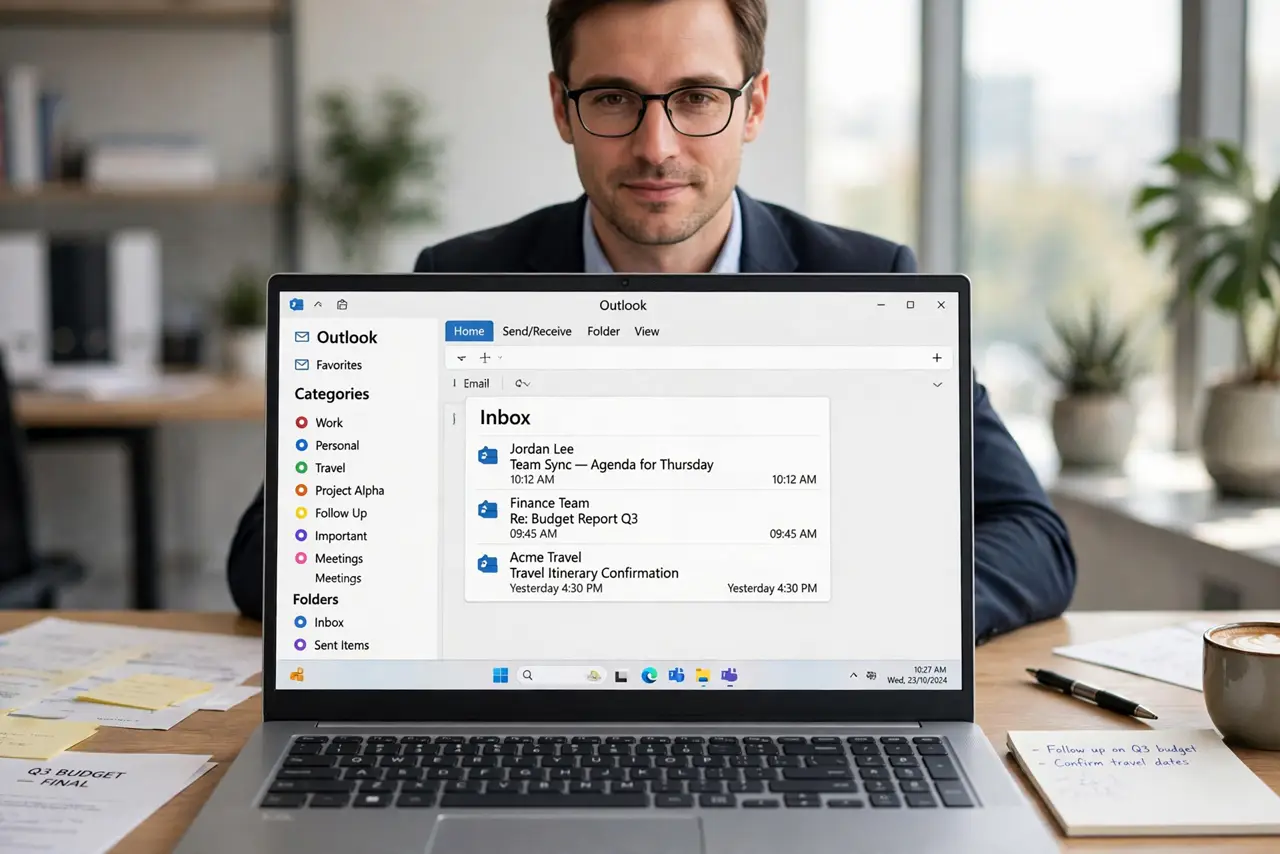
Outlook color categories are the label system you already own — red for urgent, green for clients, blue for personal — applied with one click and visible in every view. Most people never rename them from Red Category. Here is how to make them yours.
TL;DR / Quick Fix
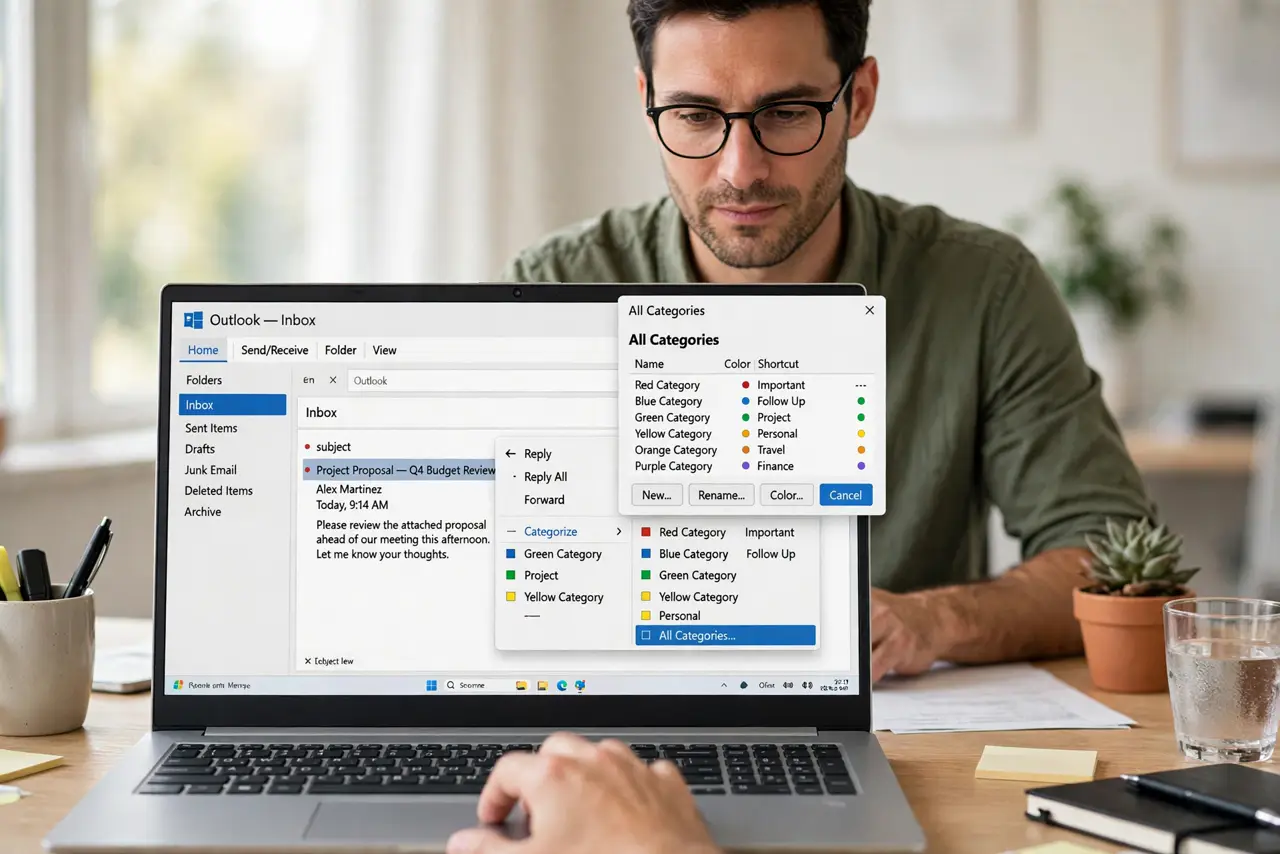
Quick fix: right-click any message > Categorize > All Categories, rename the colors to real meanings like Urgent or Client-Acme, and apply with one click. Use fewer than ten categories or the colors stop meaning anything. Categories sync with Exchange, so they follow you to phone and web.
Follow these steps
- Open All Categories. Right-click a message > Categorize > All Categories. This is the master list — renaming here renames everywhere.
- Rename colors to meanings. Select Red Category, click Rename, type Urgent. Do this for every color you plan to use — names beat colors in memory.
- Add the categories you actually need. Click New to add meanings like Waiting-On or Receipts. Fewer than ten total — a category for everything is a category for nothing.
- Apply with one click. Select messages, right-click > Categorize > the category. Or add Categorize to the Quick Access Toolbar for keyboard speed.
- Use them in views and search. Group or sort the inbox by category, and search category:Urgent to pull every urgent item instantly.
- Sync and share the code. On Exchange, categories roam to your phone and webmail. Tell teammates your code — shared categories only work when everyone reads them the same way.
What NOT to do
- Do not keep the default Red Category names. Unnamed colors are decoration.
- Do not create twenty categories. Past ten, nobody — including you — remembers the code.
- Do not categorize and then never filter by it. The value is in the grouping, not the coloring.
- Do not use categories for secrets. Anyone with mailbox access sees them.
Frequently asked questions
Do categories sync to my phone?
On Exchange and Microsoft 365 accounts, yes — categories roam across Outlook desktop, web, and mobile. POP and IMAP accounts keep them local.
What is the difference between categories and flags?
Categories are colored labels for grouping; flags mark follow-up with dates. Many people use both: category for what, flag for when.
Can I auto-assign categories?
Yes — rules and Quick Steps can apply categories automatically as mail arrives or with one click.