Delay Delivery in Outlook
You finished the email at 11 p.m. but nobody needs to know that — or you want it to land at 9 a.m. sharp. Delay Delivery holds a message in the Outbox and sends it at the time you choose. Here is how to delay one message, and when to delay them all.
TL;DR / Quick Fix
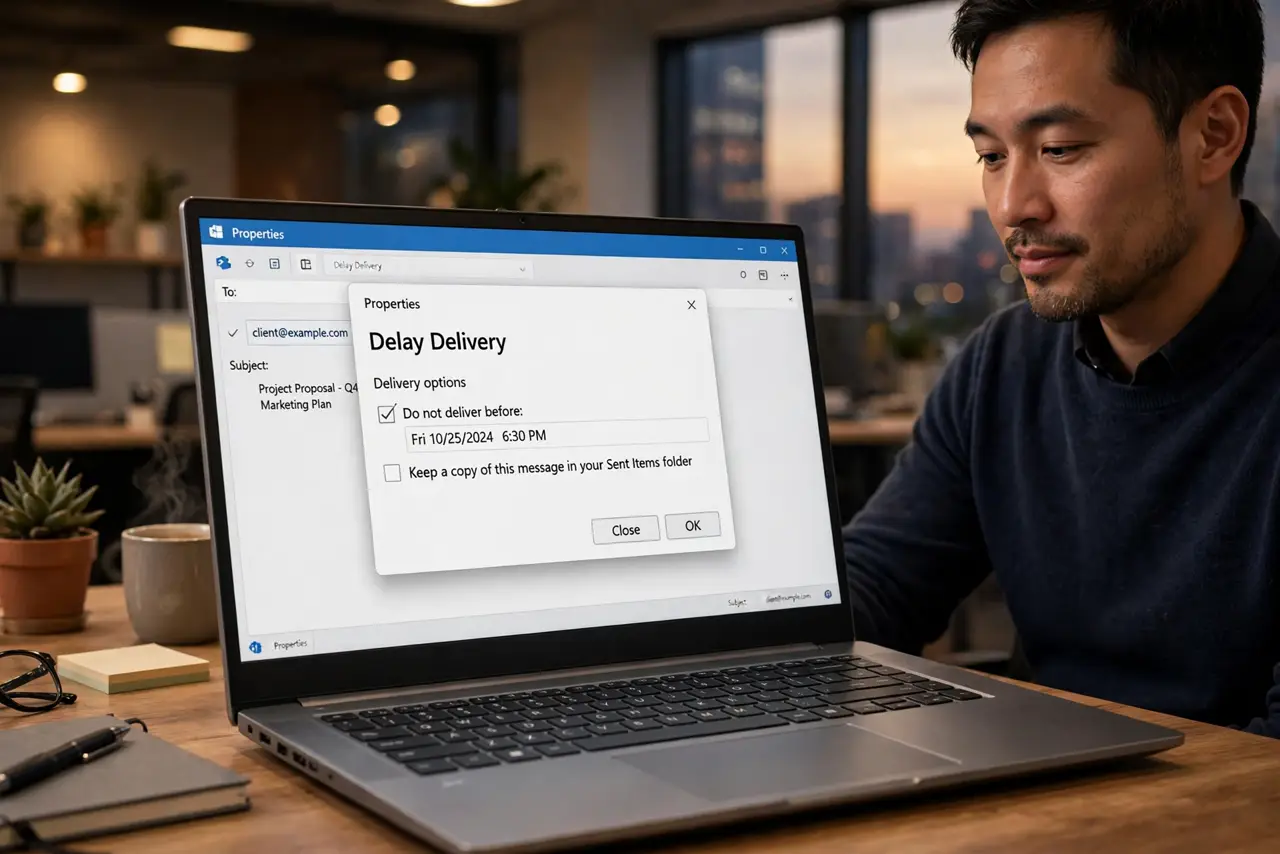
Quick fix: in a new Outlook message open Options > Delay Delivery, set Do not deliver before, then Send. The message waits in the Outbox until then. Outlook must be open at send time — for always-on delivery, delay all mail with a rule instead.
Follow these steps
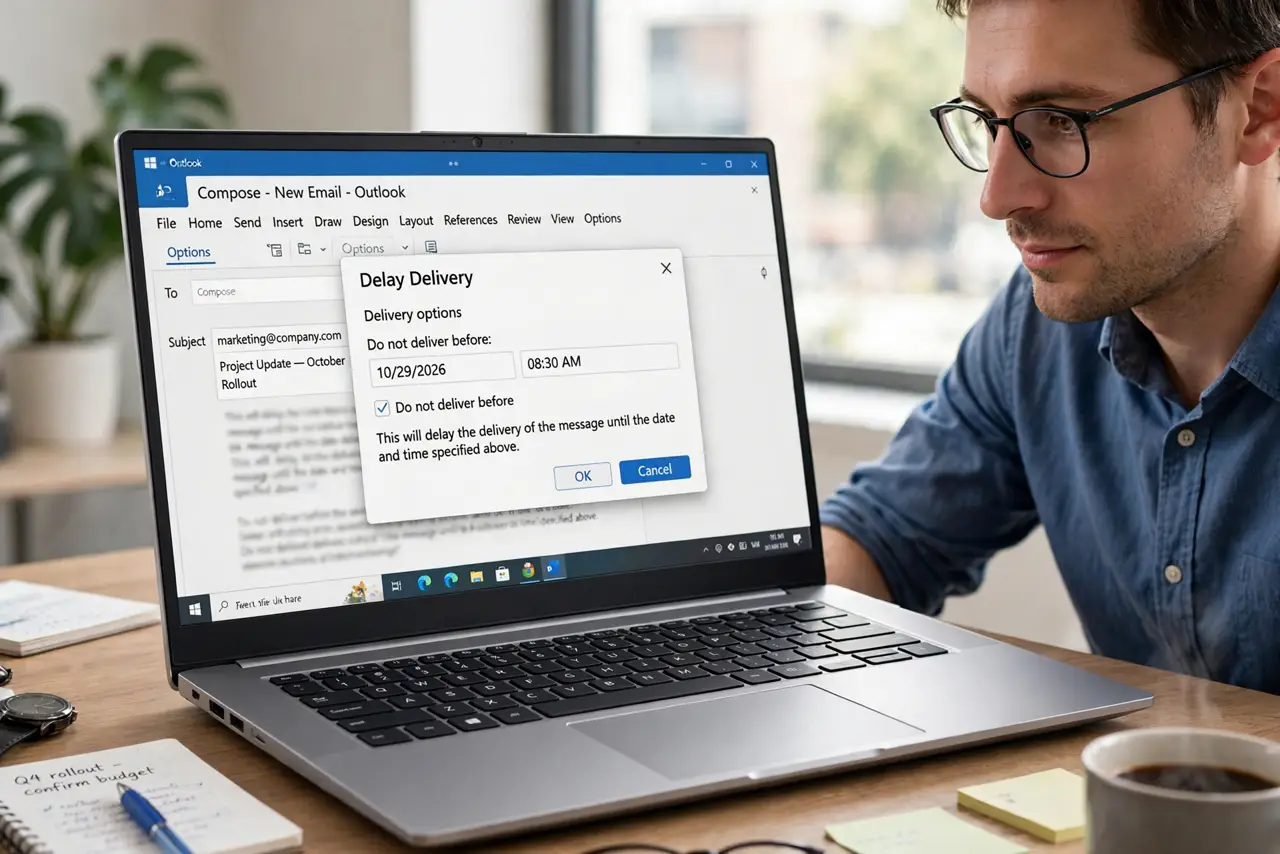
- Open Delay Delivery for the message. In the compose window, open the Options tab and click Delay Delivery. The dialog controls this message only.
- Set Do not deliver before. Check Do not deliver before and pick the date and time. Close the dialog — the setting rides along with the message.
- Send normally. Click Send. The message moves to the Outbox and sits there, visibly scheduled, until the time arrives.
- Keep Outlook open. Delayed messages send from your computer, so Outlook must be running and online at the scheduled time. A shut laptop means a late email.
- Edit or cancel from the Outbox. Open the Outbox, double-click the message to edit the time or the text. Delete it to cancel the send entirely.
- Consider the always-on alternative. If you delay often, a rule delaying all mail a few minutes is more reliable — it runs even when this message-level quirk would not.
What NOT to do
- Do not rely on Delay Delivery with the laptop shut. It needs Outlook awake at send time.
- Do not set the time in the wrong time zone when traveling. The dialog uses the computer clock.
- Do not forget the message is in the Outbox, not Sent. Checking Sent for it will only confuse you.
- Do not delay time-sensitive news for the morning if morning-you might not be online. The cloud rule is the safe version.
Frequently asked questions
Does Delay Delivery work if Outlook is closed?
No — the message sends from your PC. Close the laptop and it waits. For sends that must go out regardless, use the server-side rule version.
Can I delay delivery in the new Outlook or web app?
Yes — use Send > Schedule send for cloud-side scheduling that works even with the app closed.
Why is my delayed message still in the Outbox?
The scheduled time has not arrived, or Outlook is offline. Check the time and your connection.