Delegate Your Inbox
An assistant who triages your inbox, a colleague covering your vacation — delegation gives someone controlled access to your mail and calendar without your password. Here is how to grant it and the permission levels that keep you in control.
TL;DR / Quick Fix
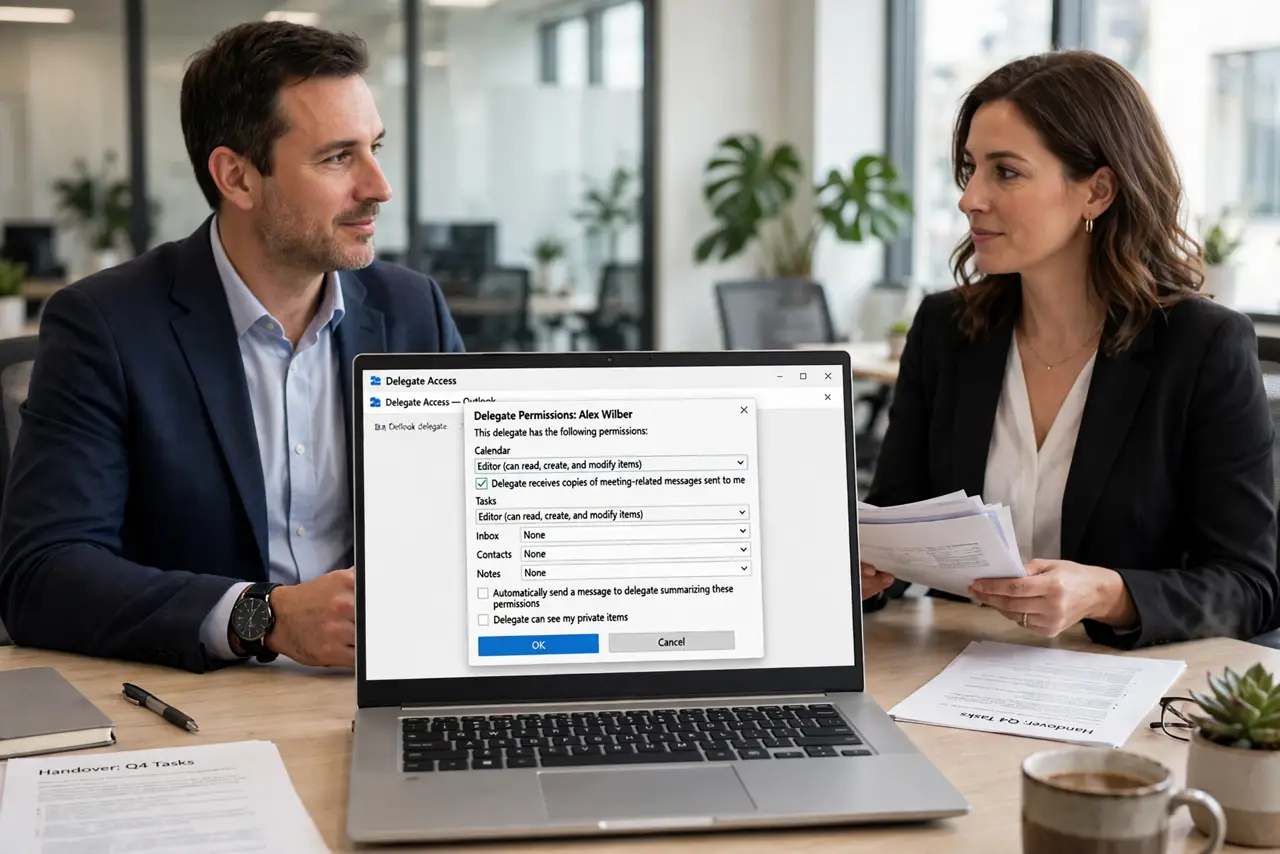
Quick fix: in Outlook go to File > Account Settings > Delegate Access > Add, pick the person, and set permissions — Reviewer reads, Author creates, Editor manages fully. Delegates never need your password. Review the list quarterly; stale delegates are a quiet security hole.
Follow these steps
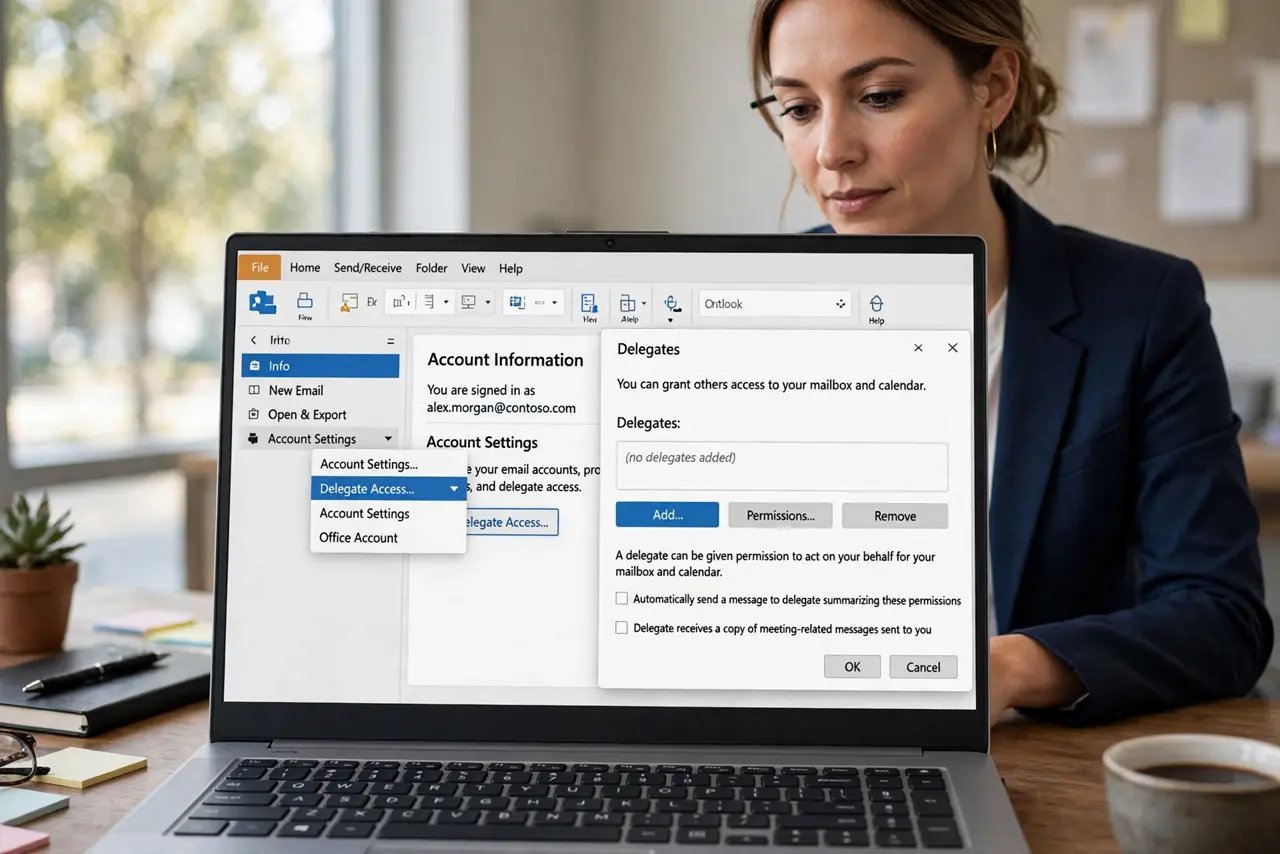
- Open Delegate Access. File > Account Settings > Delegate Access. This is the front door — everything about inbox sharing starts here.
- Add the person. Click Add, pick them from the address book, and confirm. They must be in your organization — delegates do not cross companies.
- Set the right level. Inbox: Reviewer reads, Author reads and creates, Editor manages fully. Calendar usually gets Editor for an assistant. Least privilege wins.
- Choose the notification options. Decide whether delegates get copies of meeting requests. For a covering colleague: yes. For a triaging assistant: your call.
- Tell them what to do. Delegation without instructions is just access. Write down: what to handle, what to escalate, what never to touch.
- Review and revoke. Revisit Delegate Access quarterly. Remove people who changed roles — access should expire with the need.
What NOT to do
- Do not share your password instead. Delegation exists precisely so you never do that.
- Do not grant Editor when Reviewer would do. Extra permission is extra risk.
- Do not forget the calendar side. Inbox delegates often need calendar rights too — set both deliberately.
- Do not leave ex-assistants on the list. Revoke on role change, not someday.
Frequently asked questions
What is the difference between a delegate and a shared mailbox?
A delegate acts inside your mailbox with your identity; a shared mailbox is a separate address the team owns. Delegates cover people; shared mailboxes cover roles.
Will the delegate see my private emails?
They see what the permission level allows — but consider marking truly private items Private, which hides subject and body from delegates.
Can delegates send as me?
Only if granted Send As or Send on Behalf permission separately. Delegate Access alone does not include sending rights.