Add a Shared Mailbox
The team inbox — support@, info@ — lives in a shared mailbox, and you need it beside your own. Adding it is a one-time setup; after that it behaves like a second account in your folder list. Here is the path for classic and new Outlook.
TL;DR / Quick Fix
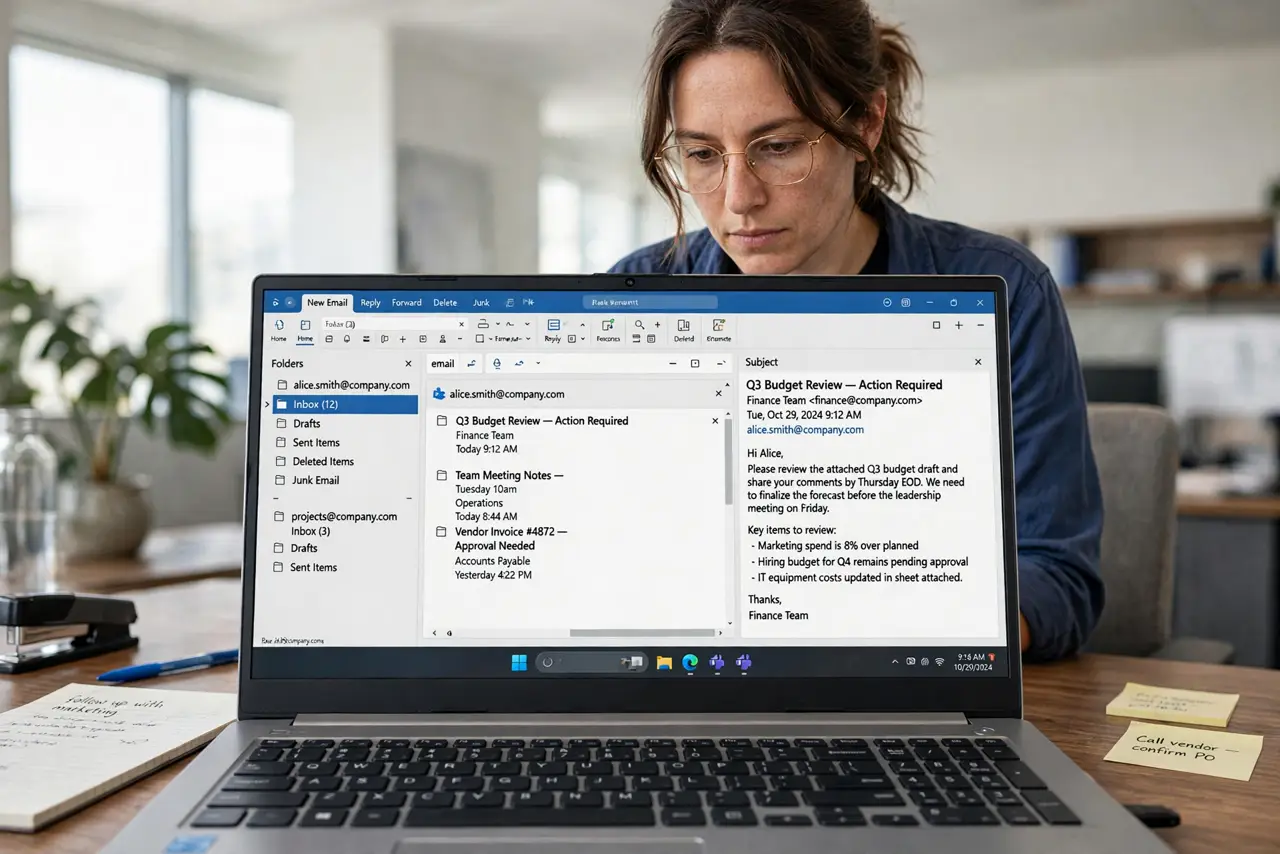
Quick fix: in new Outlook right-click the folder pane and choose Add shared folder or mailbox, then type the address. In classic Outlook it appears automatically once IT grants access — or add it via Account Settings > More Settings > Advanced. You need permission first; without it, nothing appears.
Follow these steps
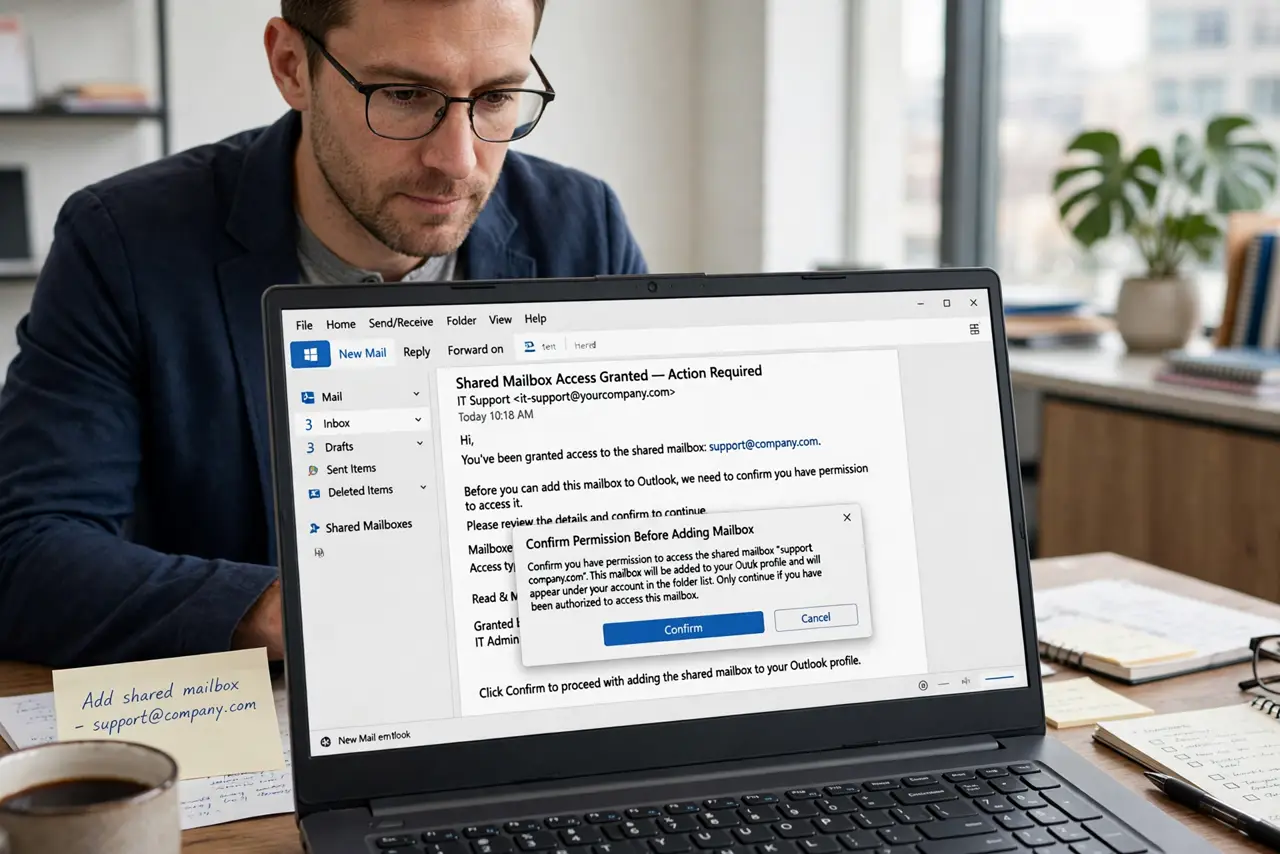
- Confirm you have permission. Ask IT or the mailbox owner to grant you access. No permission, no mailbox — the add steps silently do nothing without it.
- Add it in new Outlook. Right-click in the folder pane > Add shared folder or mailbox, type the shared address, and add it. It appears as its own tree.
- Add it in classic Outlook. It usually auto-maps after permission is granted. If not: File > Account Settings > Change > More Settings > Advanced > Add, then type the address.
- Expand and use it. The shared mailbox shows its own Inbox, Sent, and folders. Work inside it — replies come from the shared address automatically.
- Set up its notifications. Add the shared inbox to Favorites for visibility. New Outlook can notify on shared-folder mail — enable it or the queue goes quiet.
- Know the etiquette. Mark what you take — a category or a flag — and do not delete others work. A shared mailbox is a shared kitchen.
What NOT to do
- Do not reply from your personal address by accident. Check the From field — shared mail should come from the shared address.
- Do not add the mailbox five times. One entry is enough; duplicates just confuse.
- Do not assume access equals ownership. You see what permissions allow — some folders may stay hidden.
- Do not file shared mail into your personal folders. It leaves the team view and breaks the queue.
Frequently asked questions
Why can I not see the shared mailbox I was granted?
Wait up to an hour for auto-mapping, restart Outlook, or add it manually via the steps above. Permissions propagate slowly.
Can I access a shared mailbox on my phone?
Yes — Outlook mobile supports shared mailboxes once access is granted; add it from the account list.
Do I need a separate password?
No — you open it with your own credentials. That is the point: one login, delegated access.