Time Zones in Meeting Invites?
Your colleague in another country sees the meeting at a bizarre hour, or you fly somewhere and your whole calendar shifts. Meeting invites carry time zone data, and calendars convert it to your local time — usually correctly, occasionally confusingly. Understanding the moving parts prevents missed meetings across zones. Here is how time zones work in invites.
TL;DR / Quick Fix
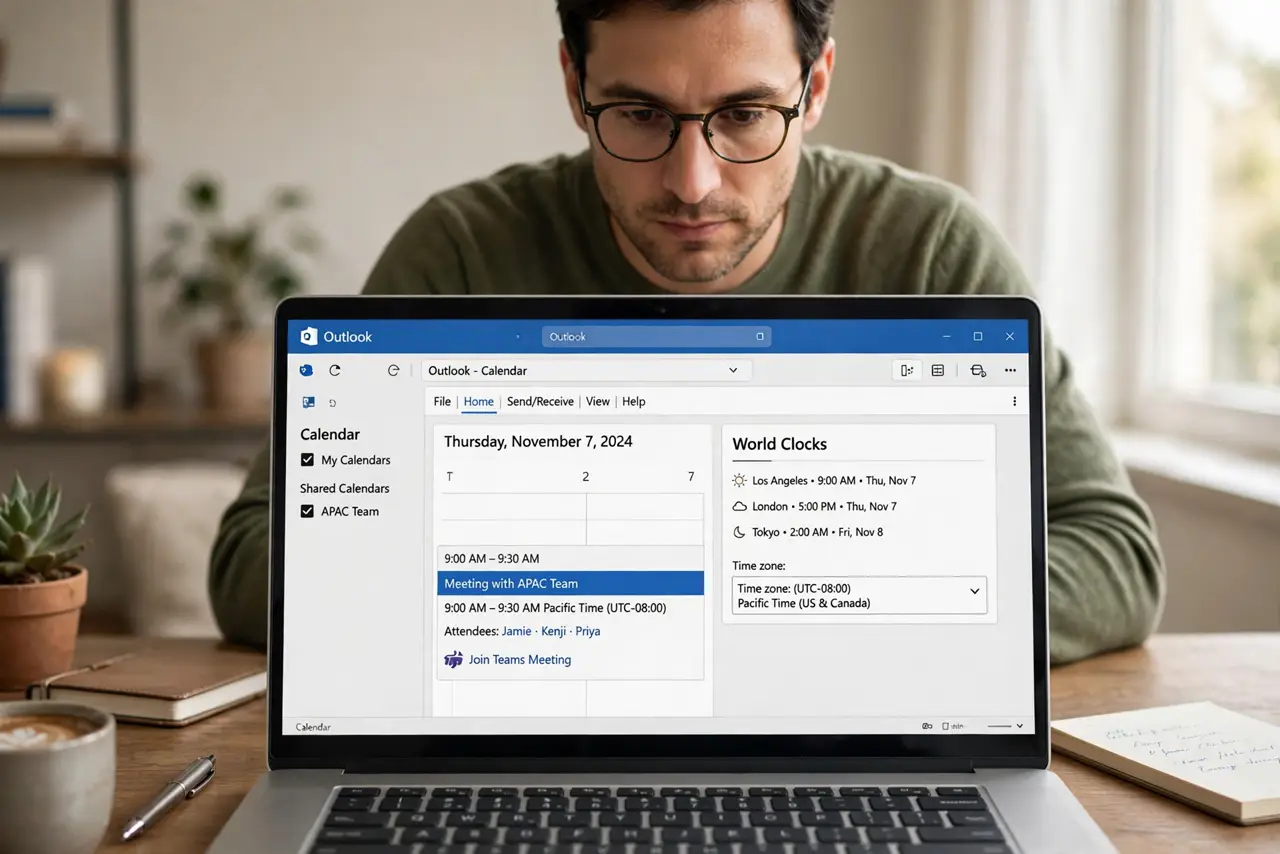
Quick fix: meeting invites carry time zone data, so an invite sent from another zone lands at the right local time on your calendar. When creating one, check the time zone dropdown matches your intent, especially for attendees abroad. If times look wrong, verify your calendar's time zone setting first.
Follow these steps
- Trust the conversion — usually. When someone sends an invite, your calendar converts it to your local time automatically. A 3 PM invite from London shows at your correct local equivalent.
- Set the right zone when creating. In a new meeting, check the time zone dropdown. For attendees in other zones, confirm the time reads correctly for them — the scheduling assistant shows each attendee's local time.
- Add a second time zone display. Outlook can show two zones side by side in the calendar view — yours and your closest collaborator's. It ends most conversion math.
- Check your zone after travel. Phones and laptops usually update automatically, but verify: a calendar stuck on the old zone shifts every meeting by hours. See events in the wrong zone if times look off.
- Write the zone in the invite for clarity. For critical meetings, add '3 PM ET / 8 PM GMT' in the body. Humans trust explicit zones more than automatic conversion.
- Beware daylight saving transitions. The twice-yearly clock change shifts converted times for recurring meetings. Double-check the week of the transition.
What NOT to do
- Do not schedule by mental math alone. Time zone arithmetic is where smart people make dumb mistakes — let the calendar convert.
- Do not ignore the time zone dropdown when creating invites. 'Floating' times with no zone attached confuse every attendee abroad.
- Do not assume everyone observes daylight saving. Some regions do not — the offset you memorized may be wrong half the year.
- Do not panic when a calendar shows odd times after a flight. It is almost always the device time zone setting, not corrupted meetings.
Frequently asked questions
Why does the invite show a different time than the organizer said?
One of you is looking at a different zone — or a device has the wrong zone set. Compare the explicit zone labels, not just the numbers.
Do recurring meetings handle daylight saving?
Yes, the calendar recalculates each occurrence. The meeting stays at the same local time for each attendee across the transition.
Should I send invites in my zone or theirs?
Send in yours and let conversion handle it — but write both zones in the message body for human reassurance.