Overlay Calendars? How To
You watch two calendars side by side — yours and your partner's, or work and personal — and finding a shared free slot means flicking your eyes back and forth. Overlay mode merges them into a single view, one grid showing everything at once. It is the fastest way to spot mutual free time. Here is how to overlay calendars in Outlook and when to switch back.
TL;DR / Quick Fix
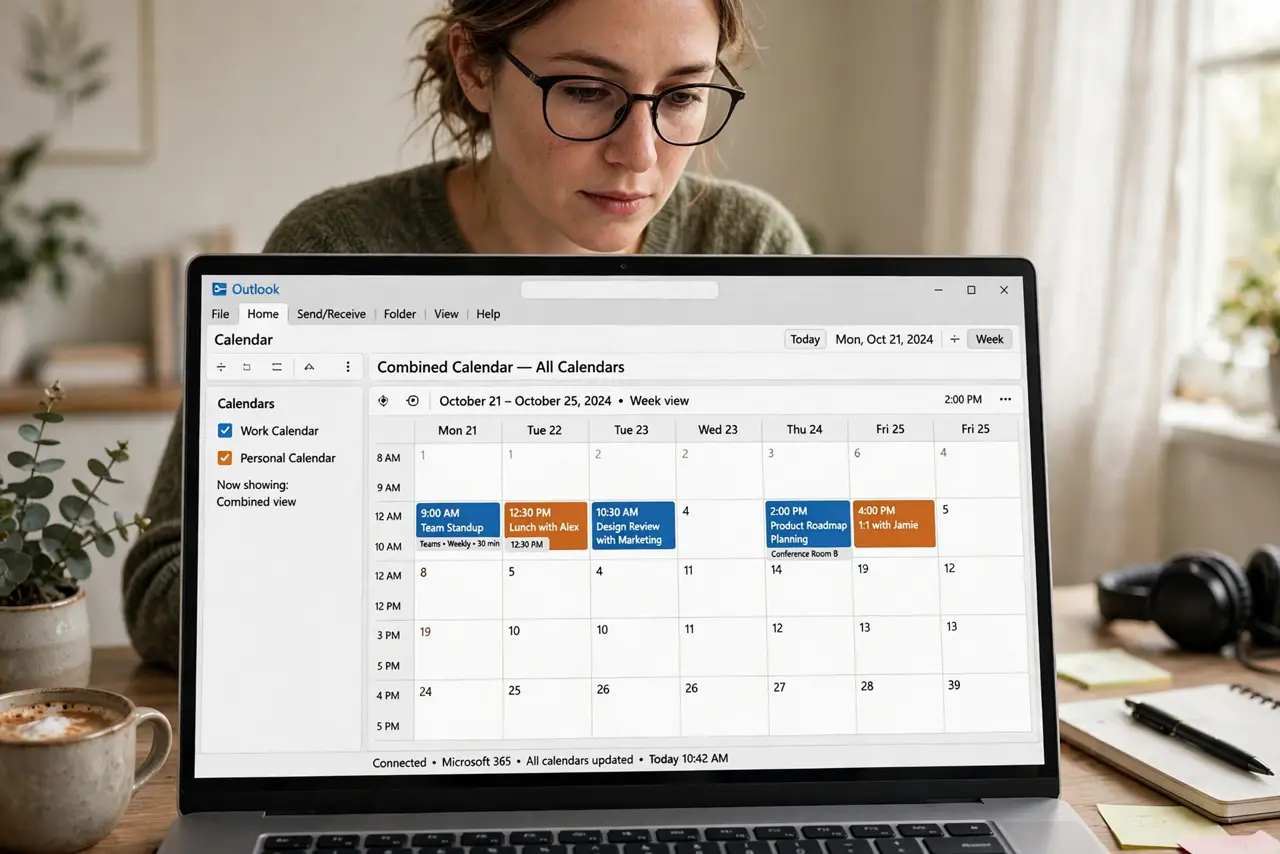
Quick fix: overlaying calendars merges them into one view to spot free time at a glance. In Outlook's calendar, click the arrow tab on a calendar to merge it into the overlay; click again for side-by-side. Overlay suits two or three calendars — more becomes visual soup.
Follow these steps
- Open the calendar view. Click the calendar icon in Outlook. You need your calendars listed in the side pane first — add any shared calendar you want to include.
- Click the arrow tab to overlay. Each calendar tab has a small arrow. Click it and that calendar merges into the overlay view with the others.
- Read the merged grid. Events from each calendar appear in their own colors in one grid. Free time is wherever nothing appears — no more eye-flicking between panes.
- Click the arrow again to un-merge. Toggling the arrow returns that calendar to side-by-side. Overlay is a view, not a merge of data — nothing moves or changes.
- Use it for scheduling checks. Overlay shines when finding a slot across two or three calendars. The scheduling assistant does this automatically for meeting invites.
- Know when side-by-side is better. With four or more calendars, overlay becomes unreadable. Switch back to side-by-side when the merged grid turns into confetti.
What NOT to do
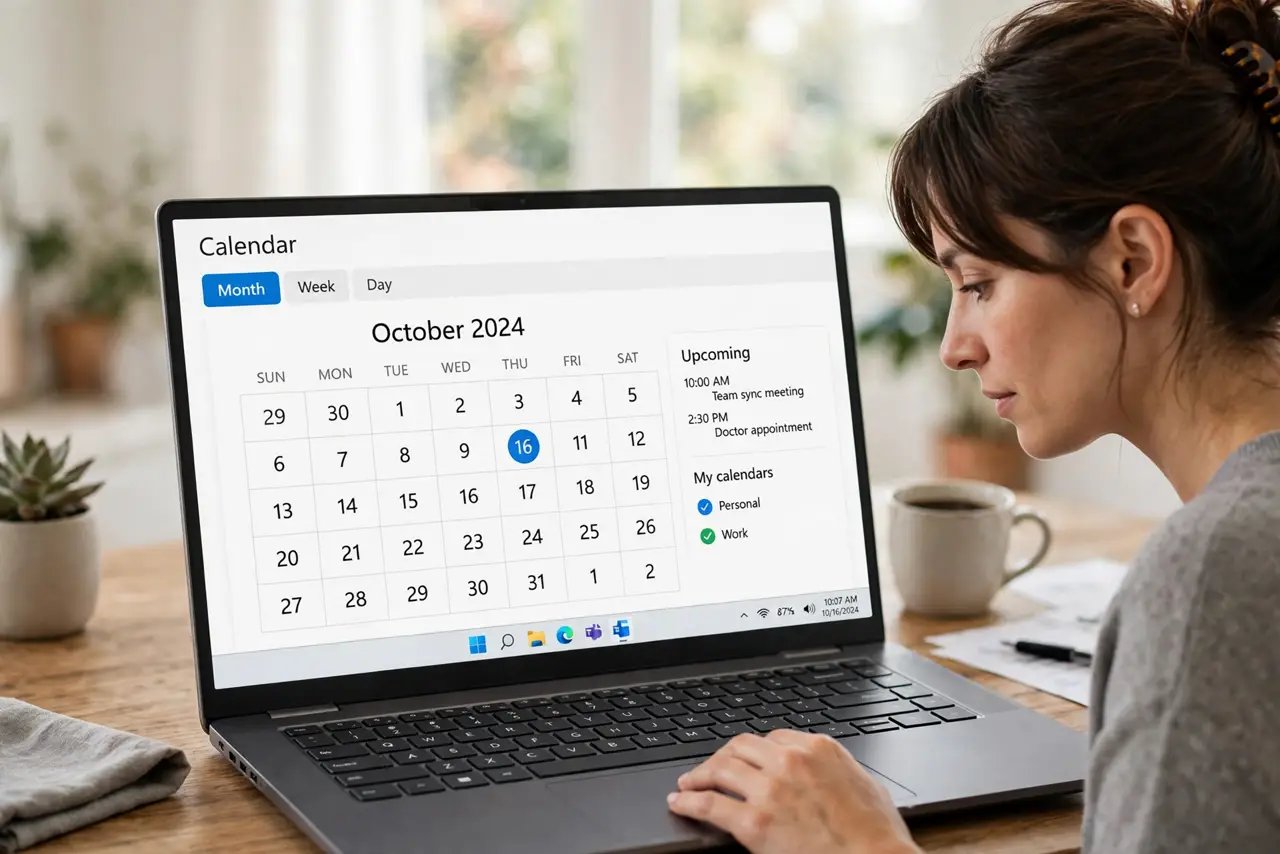
- Do not overlay calendars you do not need. Every extra calendar adds noise — overlay only the ones relevant to the scheduling question.
- Do not mistake overlay for combining data. The calendars stay separate; overlay only changes how you look at them.
- Do not use overlay with nearly identical colors. If two calendars share a color, recolor one first or the merge is meaningless.
- Do not forget overlay is per-view. Closing and reopening may reset it — re-click the arrows when the view looks 'unmerged' again.
Frequently asked questions
Can I overlay more than two calendars?
Yes, but readability collapses fast. Two or three is the sweet spot; beyond that, side-by-side panes win.
Does overlay work on the Outlook mobile app?
The mobile app shows calendars merged or toggled its own way and does not follow the desktop overlay toggle exactly.
Will overlaying change or move my events?
Never. It is purely a display mode — your events stay exactly where they are in their own calendars.