Pin Important Emails
The email with the contract, the boarding pass, the boss's instructions — buried under forty newer messages by lunchtime. Pinning keeps critical emails docked at the top of your inbox no matter what arrives. Two clicks to pin, zero minutes spent digging — the simplest organization feature people ignore.
TL;DR / Quick Fix
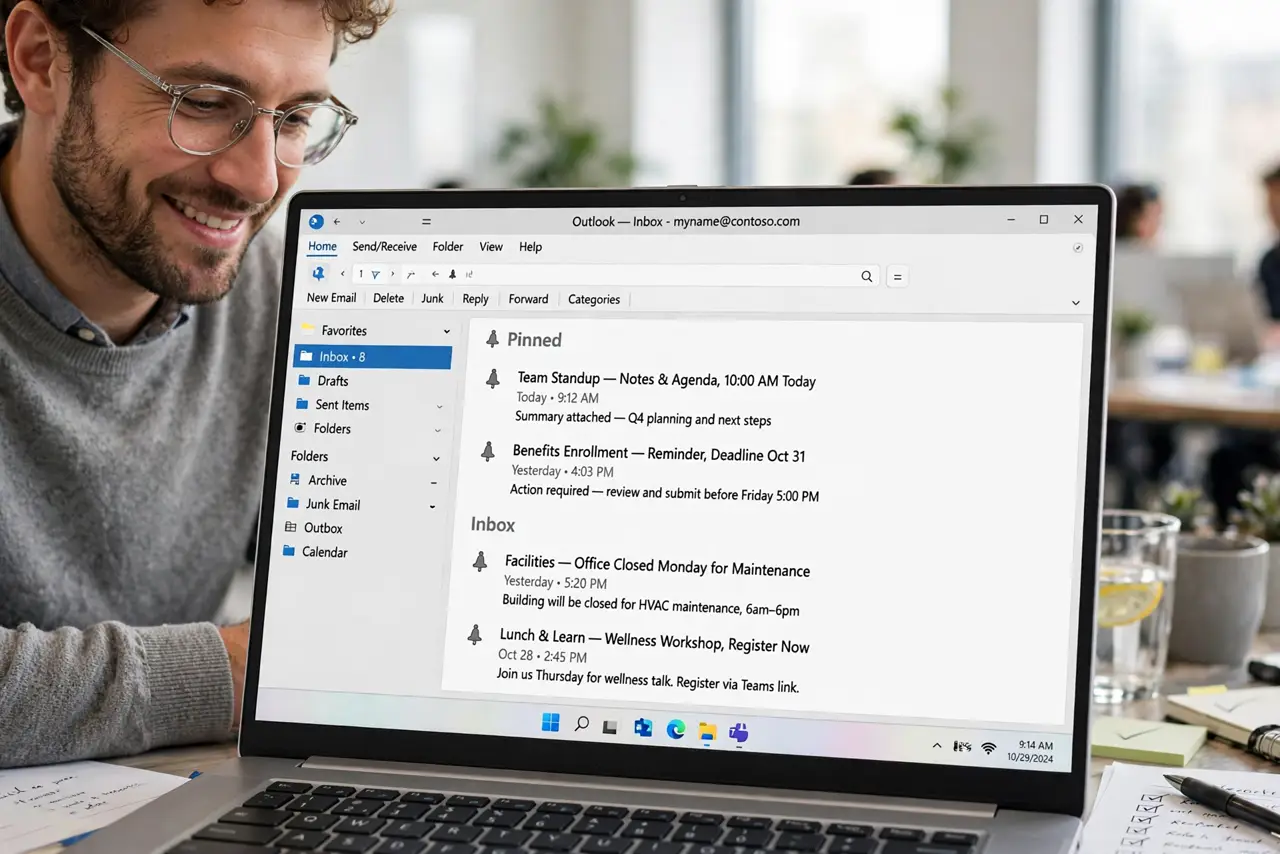
Quick fix: in Outlook, hover the important email and click the pin icon — it docks at the top of the inbox above everything new. Unpin when done. Keep three to five pins maximum; a dozen pins is just a second inbox.
Follow these steps
- Find the email. Locate the message worth keeping visible — the contract, the itinerary, the instructions you reference all week. Pinning is for the vital few, not the interesting many.
- Click the pin. Hover the email and click the pin icon, or right-click and choose Pin. The message jumps to a pinned section at the top of the inbox, above the chronological flow.
- Keep the count low. Three to five pins is the sweet spot. Every pin competes for attention — a dozen pinned emails is a second inbox, which defeats the purpose.
- Work from the pins. Your pinned section is now the daily dashboard — the things that matter, always visible. New mail flows beneath; the important stays put.
- Unpin when done. The trip ends, the contract signs — unpin it. Stale pins accumulate silently; a weekly unpinning keeps the dashboard honest.
- Pair with folders. Pins are for active items; folders are for reference. When a pinned email's job is done but worth keeping, file it and unpin — the lifecycle is pin, act, file.
What NOT to do
- Do not pin everything important-ish. Pins are for the vital few — over-pinning recreates the clutter you are escaping.
- Do not forget to unpin. A pinned section full of last month's urgencies is a museum, not a dashboard.
- Do not pin instead of acting. If the email needs a two-minute reply, reply — pinning is for waiting, not procrastinating.
- Do not expect pins to sync everywhere. Pinning syncs on Microsoft 365 accounts; old POP setups may keep pins local only.
Frequently asked questions
Where do pinned emails go?
They stay in the inbox, docked in a pinned section at the top. Pinning does not move or copy them — just displays them first.
Can I pin in Outlook on the web?
Yes — the pin icon works in the web app too, and pins sync to desktop and mobile on Microsoft 365 accounts.
What is the difference between pin and flag?
Pins dock the email at the top for visibility; flags mark it for follow-up with reminders. Use pins for reference, flags for action.