Auto-File with Outlook Rules
Your Outlook inbox is a firehose — newsletters, notifications, CC'd threads — and you file it all by hand. Outlook rules do the filing for you: match a sender or subject, then move, flag, or categorize automatically. Set up a handful once, and the morning triage shrinks to the mail that actually needs you.
TL;DR / Quick Fix
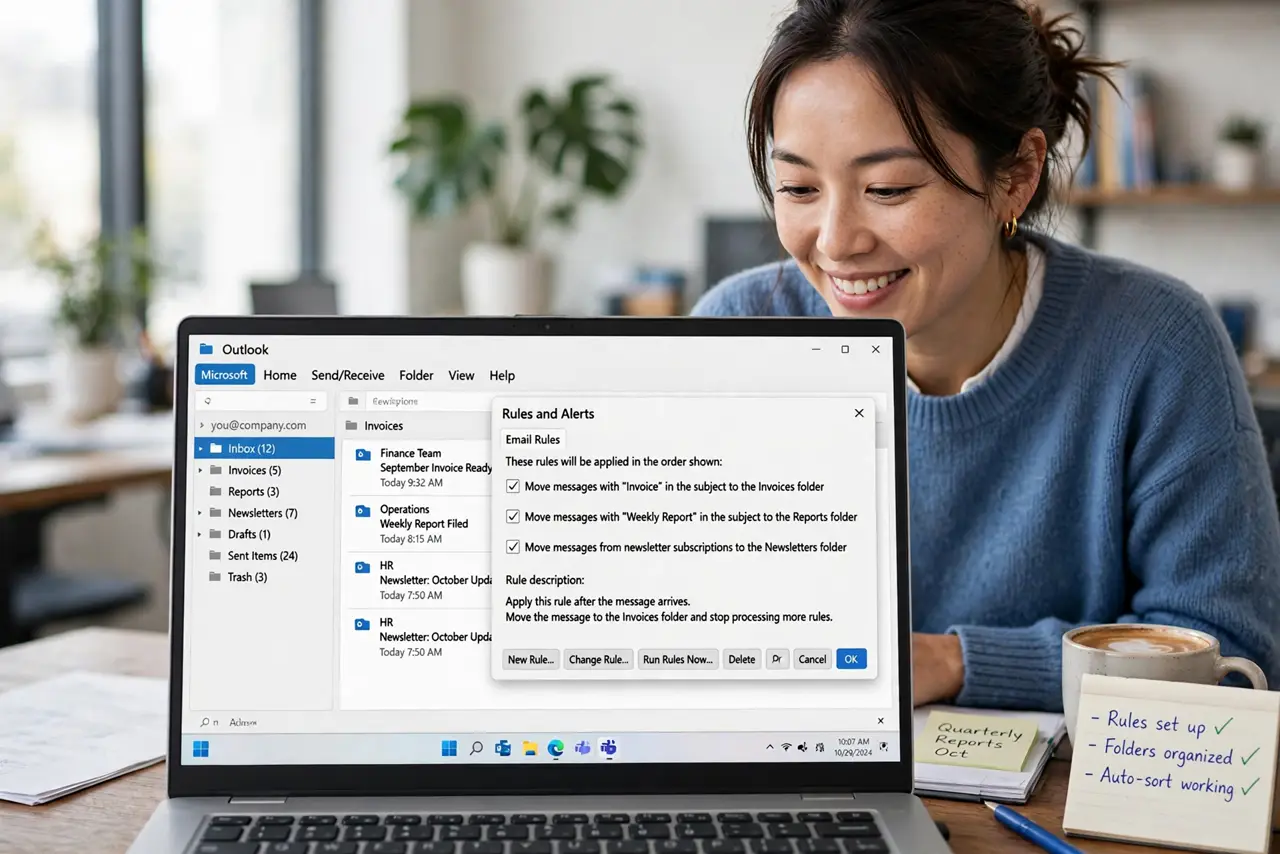
Quick fix: in Outlook, right-click a representative email and choose Rules, then Create Rule. Pick the condition — usually the sender — and the action, like moving to a folder. Start with your three noisiest senders. Rules run on new mail going forward.
Follow these steps
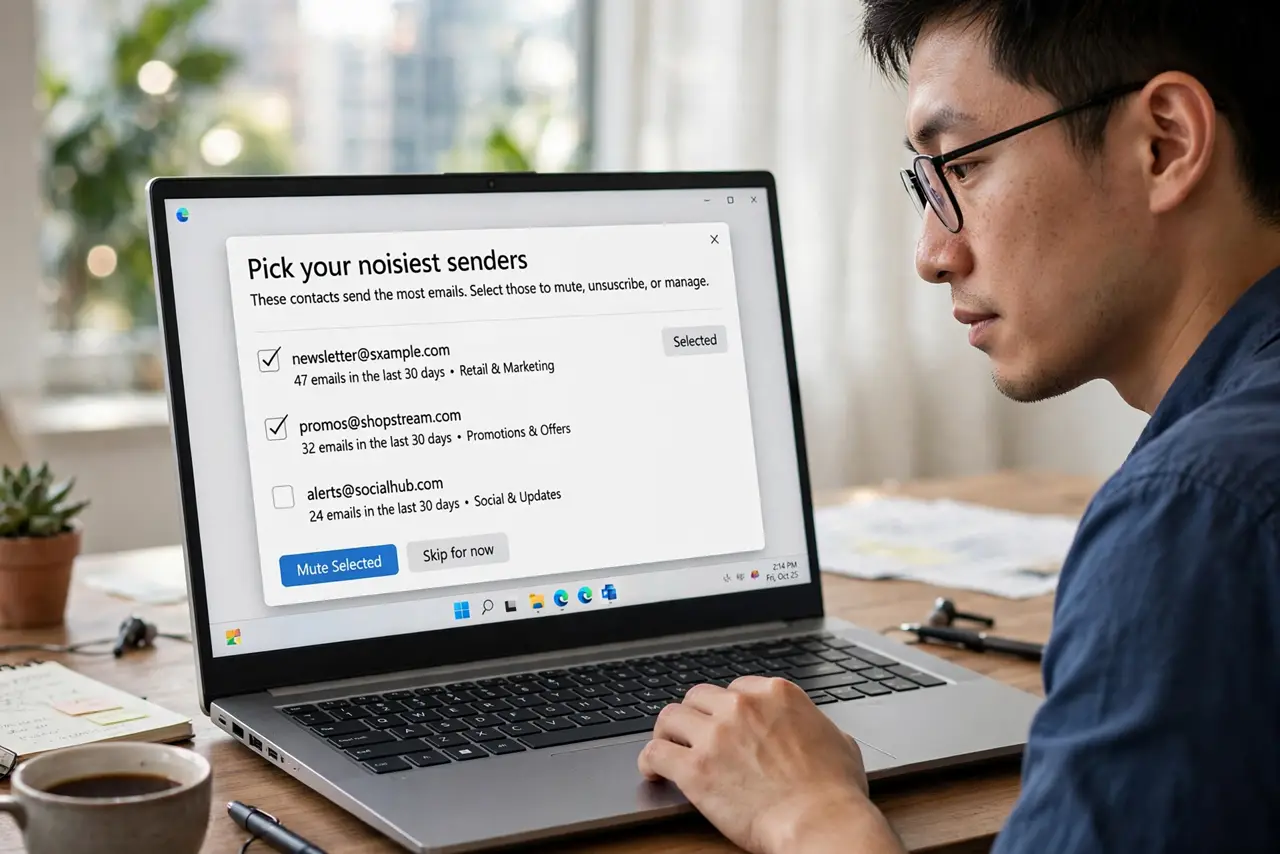
- Pick your noisiest senders. Scan for what clutters most: newsletters, automated notifications, CC'd threads. Open one email from each — these become the examples your rules learn from.
- Create the rule from the email. Right-click the email, choose Rules, then Create Rule. Outlook prefills the sender. Add conditions sparingly — sender alone is usually the stable match.
- Choose move, not delete. Move matching mail to a dedicated folder — Newsletters, Notifications. Deletion rules are dangerous; a typo'd condition silently destroys mail. File, do not destroy.
- Name folders clearly. Create the destination folders first with obvious names. A rule pointing at a vague folder is just automated clutter — 'Newsletters' beats 'Misc 2.'
- Test with the next arrival. After creating the rule, wait for the next email from that sender and confirm it lands in the folder. Misconfigured rules hide mail silently — one verification per rule.
- Review rules yearly. In Outlook settings, open Rules and delete ones for senders you no longer receive. Stale rules are harmless but confusing — a yearly prune keeps the list honest.
What NOT to do
- Do not create delete rules. One wrong condition and real mail vanishes — move and file, never auto-delete.
- Do not build twenty rules on day one. Three good rules, lived with for a week, then expand only where noise remains.
- Do not match on subject keywords alone. Subjects change; sender addresses are stable — match on what does not move.
- Do not forget rules run on new mail only. The existing backlog needs one manual filing session; rules handle the future.
Frequently asked questions
Do rules work in Outlook on the web?
Yes — settings, then Mail, then Rules. Web rules sync to the desktop app when you use a Microsoft 365 account.
Can a rule flag instead of move?
Yes — rules can categorize, flag, mark as read, or forward. Moving to folders is the most common, but flagging suits mail you must see.
Why did my rule stop working?
The sender changed addresses, or the rule order conflicts with another rule. Check the rules list and re-create from a fresh example email.